.png?width=271&height=81&name=Knowledge%20base%20small%20(4).png)
Expense claims move from the Claimant to their Approver once a claim has been submitted. The Approver will then need to review the claim to ensure that it is correct and in policy, and that
all receipts are attached where required.
Once the claim has been reviewed, the claim can be approved, and it then moves to the Accounts
Approver.
If any errors are found in the claim, the Approver can reject part or all of the claim. When doing so, a note of explanation must be included.
Getting Started
- Log into your Cezanne Expenses account
- If you are a Claimant as well as an Approver you will land on your My Claims screen when you first log in
-
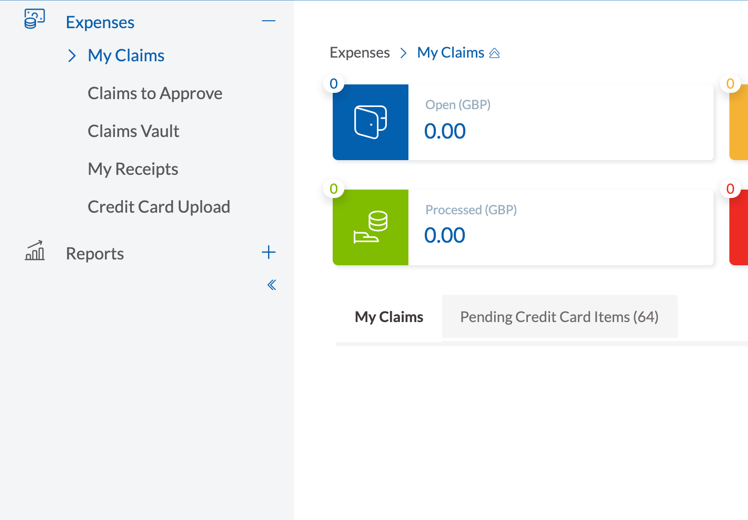
From here, navigate to the menu to the left of the screen and click Expenses. Then click Claims to Approve
-
If you have the Approver role only, when you log in you will land on the Claims to Approve Screen
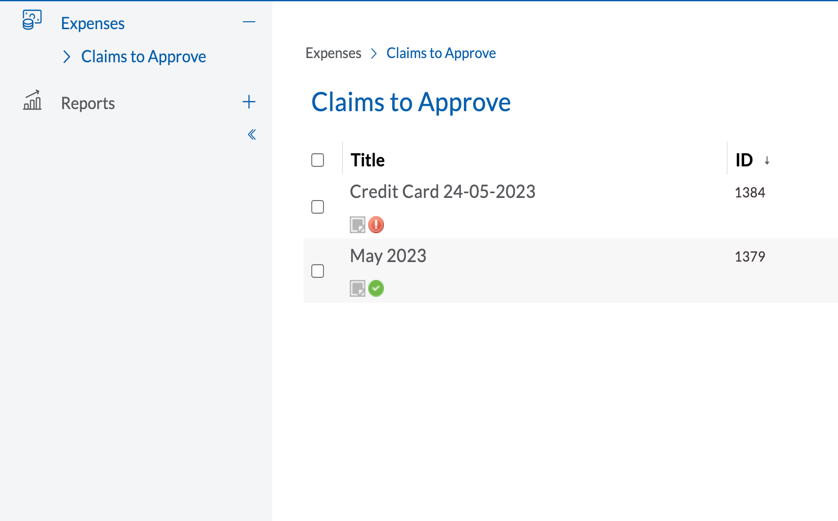
Claims to approve and split items
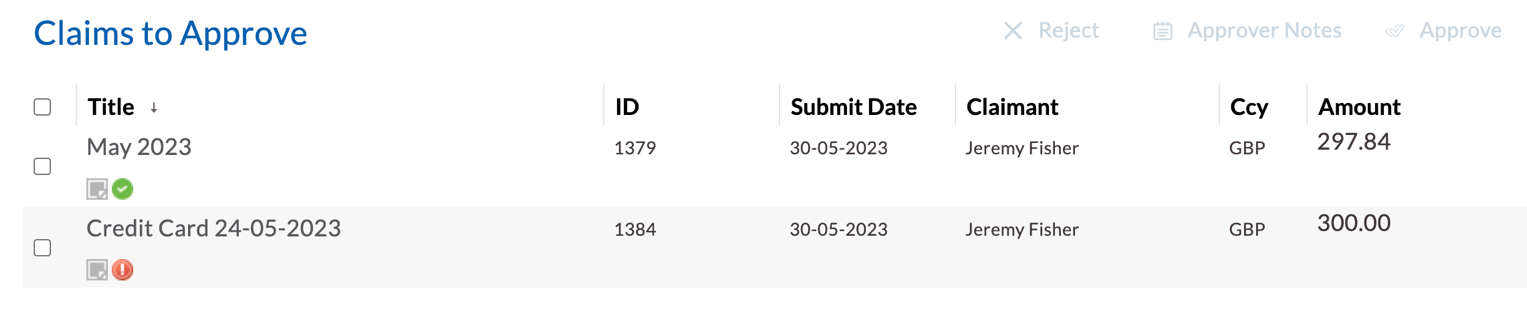
On this screen you will see all claims that have been submitted for approval. You can see the Title of the claim, the Claim ID, the Date that the claim was submitted, the Claimant's name, the Currency of the claim, and then finally the Total amount of the claim. To accesss this screen, click Claims to Approve.
-
To view the individuals line items, click on the Title of the claim. The claim will open, and you will see all the individual items listed.
-
Click on the item to view the detail.
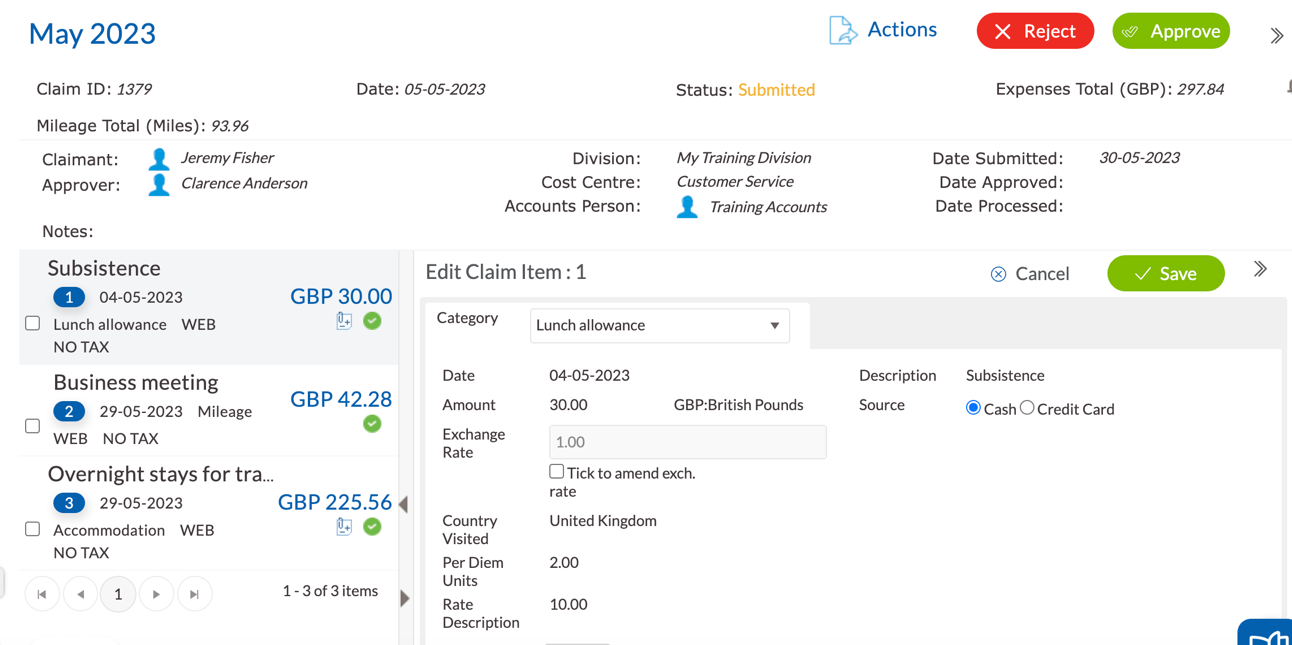
- In the top section of the claim item, we can see all the narrative of the claim, (Approver details, notes etc).
-
If the claim item is for mileage, then click on Route Taken the tab to view a map of the journey that's being claimed for. You can then click on the map for a larger view.
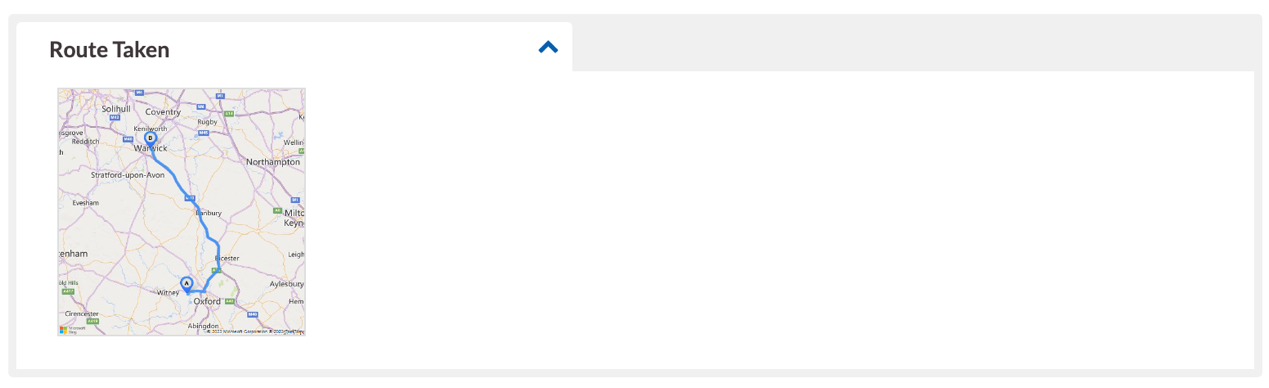
-
Click on the tab labelled Attached Receipts to view an Image of the receipt for the item.
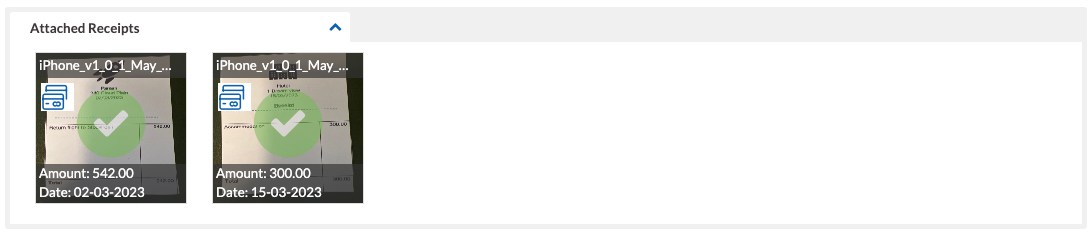
- If you move the mouse cursor over the image, it will enlarge for a better view.
Split Items.
This section can be used to breakdown the total amount of a claim item. As an example, if someone is claiming for a hotel, there may be charges on the one receipt for other items, such as meals, Internet, and phone calls.

The claimant can use the split functionality to show a breakdown of those charges.
Categories such as entertainment or events may require the claimant to add the details of those that attended. When that is the case, a further section called attendees is seen here.
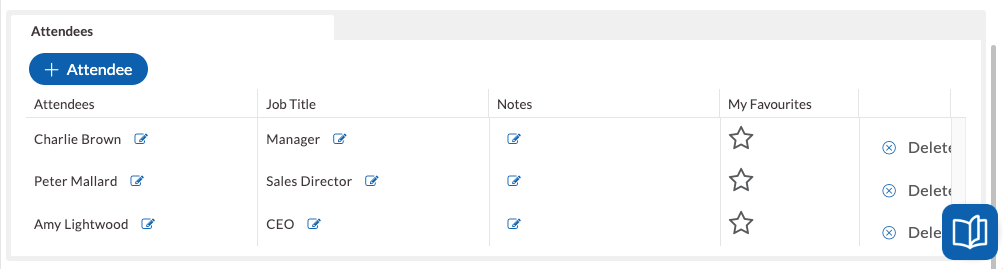
Reviewing the claim from a receipt
An alternative way to review claim items is to click on the receipt icon on the first item. This will open a new window where you can see a larger image of the receipt to the left of the screen and the detail about the claim item to the right.
-
Use the chevrons to move through each item and review.
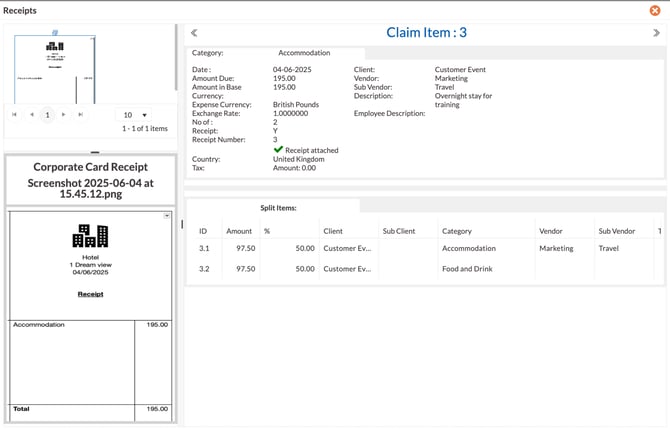
- Click on the orange cross to close the window and return to the claim.
- Once you are happy that everything is correct and within policy, the claim is ready to Approve.
How to approve a claim
-
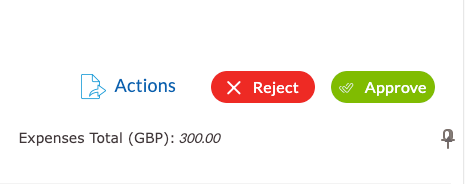
Click Approve at the top right of the screen.
-
Add any notes if required in the field here and then click Approve.
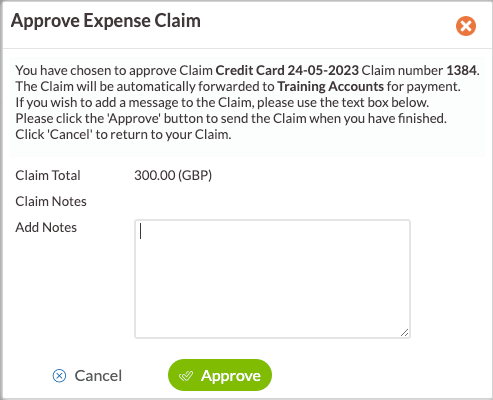
The claimant will be notified by email and via the mobile app that their claim has been Approved and is now with the Accounts Approver to be reviewed and processed. The claim will disappear from the list of Claims to Approve and will be visible in reporting.
You will now be returned to the Claims to Approve list.
How to reject single line items
There will be occasions when items within a claim are incorrect and need amendment by the claimant. When this happens, claim items or the complete claim can be rejected back to the claimant.
- Click on the claim Title to open the claim.
-
Tick the box next to the item or items that need to be rejected.
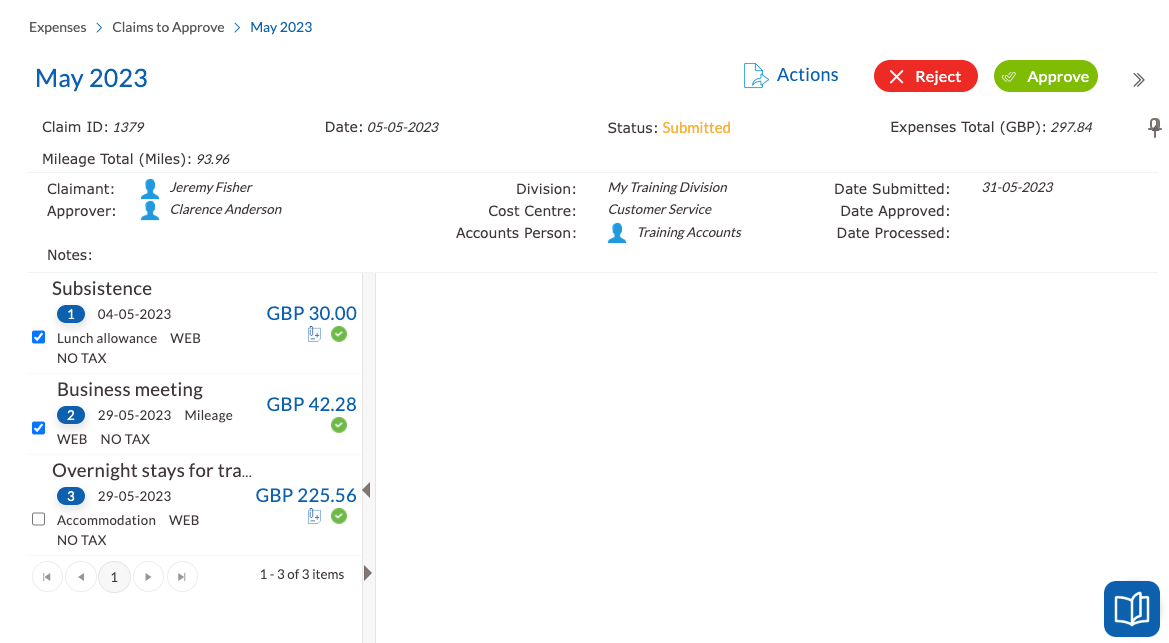
- Now click Reject
-
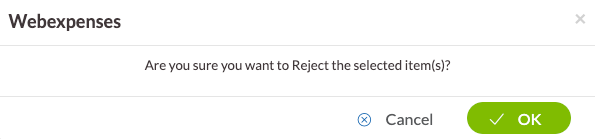
Confirm by clicking OK
-
Add a reason for rejection into the notes box and what action is required
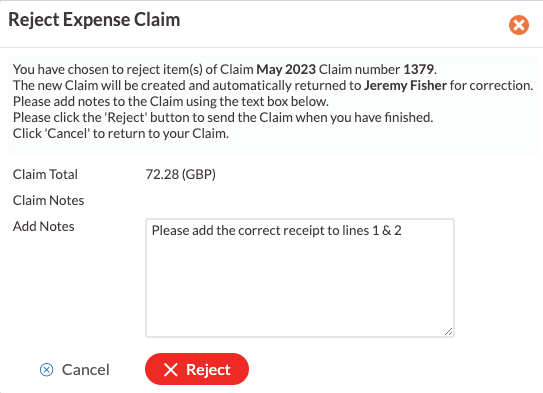
- Click Reject
The claim has now split and rejected the single claim items back to the claimant as one claim. The remainder of the claim can now be Approved.
Keep in mind that claim items or claims can't be rejected without notes being entered.
How to reject a complete claim
- Open the claim by clicking on the claim title
- Click Reject and Add a reason for rejection into the notes box and what action is required
- Finally, click Reject
The claim will be rejected and sent back to the claimant