.png?width=271&height=81&name=Knowledge%20base%20small%20(4).png)
Average Holiday Pay Top Up compares an employee’s contractual hourly rate with their average hourly rate based on qualifying pay history. Where the average hourly rate is higher, Cezanne calculates and pays the difference as an Average Holiday Pay Top-Up.
Before you begin
Ensure:
- Payroll has been configured.
- The required pay codes have been created.
- Historical Pay History has been imported, or future payruns will be used to populate Pay History automatically.
| Jump to section |
| Configuration steps |
| How the 52-Week average is calculated |
| Reviewing the calculated Holiday Pay Top-Up |
| Populate Pay History |
| Importing Pay History |
| Holiday Pay in the Payrun Process |
To use Average Holiday Pay Top-Up, settings must be configured in the following areas:
- Absence Plan Type Payroll Settings
- Payroll Settings - Pay Codes
- Payroll Settings - Pay Code Mappings
- Company Payroll Details Absence Setting
Step 1: Configure the Absence Plan
Go to the Payroll Settings screen for the relevant Absence Plan Type used for Average Holiday Pay Top-Up.
Configure the following settings:
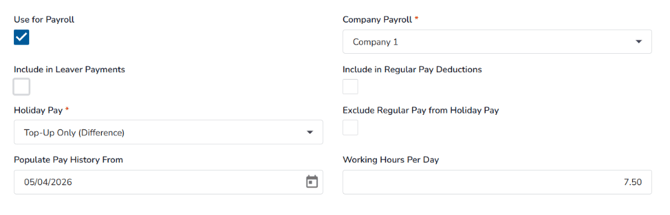
- Select Use for Payroll.
- Select the appropriate Company Payroll.
- Select Include in Leaver Payments if you want a payment to be generated for leavers with unused holiday entitlement. These payments appear in the Leaver Payments tab of the Payroll Summary.
- Select Include in Regular Pay Deductions if you want the employee's regular pay to be reduced by the value of their normal day's pay.
- Leave Exclude Regular Pay from Holiday Pay unchecked. This option is not used for the Average Holiday Pay Top-Up calculation and would prevent regular pay from being included in Pay History.
- Set Holiday Pay to Top-Up Only (Difference).
- Under Populate Pay History From, select the week from which Pay History should begin to be populated. The selected date must:
- be within the current pay period;
- be a Sunday; and
- immediately follow the last week currently populated in Pay History.
- Complete Working Hours Per Day if required. This value is not used in the Average Holiday Pay Top-Up calculation, but a default value must be entered.
📝 Note
Populate Pay History may not always be the current period if you are still being implemented.
Step 2: Company Payrolls - Pay Codes
-
Go to Company Payrolls and open the Pay Codes section
-
Update the relevant pay code
-
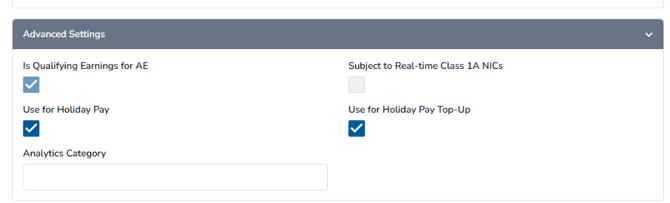
Tick the Use for Holiday Pay Top-Up check box to use it in the Average Holiday Pay Top-Up calculation
Keep in mind
Only pay codes that are subject to both Tax and National Insurance are available for use as Holiday Pay Top-Up pay codes.
Step 3: Configure Pay Code Mappings
-
Go to Company Payrolls and open the Pay Code Mappings section
-
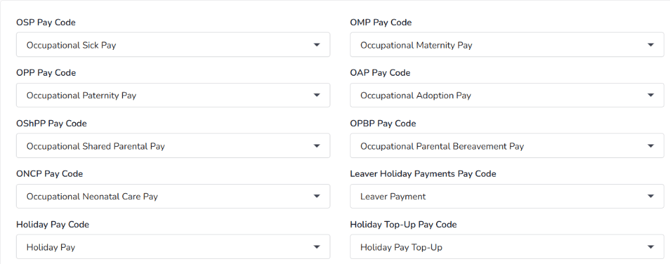
Assign the relevant pay code to the Holiday Top-Up Pay Code field
This pay code will be used when the Average Holiday Pay Top-Up is generated in the payrun.
📝 Note
Pay codes will only be available to select in this dropdown if it's subject to both Tax and NI.
Step 4: Populate Pay History from Payrun
-
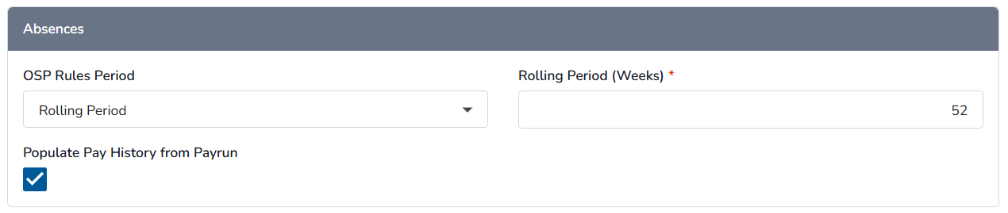
Go to Company Payrolls and open the Company Payroll Details - Absence.
-
Set Populate Pay History from Payrun
How the calculation works
Average Holiday Pay Top-Up uses the employee's Pay History to determine whether additional holiday pay is due.
The calculation:
- Uses the latest 52 paid weeks.
- Considers qualifying weeks within the previous 104 weeks.
- Calculates an average hourly rate using qualifying earnings and hours worked.
- Compares the average hourly rate with the employee's contractual hourly rate.
- Pays only the difference when the average rate is higher.
| Average Hourly Rate Formula |
|
Average Hourly Rate = Total Amount Paid ÷ Total Hours Worked |
Example
An employee has:
- Contractual day rate: £200.00
- Average holiday pay day rate: £207.69
When one day's annual leave is taken, Cezanne Payroll automatically generates a Holiday Pay Top-Up of £7.69.
Review the calculated Holiday Pay Top-Up
Once the payroll period has started and the Payroll Summary Report has been generated:
- Open the Payroll Summary Report
- Navigate to Absences then Average Holiday Payments
- Select the required employee to view the calculation.
If required, you can:
- enable Override Total Holiday Pay,
- enter a replacement value,
- save the override.
When the payrun is processed, Cezanne automatically creates a pay line using either the calculated value or the overridden value. After the payrun has been finalised, the related absence record is automatically marked as paid.
Populate Pay History
Average Holiday Pay calculations rely on the employee's Pay History.
Pay History can be populated by:
- importing historical payroll data using the Pay History import template, then
- automatically creating records from finalised payruns.
Keep in mind
Pay History records created automatically from payruns are generated only after the payrun has been finalised. Previously finalised payruns cannot be backfilled into Pay History.
Process the payrun
When a payrun includes holiday taken by an employee configured for Average Holiday Pay Top-Up, Cezanne automatically creates a payline using the value calculated in the Payroll Summary Report, or the override value if one has been entered.
The payline uses the pay code configured in the Holiday Top-Up Pay Code field in Pay Code Mappings.
After the payrun is finalised, the corresponding holiday entry in the employee's absence record is automatically marked as paid.
Import Pay History
To import historical Pay History:
- Go to System Administration > Imports & Batch > Imports > Payroll > Pay History
- Download the Pay History Import Template
- Complete the template with the required employee, week, payment and hours information
- Import the completed file using the same Pay History import
Imported Pay History rows can be edited or deleted.
Automatically populate Pay History from payruns
If the Absence Plan Type is configured to populate Pay History from payrun data, Pay History rows are automatically created after the payrun has been finalised.
The values are populated from the relevant payrun data, including:
- Week Start / Week End – the Week Start and Payroll Period End dates.
- Amount Paid – the total value of pay lines where the pay code has Use for Holiday Pay selected.
- Amount Paid for Top-Up – the total value of pay lines where the pay code has Use for Holiday Pay Top-Up selected.
- Hours Worked – the worked hours recorded in the employee's Working & Schedule Time record at the pay date.
Pay History rows generated automatically from a finalised payrun cannot be deleted, but the Amount Paid and Hours Worked values can be edited.
Holiday Pay in the Payrun Process
Payroll Summary Report
When the payroll period has started and the Summary Report has been generated, any Average Holiday Pay Top-Up payments can be viewed in the Absences section, under the Average Holiday Payments tab.
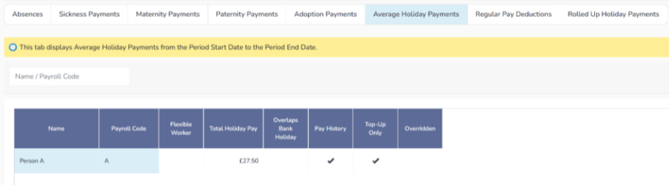
To view the calculation breakdown, select the relevant row. This opens a slide-over showing the holiday pay details.
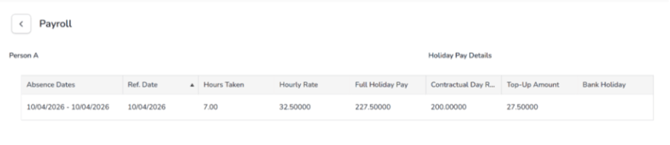
Overriding the Calculated Value
If required, the calculated value can be overridden from the calculation slide-over.
To override the value:
- Tick Override Total Holiday Pay
- Enter the Total Holiday Pay Override Value
- Select Save
Payrun
When a payrun includes holiday taken by an employee configured for Average Holiday Pay Top-Up, Cezanne automatically generates a payline using the value calculated in the Payroll Summary Report, or the override value if one has been entered.
The payline uses the pay code assigned to the Holiday Top-Up Pay Code field in Pay Code Mappings.
.png?width=604&height=250&name=image%20(11).png)
After Finalising the Payrun
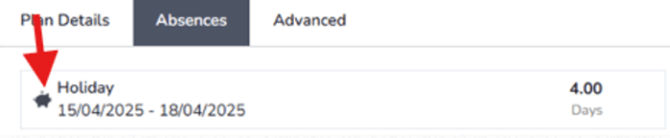
When the payrun containing the calculated holiday payment is finalised, the corresponding holiday entry in the employee’s absence record is automatically marked as paid.
Pay History
The Pay History screen is used to enter and view the employee’s weekly pay history. This history is used by the 52-week Average Holiday Pay calculation.
To access Pay History go to People then Payroll and finally, Pay History.