.png?width=271&height=81&name=Knowledge%20base%20small%20(4).png)
Pre-requisites
An Expenses division cannot contain employees from two Company Payrolls, as Cezanne Expenses cannot distinguish which payroll each transfer belongs to. Each Expenses Division must map to a single company payroll.
💡Tip
Should you wish for the Expenses integration to be activated in your Expenses system, please contact Support.
Mileage at Setup
Year-to-date mileage
It is recommended to manage mileage fully through Cezanne Expenses. Year-to-date mileage can be uploaded via the Expense Users import, which you may have used during your initial Implementation for items including Offset Mileage.
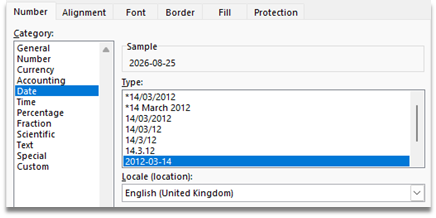
Ensure your Date formatting is as below:
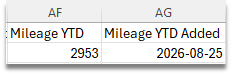
Your TYD columns should then appear as below:
We recommend getting our Support team to validate your import before uploading.
📝 Note
Once you have uploaded your year-to-date mileage, the mileage screen in Cezanne should be switched off to prevent duplicate entry.
How to transfer Claims from Expenses
Approved claims are sent to Cezanne Payroll by a user with the Accounts Approver role. There will be an Accounts Approver set up for each Division to be able to complete the transfer.
- Use Proxy to access the user account for the Accounts Approver within the Division required
- Click Integration Transfer, then Accounts Transfer
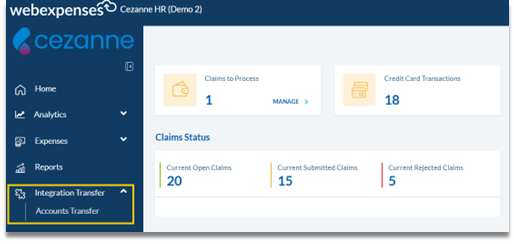
- Ensure the Integration drop-down shows Cezanne HR Connection and that the Transfer Status is Not Transferred
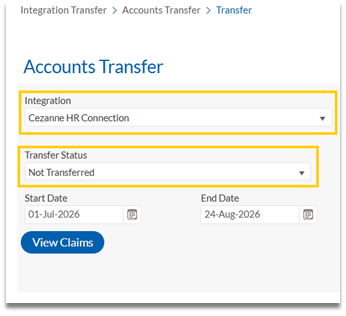
- Enter the Start and End dates for the period you want to pay
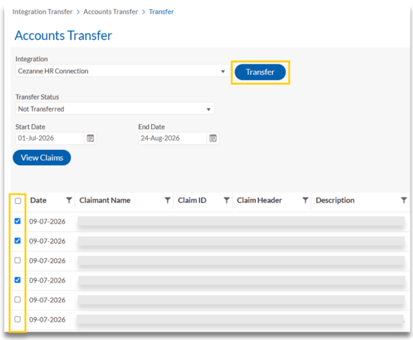
- Click View Claims
- Select all claims, or tick individual lines
- Click Transfer
Visibility in Payroll
The selected claims are transferred to Cezanne HR Payroll, where they are created as additions ready for the next payrun.
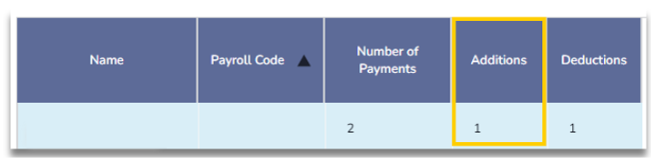
The date of the addition is the date you sent the claims from Cezanne Expenses.
The Payments tab in payroll picks up all payments from the Previous Period Start Date to the Period End Date that have not been paid.
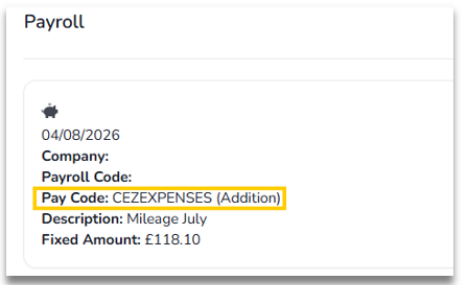
How Claims map to Payroll additions
All personal-spend expenses that are transferred through the integration appear using the code CEZEXPENSES.
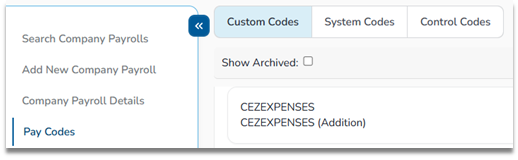
Each addition’s PayLine Description is set to the Claim Header of the expense claim, so the line shows which expense claim it relates to.
How to view transferred claims
To confirm what has already been sent:
- Click Integration Transfer, then Accounts Transfer
- Ensure the Integration drop-down shows Cezanne HR Connection
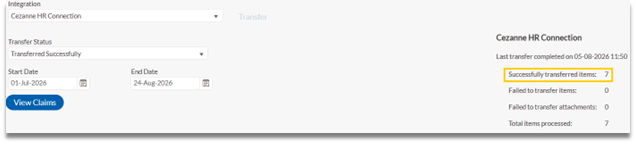
- Set the Transfer Status to Transferred Successfully
- Enter the Start and End dates for the period you want to view
- Click View Claims
The screen lists the transferred claims, along with totals for successfully transferred items, failed items and total items processed.