
Take Note 📝
This feature is only available to clients who have purchased Cezanne's Insights module.
The compare feature allows you to analyse information side by side, making it easier to identify similarities and differences without moving between multiple screens.
Before you start
You need permission to access Compare.
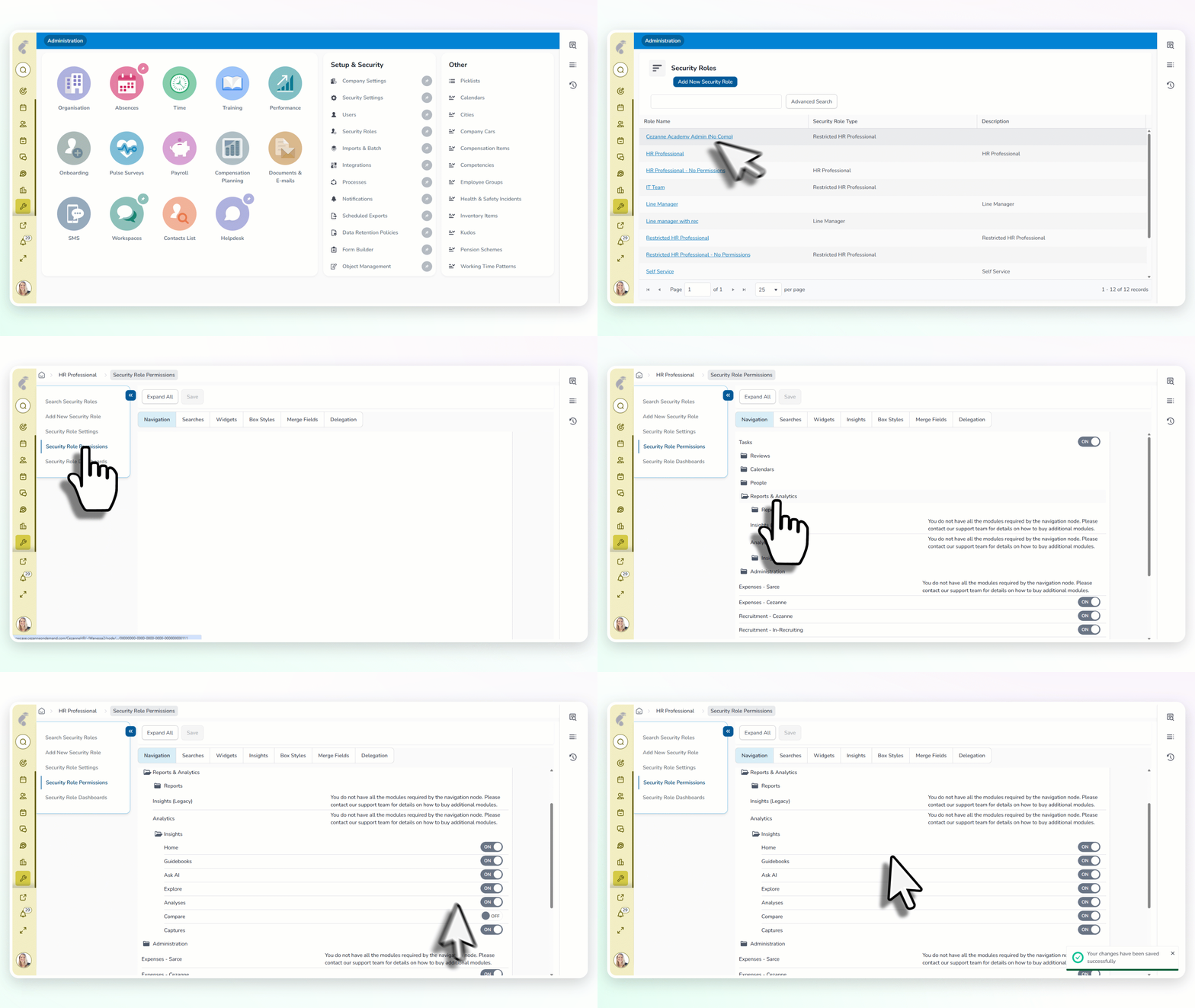
If you cannot see the Compare area:
- Go to Administration > Security Roles.
- Open the relevant security role, for example HR Professional.
- Go to Security Role Permissions.
- In Navigation, open Reports & Analytics > Insights.
- Make sure Compare is switched ON.
- Log out of Cezanne and log back in for the change to take effect
Create a comparison
To create a comparison:
- Go to Reports & Analytics > Insights > Compare.
- Search for and select the information you want to use as your starting point. For example, you could select an employee.
- The selected information is displayed within the comparison area.
- Select Add Comparison to add another employee, deployment or other information you want to compare.
- Continue adding comparisons as required.
- Review the information side by side in the comparison grid.
- Where useful, pin a comparison to keep it as your main comparison point while you explore the other information.
Using Compare
Compare can be used to explore different types of information depending on what you want to analyse.
For example, you could use it to:
- Compare employees in similar roles, such as when reviewing compensation
- Compare departments or other organisational units
- Compare different companies within your organisation
- Review information such as time off balances across different groups
- Explore how an individual employee compares with a wider group sharing similar characteristics