.png?width=271&height=81&name=Knowledge%20base%20small%20(4).png)
Before you start
- You will need a welcome email inviting you to complete your Help Centre registration.
- The email address used for your account will be your username.
- Create a secure password using the link in the welcome email.
In this guide you'll learn how to:
- Set up your Help Centre password from the welcome email.
- Search and browse help articles.
- Ask Cezanne AI a question.
- Raise and track a support ticket.
- Get help if you cannot sign in.
📝Note
The registration link in the welcome email is unique to you. Do not share or reuse another person’s link.
Complete your registration
-
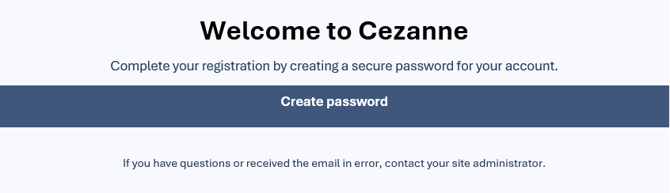
Open the welcome email
Look for an email headed “Welcome to Cezanne”. The email will come from noreply@cezannehr.com.
-
Create your password
Select Create password, or copy and paste the registration link from the email into your browser.
-
Sign in
Use your email address as your username and enter the password you created.
📝Note
The example above shows the key parts of the welcome email. Your registration link will be personal to your account.
Open the Help Centre and find an article
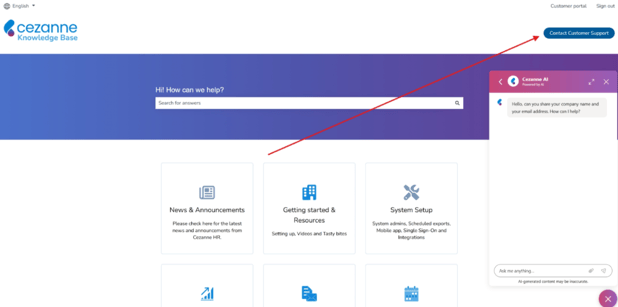
After signing in, the Help Centre gives you access to articles, Cezanne AI and Customer Support.- Go to the Cezanne Help Centre
- Enter a word or question in the search bar
- Choose the most relevant article from the results
You can also browse by area, such as System Setup, Reporting & Data, Core HR: People, HR Modules, Payroll or Cezanne Recruitment.
Ask Cezanne AI
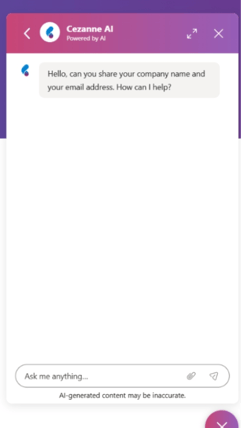
Use Cezanne AI for quick guidance before raising a ticket. The AI assistant is available from the bottom-left chat icon on the Help Centre. When open, the panel appears on the side of the page.
- Open Cezanne AI
- Enter your company name and email address when prompted
- Describe the question or issue clearly. Include the area of Cezanne you are using and what you are trying to do
- Review the suggested answer or article
💡Tip
Avoid including sensitive employee information in the chat. Describe the issue without adding personal data unless Support asks for specific information through the secure ticket process.
 Raise a support ticket
If the help articles or Cezanne AI do not resolve the issue, raise a ticket with Customer Support.
-
Select Contact Customer Support
The button is shown at the top-right of the Help Centre.
-
Enter the ticket details
Explain what you are trying to do, what happened, and any troubleshooting already completed.
-
Add useful evidence
Include the exact error message and relevant screenshots. Remove or hide sensitive personal information where possible.
-
Submit the ticket
After submitting, use the Customer portal link at the top of the Help Centre to view and track your tickets.
What to include in your ticket
| Include | Example |
| A clear summary | “A scheduled report is not being delivered.” |
| What you expected | “The report should be emailed every Monday.” |
| What happened | “No email arrived and the export history shows an error.” |
| Evidence | “The exact error text and a screenshot with personal data hidden.” |
| Impact | “Who is affected and whether the work is blocked.” |
If you do not have access
- Open Cezanne AI from the Help Centre and ask to be transferred to Support. Support can help arrange access.
- Alternatively, ask an HR administrator in your organisation who already has Help Centre access to request access for you.
- Use the same routes if you completed the welcome email setup but are still unable to sign in.
💡Tip
When asking for help Provide your company name, your work email address and a short description of the access problem. Do not send your password.
Quick access checklist
☑️I have received the welcome email.
☑️I have created my password.
☑️I can sign in to the Help Centre.
☑️I know how to search for articles.
☑️I know how to use Cezanne AI.
☑️I know how to raise and track a support ticket.