.png?width=271&height=81&name=Knowledge%20base%20small%20(4).png)
Understanding how the Time Module works with the Payroll Module helps ensure employees are paid accurately and efficiently. Approved time data, such as hours worked and overtime, can be transferred into payroll, reducing manual data entry and errors.
This article explains how the modules work together and the key considerations for configuring the integration.
Before you start
For timesheet data to pull into Payroll, the relevant configuration must be completed across the Time Module, Payroll Module and Payroll Schedule.
The main areas that work together are:
How the configuration works together
For timesheet data to successfully transfer into Payroll:
Project
Linked to the correct Company Payroll
⬇️
Project Activity
Has a Pay Code selected
⬇️
Pay Code
Is configured for Fixed Amount and Hours
⬇️
Activity Rate
Configured where required, depending on the Pay Code setup
⬇️
Payroll Schedule
Configured to import the relevant timesheet data
⬇️
Payroll
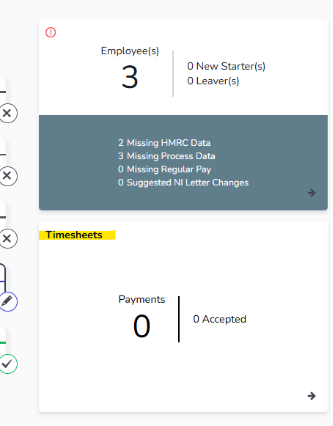
Timesheet information is available for processing
1. Configure Time Types
Time Types are used to categorise the time employees record on their timesheets.
Some Time Types can be configured as a checkbox. When employees select a checkbox Time Type, they do not enter a number of hours. Instead, they select the checkbox to confirm they completed that activity.
For example, an employee may select Worked On Call.
Checkbox Time Types are treated as a daily rate, rather than a multiple of the Activity Rate.
2. Link Projects to a Company Payroll
Each Project must be linked to the relevant Company Payroll.
If your organisation has multiple Company Payrolls, you will need to create separate Projects for each payroll that needs to receive timesheet data.
3. Configure Project Activities
Project Activities contain the main settings that determine how timesheet data is sent to Payroll.
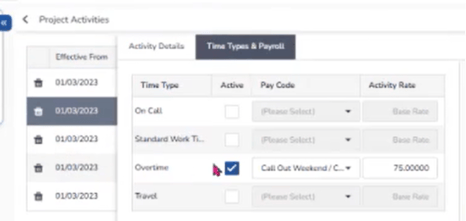
Navigate to the relevant Project Activity and select the Time Types & Payroll tab.
From here, you can:
- Make the activity Active.
- Select the relevant Pay Code.
- Configure any Activity Rates required for that activity.
⚠️ Important
A Project Activity will not pull into Payroll if a Pay Code has not been selected.
Activity Rates
An Activity Rate can be left blank if the selected Pay Code is configured to pay as a multiple of the employee's hourly rate.
If the Pay Code does not use a multiplier, enter the rate to be paid for the activity in the Activity Rate field instead.
4. Configure Pay Codes for Timesheets
The Pay Code selected against the Project Activity must be configured to work with Timesheets.
Timesheet Pay Codes must be set up using:
- Fixed Amount
- Hours
This enables the Timesheet details to be available during payroll processing.
Some organisations add T or TS to the beginning of the Pay Code name to make it clear that the code is used for Timesheets rather than standard payroll processing.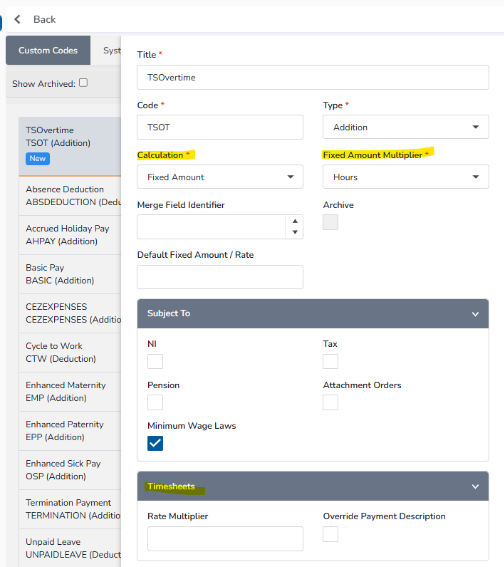
Payment description
The Override Payment Description determines what is displayed on the employee's payslip.
If this field is left blank, the payment will display as Timesheet Payment.
5. Configure the Payroll Schedule
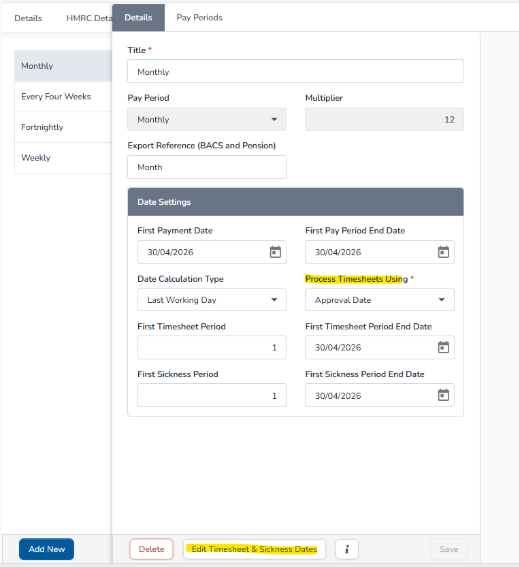
Timesheet dates must also be configured in the relevant Payroll Schedule.
How to configure the Payroll schedule:
- Navigate to Payroll then Company Payrolls
- Select Company
- Go to Company Payroll Details then Pay Schedules
- Select Edit Sickness Timesheet before making any changes
⚠️ Important
Do not change the dates without first selecting Edit Sickness Timesheet.
You can then:
- Set the timesheet dates to be used during payroll processing.
- Choose whether Payroll uses the Approval Date or Timesheet Date.
Once configured, the relevant timesheet data can pull through to the Payroll screen ready for processing and approval.