.png?width=271&height=81&name=Knowledge%20base%20small%20(4).png)
⚠️ Keep in mind
Only an HR Administrator can carry out this action.
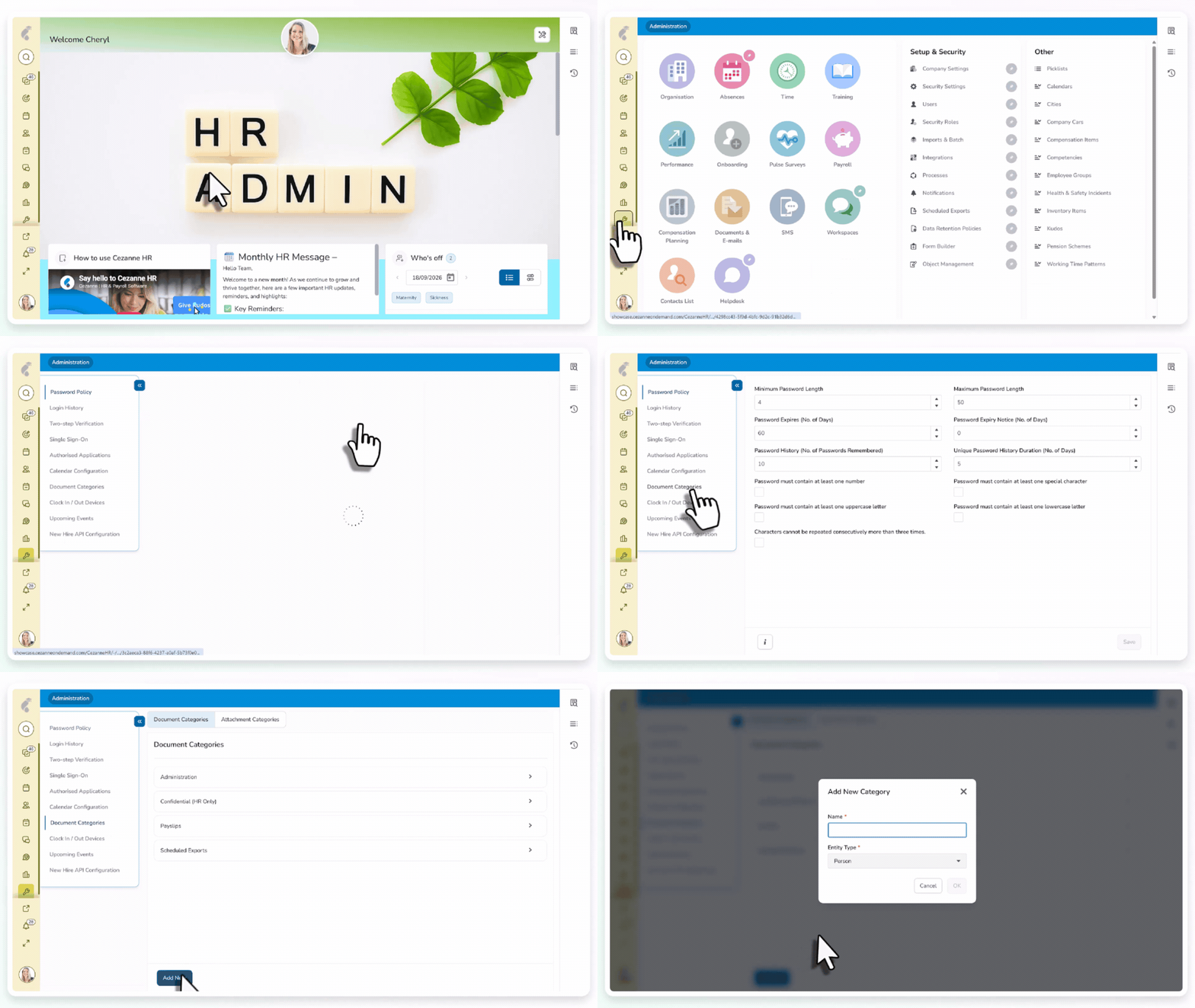
Step 1: Navigate to Document Categories
- Click into Administration
- Go to setup and security and select Security settings
- Click into document categories
Step 2: Add New Categories
- Select Add New and name your category
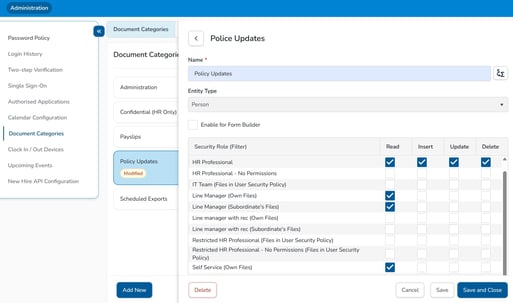
- If you would like this category to be linked to attachments in a form, select the ‘Enable for Form Builder’ box
- Finally decide which security roles can Read, Insert, Update and Delete documents from this category. You will see options for line managers relating to their own documents (own files) and those they manage (Subordinate’s files)
Read
View existing documents, but can’t change them
Insert
Create or add a new document
Update
Edit documents that already exist
Delete
Remove an existing document
- If you need to delete a category click into it and press the Delete button. If this category has files attached to it a warning message will appear asking you to delete the items in the category first.
📝Note
For most categories only HR administrators would have insert, update and delete checked with self service/line managers only being able to read documents.