.png?width=271&height=81&name=Knowledge%20base%20small%20(4).png)
Before you start
- FPS reporting. Cezanne Payroll reports the Contractual Pay Date on the FPS, in line with HMRC guidance on early payments. Changing the pay date doesn't affect what's reported to HMRC.
- Change the date before payments are at risk. You can change the pay date up to the day you pay. In practice, change it before you submit the BACS file, so payments aren't delayed.
- BACS lead time. An earlier pay date brings forward your BACS submission deadline, usually 3 working days before payment.
- Pensions. Check whether your pension provider's due dates or exports are affected.
You can change the pay date for a single pay period, for example, to pay earlier before a bank holiday. As finalised pay periods are locked, re-save the pay schedule’s timesheet and sickness dates to unlock them for editing.
Only the payment date changes. The Contractual Pay Date remains the date employees are entitled to be paid. For example, if this falls on 25 December, you can pay on an earlier working day while keeping 25 December as the contractual date.
Step 1: Note the current timesheet and sickness values
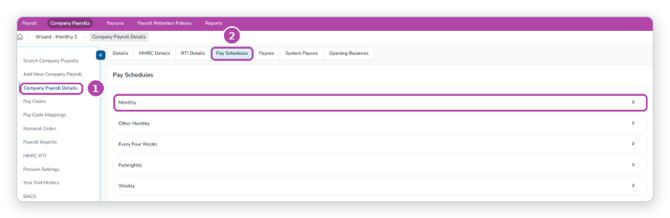
- Go to Company Payrolls then Company Payroll Details
- Open the Pay Schedules tab and select the pay schedule you want to change (e.g Monthly)
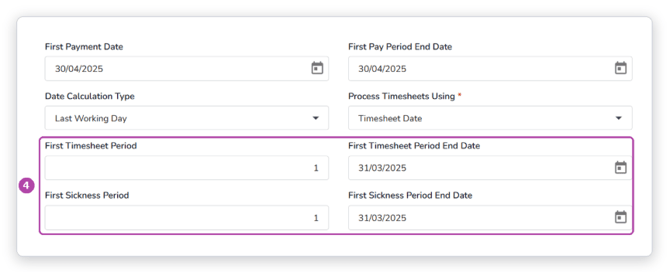
- On the Details tab, find the Date Settings section
- Note these four values exactly as shown:
- First Timesheet Period
- First Timesheet Period End Date
- First Sickness Period
- First Sickness Period End Date
📝 Note
You need the above in Step 2 because the edit window opens blank.
Step 2: Re-enter the timesheet and sickness values
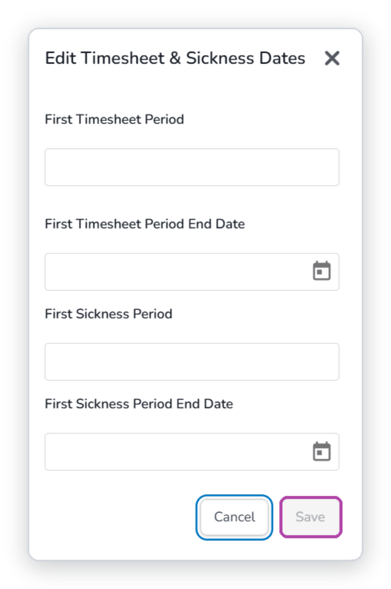
- At the bottom of the Details tab, select Edit Timesheet & Sickness Dates
- Enter the four values you noted in Step 1 (Use the same values; don't change them)
- Select Save
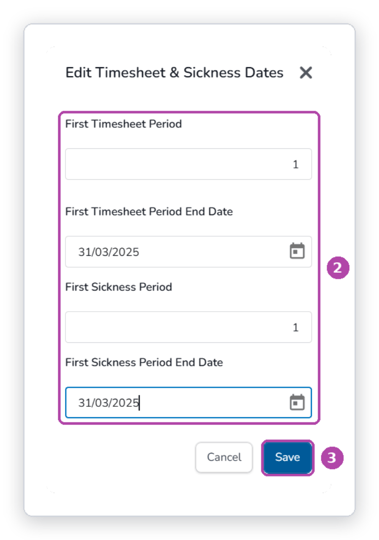
This unlocks the pay periods so you can edit them.
⚠️ Keep in mind
Entering different values changes which timesheet and sickness period is processed in each pay period. Only re-enter the existing values unless you intend to change them.
Step 3: Change the pay date
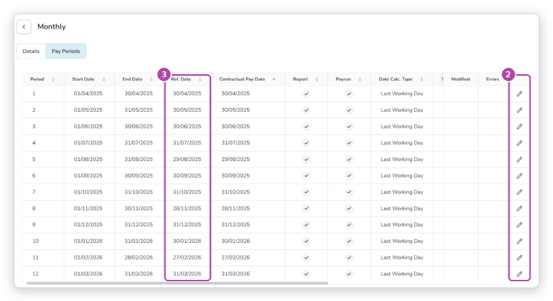
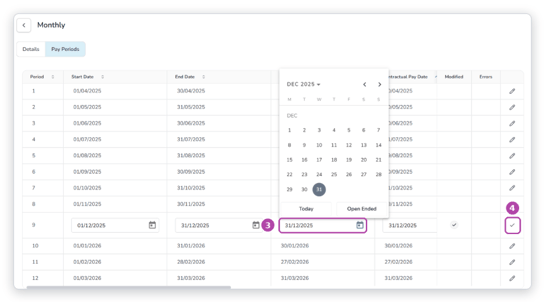
- Open the Pay Periods tab
- Select the pencil icon on the period you want to change
- Change the Ref. Date to the new pay date. Don't change the Contractual Pay Date
- Select the tick at the end of the row. A tick appears in Modified
- Repeat for any other periods, then select Save
- Check the Errors column and resolve anything shown
 Step 4: Finalise the pay periods
- On the Pay Periods tab, select Finalise Pay Periods
- In the confirmation message, select Yes
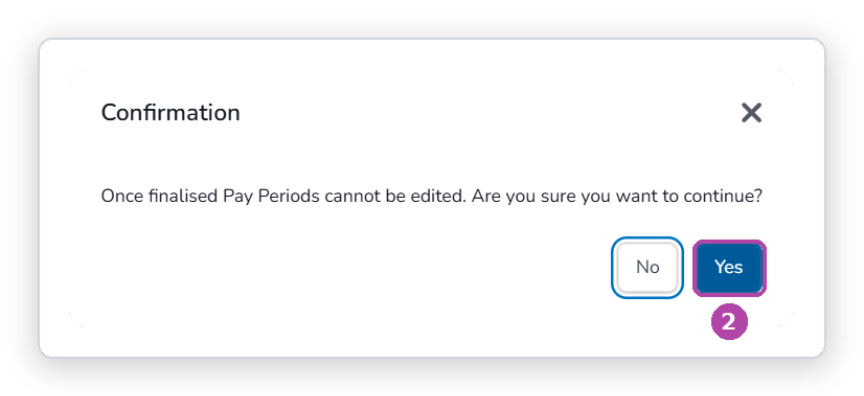
The pay periods are locked again. The new pay date applies to payruns created after this change. If the payrun for that period already exists, rework it to pick up the new date.
Troubleshooting
The pencil icon doesn't let me edit the period.
The pay periods are still finalised. Repeat Step 2 and make sure you selected Save in the edit window.
The Save button in Edit Timesheet & Sickness Dates is greyed out.
All four fields must be completed. Enter the values from the Details tab.
I need to change the date again.
Repeat Steps 1 to 4. If the payrun already exists, rework it afterwards.