.png?width=271&height=81&name=Knowledge%20base%20small%20(4).png)
Searches are used across Cezanne to help you locate records, review data, and create report-style views. This article uses examples that are most relevant to the People module, but the same principles apply across other areas of Cezanne where searches are available.
💡Tip
There is an e-learning course live within Cezanne’s academy that covers the searches within the People module. If you have not got access to the Academy yet, either reach out to your CSM or raise a support ticket to help.
Before you start
Think about what you want the search to show. This will help you choose the right filters and columns.
For example, you may want to create a search that shows:
- all current employees
- employees who started within a specific date range
- people in a particular department, location, or org unit
- employees with missing information
- records that need checking or updating
You will also need access to the relevant area of Cezanne and permission to view the data you want to include.
Steps to follow
- Step 1: Open the search area and choose a relevant search
- Step 2: Add filters
- Step 3: Choose the columns
- Step 4: Review and save the search
We've also added a section of things to keep in mind when creating searches as well as troubleshooting tips.
Step 1: Open the search area and choose a relevant search
-
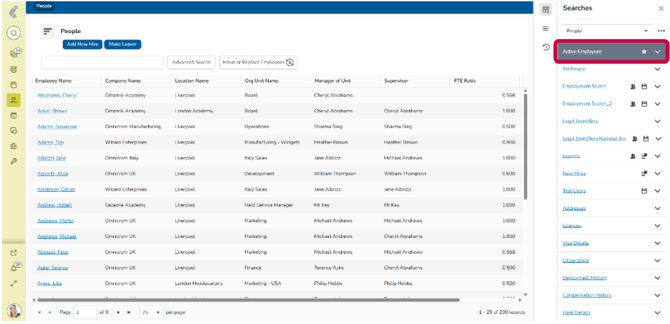
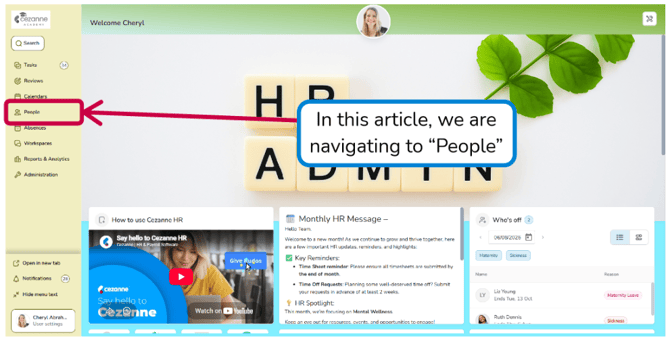
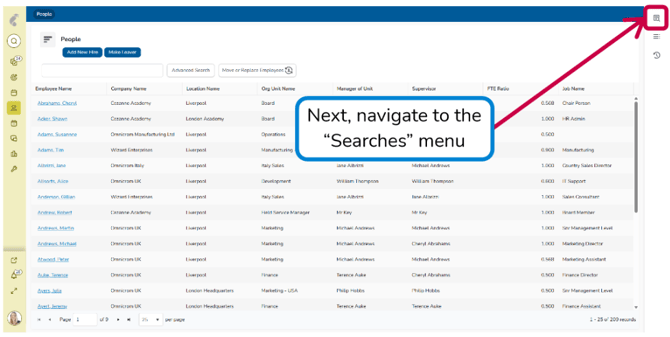
Go to any area of Cezanne and click on the Searches menu (we recommend going into the module that you want to search within)
- Click on one of the visible searches or click on “…” to find more hidden searches
Step 2: Add filters
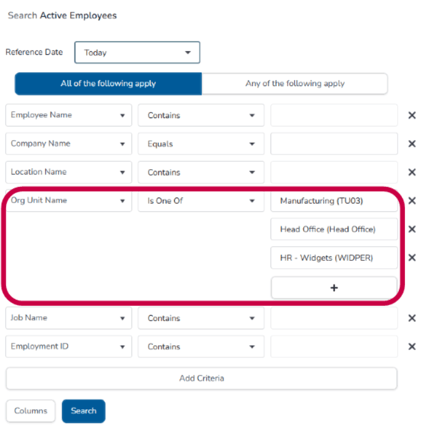
- Choose the field you want to filter by in the filters area at the top of the search setup
- Select the condition that explains how the filter should work (e.g equals, contains, is blank, before, after, or between)
- Enter or select the value the search should use
- Add more criteria (filters) if needed
💡Tips for using Filters
-
Filters control which records appear in your search results. They help narrow the search, so you only see the records that are relevant to the task.
For example, in a People search you could filter by employment status, start date, leaving date, department, location, organisation unit, manager, job title, or employee type.
-
Try to keep your filters focused. Adding too many filters can make the search too narrow and may hide records you expected to see.
Step 3: Choose your columns
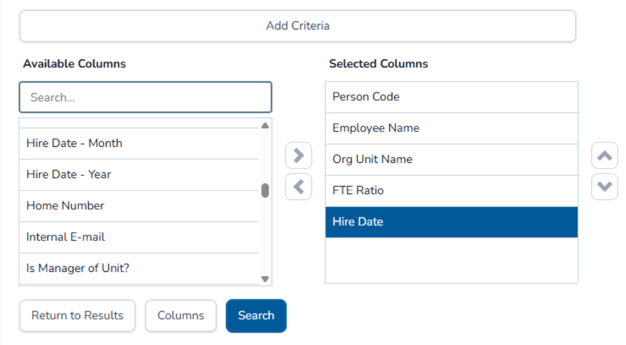
- Go to the columns area below the filters
- Choose the fields you want to display in the search results
- Add the columns to give you back any information that you require out of this report
- Arrange the columns in a logical order
-
Remove any columns that are not needed for the purpose of the search
💡Tips for using Columns
-
Columns control the information that appears in the search results. Filters decide which records are included, but columns decide what information you can see about those records.
For example, a People search may include columns such as employee name, person code, job title, department, location, manager, start date, employment status, or leaving date.
-
When choosing columns, think about what the user needs to understand or action from the search results. Avoid adding too many columns, as this can make the search difficult to read.
Step 4: Review and save the search
- Click Search
- Check that the results match what you expected
- Click New Search to alter the filters and columns if the data looks incorrect
- Save or export/schedule exports of this search
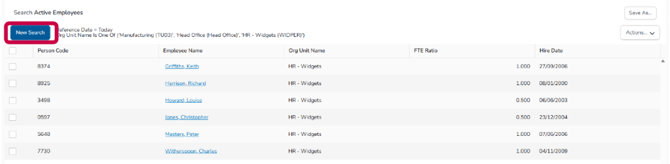
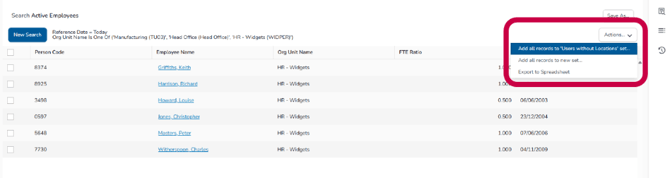
Once saved, the search can be used to quickly return the same type of information again. Depending on your permissions and setup, it may also be available to other users or used as the basis for reporting.
💡Tip
If the search will be used by other people, use a clear naming convention and avoid abbreviations that may not be obvious to everyone. If the information you need changes over time, review the search periodically to make sure the filters and columns are still relevant.
Keep in mind
Keep the following points in mind when creating searches:
- The fields you can filter by or add as columns may depend on the area of Cezanne you are searching in.
- Your security role and permissions control which records and fields you can see.
- A search is only useful if both the filters and columns are set correctly.
- Filters answer, “which records should appear?”
- Columns answer, “what information should I see about those records?”
- If a search is not returning the expected results, review the filters first, then check the columns.
- For People searches, take care when including sensitive personal information and only include columns that are needed for the purpose of the search.
Troubleshooting tips
If your search is not showing the results you expected, use the checks below to help identify what may need to be changed.
| Issue | What to check |
| No records are showing | Check whether one or more filters are too restrictive. Remove filters one at a time to see which filter is stopping records from appearing. |
| Too many records are showing | Add another filter to narrow the results, such as employment status, department, location, or date range. |
| The results look incorrect | Review the filter conditions carefully. For example, check whether the filter should use equals, contains, is blank, before, after, or between. |
| A field is not available as a filter or column | Check that you are creating the search in the correct area of Cezanne and that your security permissions allow you to view that field. |
| The search results are hard to read | Remove unnecessary columns and place the most useful columns first, such as employee name, department, manager, and status. |
💡Tip
As a general rule, troubleshoot the filters first, then review the columns. Filters affect which records appear, while columns affect what information is displayed about those records.