
What are Groups?
Groups are dynamic collections of users based on criteria you define. You can create Groups using user information, such as role, location or team, as well as learning behaviour, such as content completion.
Group membership updates when users meet or no longer meet the criteria, allowing you to create audiences without manually maintaining the list of users.
Once you've created a Group, you can use it when:
- assigning Tasks;
- issuing Surveys;
- enrolling users onto Events;
- controlling content visibility; and
- filtering reports.
Steps to follow
Step 1: Create a new group
- Click on “Add new” at the top of your screen
- Under the “People” section, click on “Group”
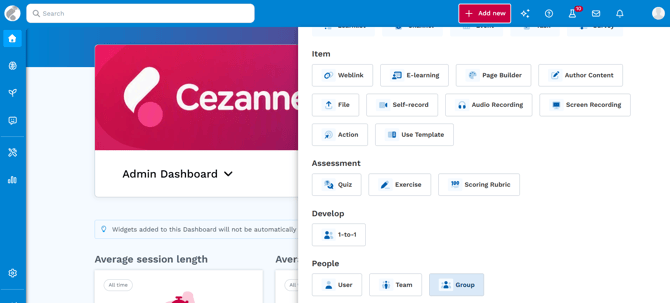
Step 2: Name the Group and choose a refresh frequency
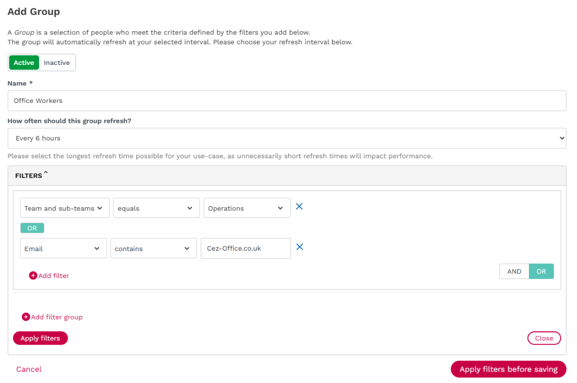
- Enter a clear, descriptive name for your Group
- Select the refresh frequency
Step 3: Apply group filters
- Click Add filter group to start building your criteria
- Select the filter type (user property or behavioural)
- Configure the filter conditions
- Add further criteria where needed, using AND and OR to control how the conditions work together.
Step 4: Preview your filters
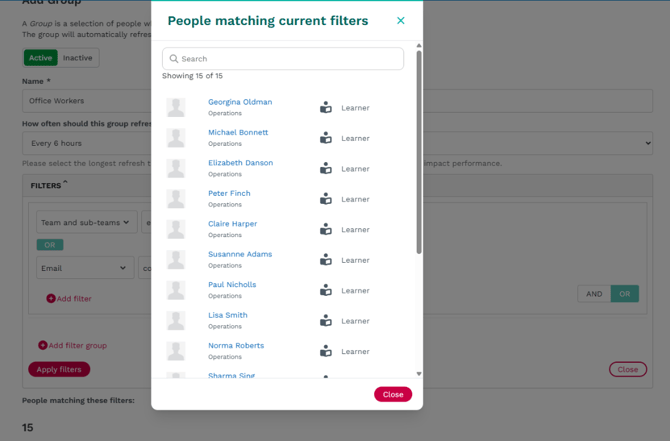
- Click Apply filters to see how many users currently match your criteria
- Select Show matching people if you want to review the users included.
- Click Save to create the Group
You'll see a confirmation message once the Group is created.
💡Tip
You can also create Groups from Manage > People > Groups. Select Actions > Add Group, then follow the same process to configure the Group.
What is the difference between a group and a team?
Teams are used to organise users within Cezanne Learning and will typically reflect areas of your organisation, such as departments, roles or locations.
Groups use defined criteria to dynamically identify users. Membership can therefore change automatically as users meet or no longer meet those criteria.
Example: You might have a permanent Sales Team, but create a Group that dynamically identifies Sales users who have completed, or have not completed, particular learning content.