
How to create a Learnlist in Cezanne Learning
Learn what Learnlists are and how to create and configure them in Cezanne Learning.
Before you start
Ensure that you have pre-created all items that you want to add to your new Learnlist.
What are Learnlists?
Learnlists are focused collections of learning content that can be used to guide learners through a structured sequence. They can contain different types of learning content and can also be added within Channels to organise content into smaller, logical groups.
Steps to follow
Step 1: Add a new Learnlist
From the top bar in Cezanne Learning, select Add new then select Learnlist.
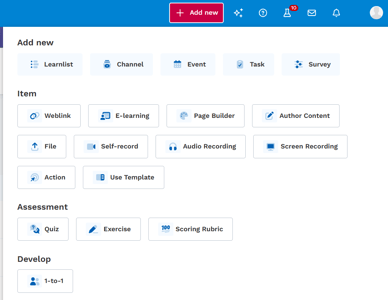
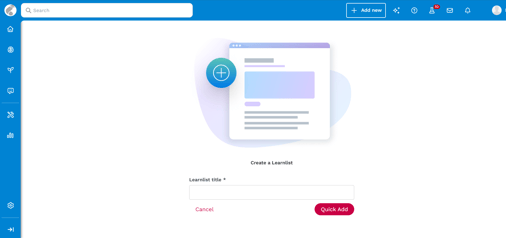
Step 2: Name your Learnlist
The title should clearly communicate the purpose of the Learnlist.
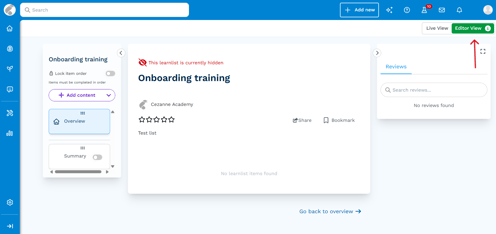
Step 3: Open Editor View
Select Editor View to start adding content to your Learnlist.
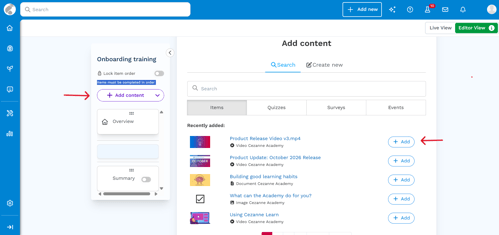
Step 4: Add content
- Click on “Add Content”, then add in relevant items, quizzes, surveys or events to this Learnlist and press done when all content has been added in
Step 5: Configure Learnlist Settings
- At the top right of the Learnlist, click on the “…” and then “Edit Learnlist”. Go through and update all settings as needed.
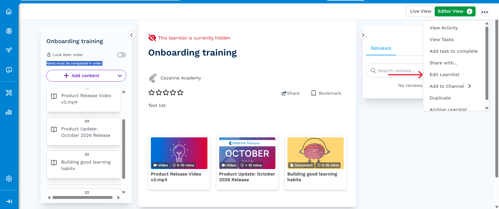
Settings to configure
Image and Colour
Choose how to display the Tile image:
- Use the first 4 item tiles automatically, or
- Upload a custom image.
Optionally, enable the colour overlay to apply the selected colour as a tint over the tile image.
💡 Tip: Using your company branding colours helps learners recognise official training content.
Tags and Structure
Add Tags to help users find the Learnlist when searching.
Choose how a learner's completion should be handled if you make changes to the Learnlist after they have completed it:
- Absolute: Once a learner reaches 100%, they remain complete even if you add further content later.
- Dynamic: Completion is recalculated when content is added or removed, so adding new content may affect a learner's completion percentage.
Decide whether learners need to complete content in a set order:
- Unchecked (Ordered): Items are shown in sequence, but learners can skip around (sidebar displayed).
- Checked (Locked): Items must be completed in order (sidebar displayed, next items locked).
Pass Score
Choose whether learners need to achieve an overall pass score for the Learnlist:
- No pass score: No overall pass score is required.
- Auto-calculated pass score: The average of the pass scores set against the individual Items is used.
- Manual pass score: Enter the overall pass score learners need to achieve.
Summary
Choose if you want to show a Learnlist summary page.
Visibility
Choose who should be able to find and access the Learnlist:
- Hidden: Only visible for preview and editing.
- Only visible when assigned: Users must be assigned to see it.
- Everyone at [Company]: Searchable by all users.
You can also set:
- A Go-live date to control when the Learnlist becomes available.
- An Expiry date to automatically hide it after a specified date.
Display Added by
Choose whether to display who added the Learnlist.
Q&A, Discussions and Reviews
- If you enable Q&A, select at least one expert who can answer learners' questions.
- If Enable discussion is selected, choose which user types can post discussions.
- Enable reviews if you would like learners to be able to add reviews of the content.
Certificates
Choose whether anyone should be notified when a learner completes the Learnlist.
You can choose not to send a notification, or notify the learner's manager or selected individuals.