
What are Teams?
Teams are used to organise users within Cezanne Learning and can reflect areas of your organisation such as departments, roles, locations or projects.
Teams can exist independently or form part of a wider structure using parent Teams and sub-Teams. You can use Teams to assign learning, control content visibility and report on learning activity.
Steps to follow
Step 1: Create a new team
- Click on “Add new” at the top of your screen
- Under the “People” section, click on “Team”
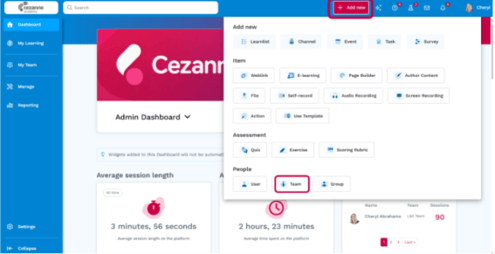
Step 2: Choose a team type
Choose how you want to create the Team:
- Hierarchy Team: Use this when creating an individual Team within your existing Team structure.
- Bulk import: Use this during initial setup or when making larger changes to your Team structure.
This guide focuses on using the ‘hierachy team’ structure.
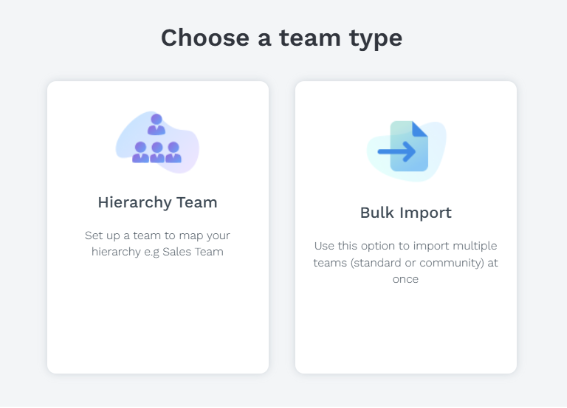
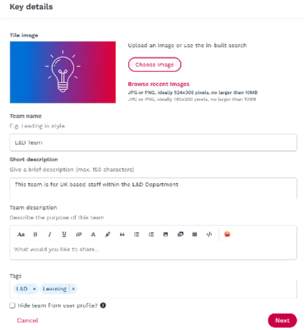
Step 3: Complete the Team details
- Tile image
- Team name
- Short description
- Team description
- Tags
- Hide team from user profile? (Select this if you don't want Team membership to be displayed on users' profiles).
Select Next to continue.
Step 4: Add the Primary Manager
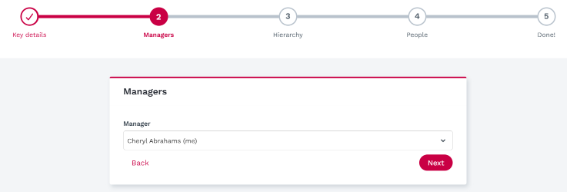
Select the Primary Manager for the Team.
Team managers can:
- view Team members and their progress;
- assign content to the Team;
- access Team reports; and
- manage Team membership.
You can also:
- Search for and add a Secondary Manager.
- Set a Stand in manager which will take effect if the manager is ever listed as on a break.
Click Next to continue.
Step 5: Creating Hierarchy
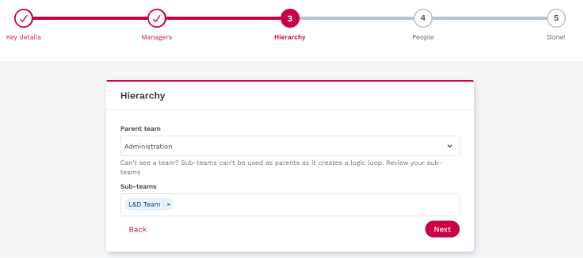
Position your team within your organisational structure:
- Parent team – Select a team that sits above this one in the hierarchy
- Sub-teams – Add existing teams that should sit beneath this one
Teams don't need to have a parent team – they can exist independently at the top level of your hierarchy.
Example hierarchy:
- London Office (parent)
- Marketing Team
- Digital Marketing
- Brand Team
- Sales Team
- Marketing Team
Click Next to continue.
📝 Note
When assigning learning to a Parent Team, you can choose whether the assignment should also apply to its Sub-Teams. If Assign to all sub-teams is selected, users in the Parent Team and its nested Sub-Teams will receive the assignment.
Step 6: Adding People
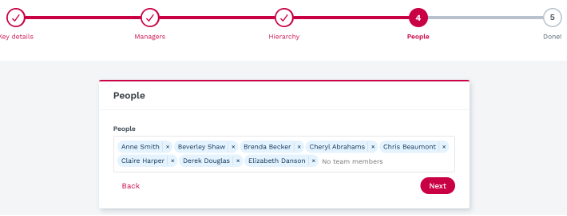
Search for and select the users you want to add to the Team.
Click next to create the team.
Frequently asked questions
What's the difference between Teams and Groups?
Teams are fixed structures that can reflect your organisation and can have managers.
Groups are dynamic collections of users that update automatically according to criteria you define. These criteria can be based on user properties or learning behaviour, such as content completion.
Use Teams for your organisational structure and Groups when you need a dynamic collection of users that can change over time.
💡Related articles
For information on creating dynamic collections of users based on defined criteria, see How to create a Group within Cezanne Learning.