
Before you start
For a more in-depth walkthrough of Events, see Module 6: Additional System Features in the Cezanne Learning course on Cezanne Academy.
What are Events?
Events are used to manage scheduled learning that takes place at a particular time, either in person or virtually.
An Event contains the overall learning activity, while Sessions define the specific dates, times and delivery details available to learners.
Steps to follow
Step 1: Create a new event
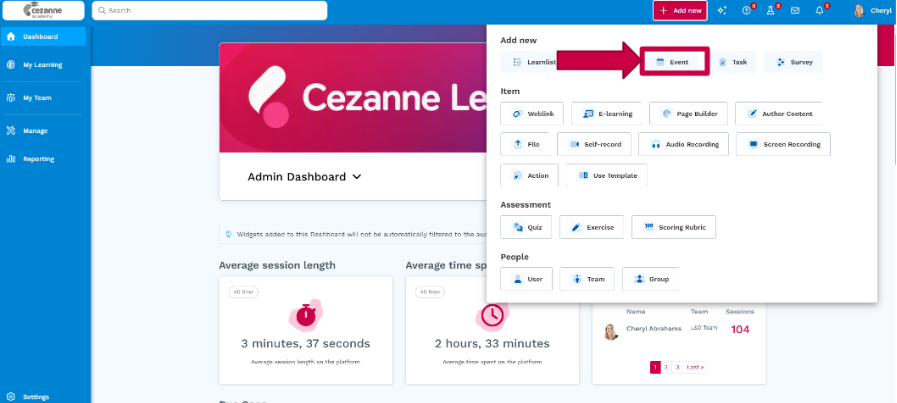
Select Add New > Event from the top of the screen.
Step 2: Select Session Type
Choose how learners need to attend the Event:
- Selected Sessions: Use this where learners can choose the date or time they want to attend from the available Sessions.
- All Sessions: Use this where learners need to attend every Session within the Event.
- Unscheduled: Use this option to gather interest in an event before you schedule it
Step 3: Setup Event Information
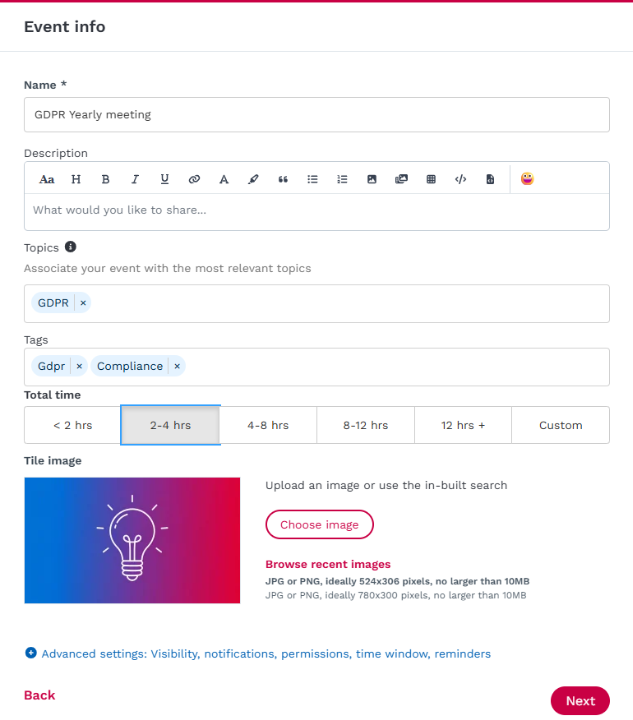
1. Enter the required Event information including name and duration. You can also add the following optional details:
- Event description
- Topics and Tags (useful for discoverability)
and then configure any of the advanced settings:
- Q&A, Discussion and Reviews
- Added by, Visibility and Notifications
2. Choose which of these features you want to enable for the event
3. Choose whether to display who added the Event, set who can access it and configure any notifications.
Step 4: Configure enrolment
1. Enrolment
Use the Enrolment settings to control how learners register for and attend the Event.
You can configure options including:
-
self-enrolment and approval;
-
attendance limits;
-
waiting lists;
-
registration deadlines; and
-
cancellation options.
2. CPD Points
If your organisation has CPD tracking enabled, you can allocate CPD to the Event.
Enter the CPD value and choose whether it should count as Formal or Informal CPD. CPD is awarded when the learner completes the Event and attendance is recorded.
If your CPD scheme has separate Formal and Informal targets, this selection determines which target the CPD contributes towards.
Step 5: Session Details
-
Configure the date, time, duration and delivery method for each Session.
-
Depending on the Event, you can create individual Sessions or a series of recurring Sessions.
-
Once complete, press finish.
Step 6: Enrol learners
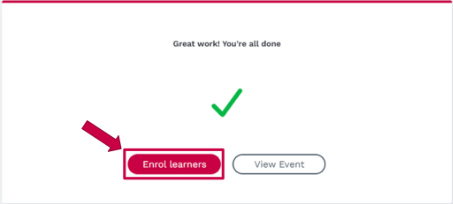
You can either enrol learners immediately through this screen or you can add them later on within the Event itself.
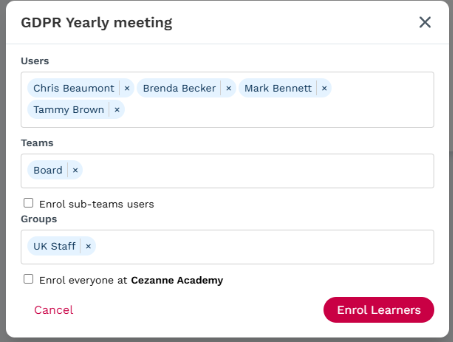
Learners can be enrolled by:
- individual user;
- Team;
- Group; or
- everyone in the organisation.
💡Related articles
For more information on functionality you can use when configuring Events, see: