.png?width=271&height=81&name=Knowledge%20base%20small%20(4).png)
Step 1: Enable payment after leaving
-
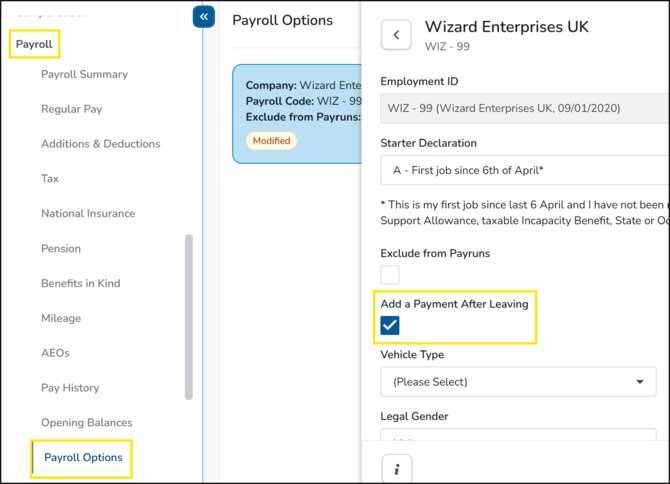
Go into the employees record and navigate to the Payroll section, then click into Payroll Options.
-
Click into their record and check the ‘add a payment after leaving’ box. Then press Save and Close.
Step 2: Check the end dates match
-
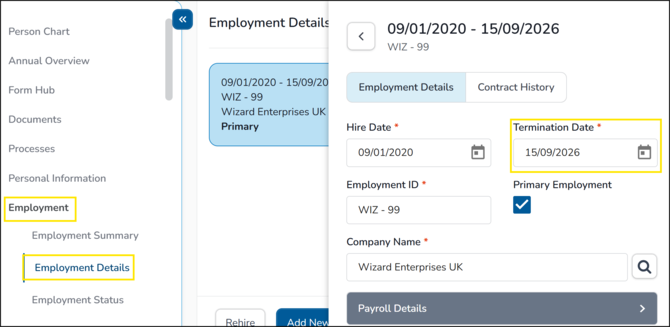
Check the ‘Termination date’ on the employee’s employment record. This can be found by going to the Employment section and clicking into Employment Details.
-
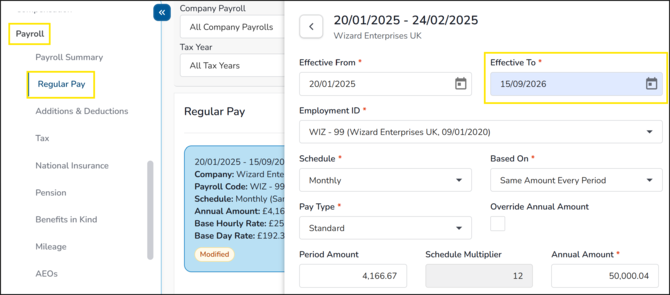
Check the end date on the employee’s regular pay record. This can be found by going to the payroll section clicking into regular pay.
-
Ensure the two dates match. If they do not match, the employee will not pull through into payroll.
Step 3: Add the payment
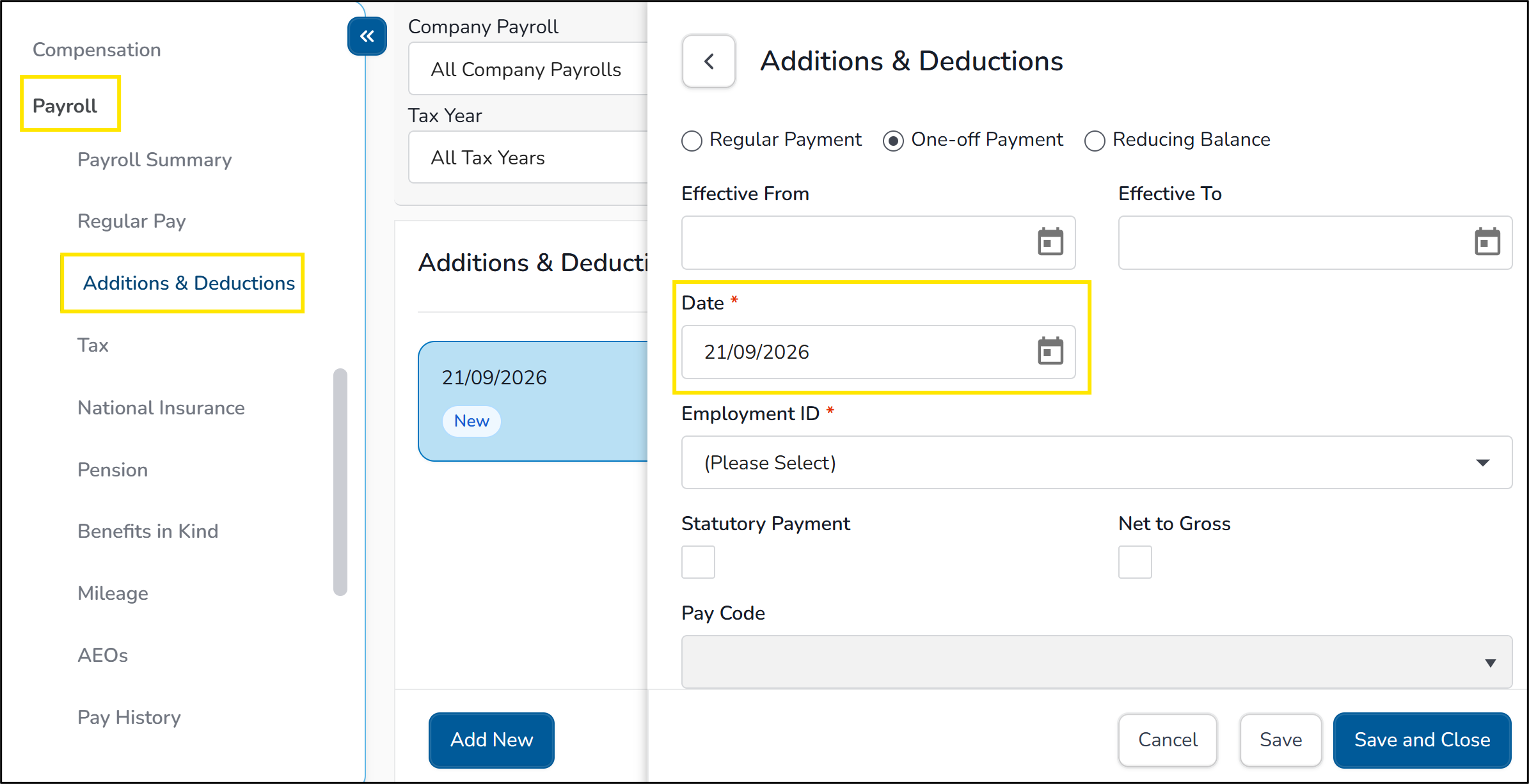
- Within the payroll section click into Additions and Deductions and select ‘Add New’
- Enter a one-off payment date within the pay period and then add the details of the payment. Press Save and Close.
What happens next?
The employee will pull through into payroll provided that the end date on the regular pay record matches the leave date on the employment record.