.png?width=271&height=81&name=Knowledge%20base%20small%20(4).png)
Before you start
Make sure that you have correctly created your timesheets.
Have a look at How to create a duration timesheet plan or How to create a time-in/time-out timesheet plan.
This article will cover:
-
The steps to follow as an HR Professional and;
-
how employees can create a new timesheet within a plan themselves.
Steps to follow as an HR Professional
- Go to an Employee’s person record
- Navigate to the Timesheet Plans area of the Time Recording tab
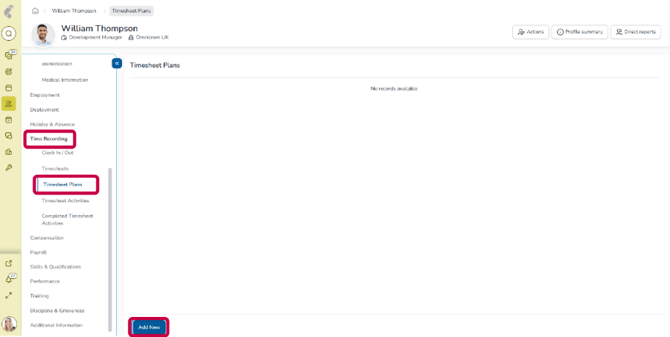
- Click Add New
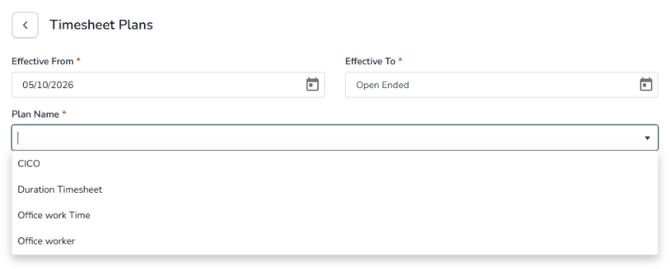
- Find the relevant Timesheet you want to assign
💡 Tip
Where possible, we recommend making the 'Effective From' date a Monday to give the employee a full timesheet.
Once assigned, if you've set the timesheet to create a new task every week, then you and the employee will not need to do anything more. The system will start assigning out new timesheets every week.
📝 Note
It's possible that an employee might need multiple Timesheets assigned to them.
How employees can create a new timesheet within a plan
For Duration and Time in/out Timesheets:
- Go to their own person record
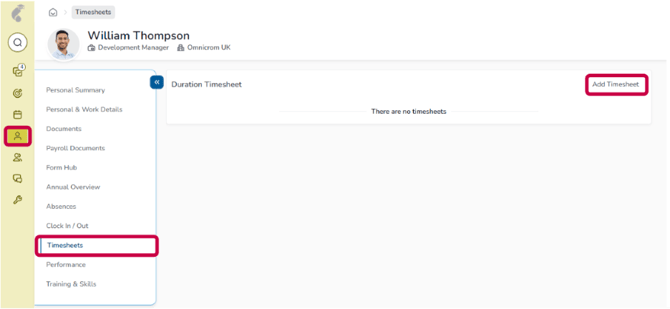
- Navigate to Timesheets
-
Click Add Timesheet
For Clock in/out Timesheets:
Employees can clock in/out through the following options configured by your HR team:
- Through a desktop widget
- Through the Cezanne CICO mobile App
- Through a previously set up company tablet
💡Tip
To learn more about setting up a company tablet, have a look at How to set up a Clock-In / Clock-Out tablet app.