.png?width=271&height=81&name=Knowledge%20base%20small%20(4).png)
Per Diem rates allow you to define the allowances employees can claim for eligible business expenses. Cezanne Expenses supports different Per Diem configurations depending on how your organisation calculates allowances. This article explains how to set up Versions 1, 2 and 3, including the different Version 3 options for 24 hours and Mid 12.
Per Diem version 1
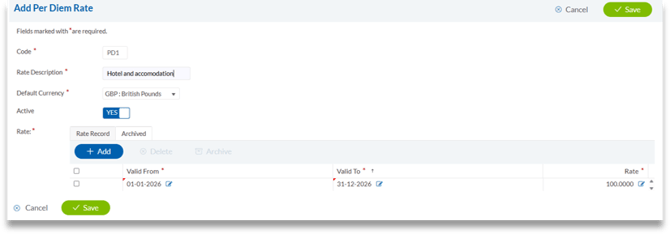
This gives you the ability to create basic set rates with a date range that they are valid for.
-
Log into Cezanne Expenses as an Administrator
-
Navigate to Administration in the menu to the left of the screen
-
Select Per Diem Rate in the menu
-
Click Add to create a new rate
-
Enter a short code and a description
-
Select a Default Currency, if different from the base currency
-
Ensure that the Active button is switched to Yes
-
Enter a Valid From and a Valid To date
-
Enter the Amount of the Rate
Per Diem version 2
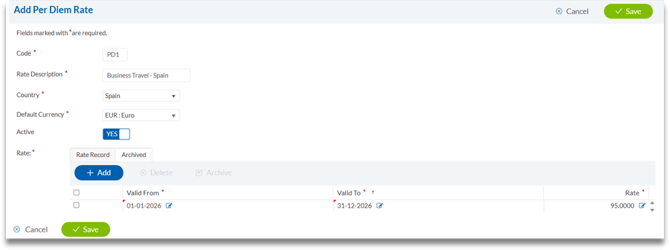
This gives you the ability to create basic set rates and assign them to different countries. A date range can be set for when the rates are valid for.
-
Log into Cezanne Expenses as an Administrator
-
Navigate to Administration in the menu to the left of the screen
-
Select Per Diem Rate in the menu
-
Click Add to create a new rate
-
Enter a short code and a description
-
Select the Country and the Default Currency that the rate is for
-
Ensure that the Active button is switched to Yes
-
Click Add to enter the Valid From, Valid To and the Rate
-
Click Save to keep your changes
Per Diem version 3
The per diem allowance is calculated in accordance with the provisions of the German Income Tax Act (Einkommensteuergesetz).
For further information on Version 3, please have a look at Understanding Per Diem Rates.
24 hours
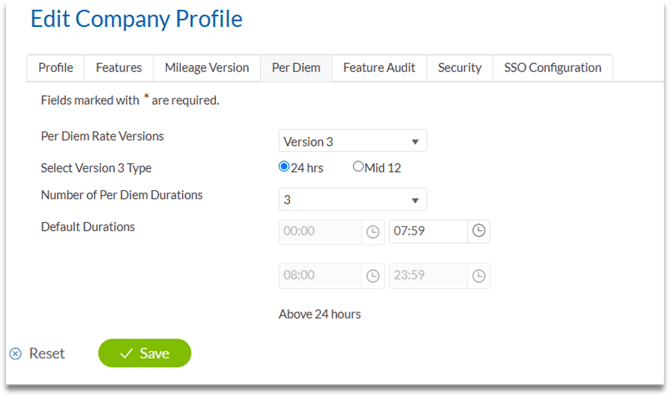
24 hours allows the Administrator to set up a number of durations, one of which will always be above 24 hours e.g. 3 durations set up 00:00 – 12:00, 12:01 – 23:59 and above 24 hours.
-
Log into Cezanne Expenses as an Administrator
-
Navigate to Administration then click Company Profile
-
Select the Per Diem tab
-
Ensure that Select Version 3 Type is set to 24 hr
-
Select the Number of Per Diem Durations that you want to create rates for (the example shows just 3 durations, but you can select up to 10)
-
Now enter the Default Durations
-
Click Save to keep your changes
You are now ready to start creating the claimable rates for each of the durations.
-
Navigate to Administration in the menu to the left of the screen
-
Select Per Diem Rate from the menu
-
Click Add to create a new rate
24 Hours Selection
-
Enter a unique Code for the rate
-
Now enter a Rate Description (e.g Less than 9 hours)
-
Now select the Country and the Currency
-
If you are not using durations, switch the Enable the Flat Rate button to Yes. Leave this as No to use durations
-
Now select the Duration that is relevant for this rate, from the drop-down menu
-
To include Meal Deductions, switch the Enable Meal Deductions button to Yes
- Add a Valid From and a Valid To date and then add the amount of the rate that is claimable
- Click Save to create the rate
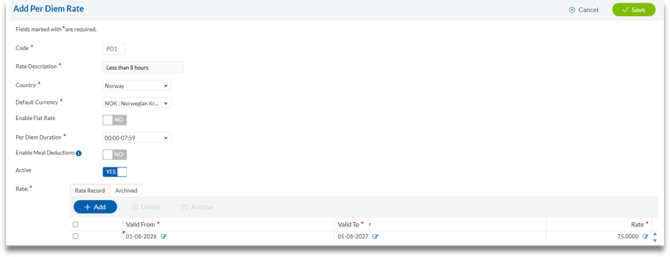
Repeat the above steps for each claimable duration.
Mid 12
- Enter a unique Code for the rate
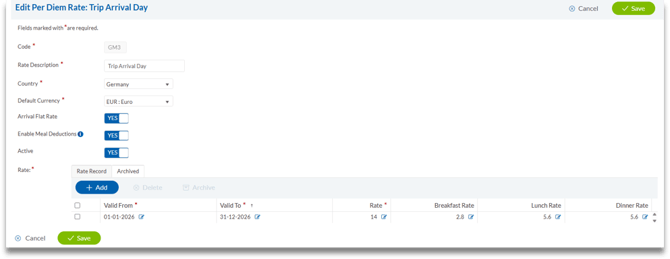
- Now enter a Rate Description (e.g Trip Arrival Day)
- Now select the Country and the Currency
- Switch Arrival Flat Rate to Yes if required
- Switch Departure Flat Rate to Yes if required
- If the arrival and departure rates aren’t being used, then select the Per Diem Duration
- To include Meal Deductions, switch the Enable Meal Deductions button to Yes
- Add a Valid From and a Valid To date and then add the amount of the rate that is claimable
- Click Save to create the rate
Repeat the above steps for each claimable duration.