
Indeed Sponsored is an optional, paid boost for a job that is already on Indeed. You set it up once for your company, then sponsor jobs one at a time. The campaign is created and billed on your own Indeed employer account.
Before you start
- You must have an Indeed employer account. Sponsored campaigns run on it and are billed to it.
- Billing set up with Indeed. Enter your billing details at billing.indeed.com. Campaigns do not go live until this is done.
- Your Site names linked to that account. A Site name is the name your jobs are published under on Indeed. Indeed has to link your Site names to your employer account, and only the account holder can ask. Sign in to your Indeed employer account, open Help > Contact us, say you publish your jobs through Cezanne Recruitment, and ask Indeed to associate your Site names with your account. Indeed's instructions: UK, Ireland, US.
Step 1: Connect your Indeed account (once)
Settings > Integrations > Indeed has two tabs:
- Publishing (XML feed) shows what Indeed receives today: each company and brand, the name its jobs are published under on Indeed, and how many live jobs it has. It needs no Indeed account.
- Indeed Sponsored is where you link your existing Indeed employer account and choose the Site name.
To link your account:
- Log-into Cezanne recruitment as an admin user.
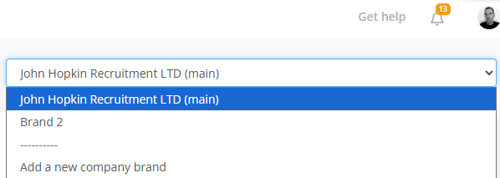
- If you are using multiple brands within Cezanne Recruitment, start by selecting your main company, using the drop down in the top right. Each brand is set up separately
- Go to Settings > Integrations > Indeed and open the Indeed Sponsored tab:
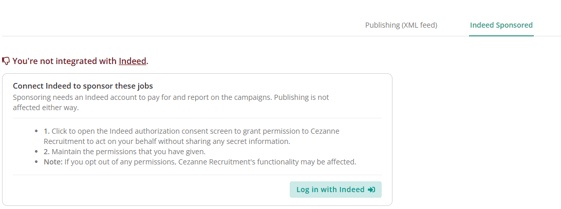
- Click Log in with Indeed. Indeed opens in a new browser tab.
- Sign in with your existing Indeed employer account. If your login reaches more than one employer account, choose the one that should pay for Sponsored jobs.
- Return to Cezanne Recruitment. The tab now shows that Indeed is connected, with the account's name, contact and email.
- Under Site name for these jobs, choose your Site name and click Save Site name.
Once connected, the Indeed Sponsored tab shows:
|
Section |
What it tells you |
|---|---|
|
Indeed connection |
The connected account, its contact and email, the days left before you must sign in again, links to your account settings and analytics on Indeed, and Sign out |
|
Site name for these jobs |
The Site names this Indeed account owns. Your jobs are published under the one you save, and only an account that owns it can sponsor them |
|
Connected Indeed accounts |
Each company and brand, the name it sponsors under, and whether its account owns that name. Check these against Indeed refreshes the status |
|
Campaigns |
The campaigns running on this Indeed account, with a link to each report on Indeed. Campaigns created from Cezanne Recruitment are named after the job title and reference, for example "Van Delivery Driver (#9)" |
Keeping the connection active. Indeed's sign-in lasts a limited time. Session shows the days left, and turns into a warning when 5 or fewer remain. Click Log in with Indeed again before it runs out to keep sponsoring. Your jobs stay on Indeed either way. Only Sponsored needs the connection.
Signing out. Click Sign out and confirm. Campaigns already running keep running and spending on Indeed, and no new ones can start from Cezanne Recruitment. The Site name you chose stays in place. To stop campaigns, switch sponsoring off on those jobs before you sign out, or end them in your Indeed account.
Connecting on its own changes nothing on Indeed. Choosing and saving a Site name decides which Indeed account your jobs belong to and which account pays for their campaigns.
Several brands? Every brand uses the main company's Site name and account unless you set it up separately. To publish a brand under its own name, select the brand at the top right and repeat steps 3 and 4 listed above. You can connect the brand's own Indeed account, or the main company's account if it owns the brand's Site name.
Changing a Site name later? Live jobs move to the new name and may appear twice on Indeed for a while, so ideally change it when few jobs are live. If the change moves sponsored jobs to a different Indeed account, switch sponsoring off on those jobs first and back on afterwards.
If something looks wrong:
|
What you see |
What it means |
What to do |
|---|---|---|
|
"This Indeed account publishes under no name yet" |
Indeed has not linked any Site names to this account |
Ask Indeed support to associate your Site names with the account (see Before you start) |
|
The Site name you expect is not in the list |
A different account was chosen at sign-in, or Indeed has not linked that name yet |
Sign out, then log in again and choose the right account, or contact Indeed support |
|
"This login also reaches ..." |
Your Indeed login can access other employer accounts |
Select the brand that should use one of them at the top right, and connect from there |
|
A brand is connected but its campaigns still run on the main company's account |
The brand's Site name is still Use the main company's name instead |
Select the brand, choose one of its account's Site names, and click Save Site name |
|
A dot on the Indeed Sponsored tab, or "cannot sponsor the jobs they publish" |
A company or brand's connected account does not own the name its jobs use |
Step 2: Sponsor a job
- Make sure the job is live and on Indeed. A campaign can only spend on a job Indeed has already picked up, so wait for the job to appear on Indeed, which can take up to 6 hours.
- Open the job, click Edit, and go to the Job boards step.
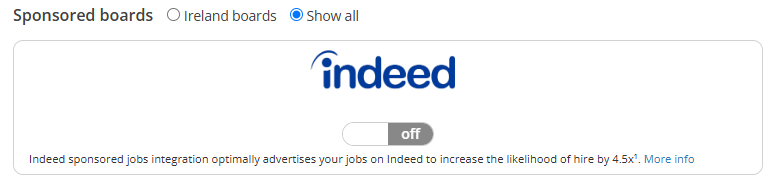
- Switch Indeed Sponsored to On. The Sponsor job on Indeed window opens.
- Under What is your campaign schedule? Select from:
- One time campaign: runs between a start date and an end date. Both are required.
- Monthly recurring campaign: runs every month from the start date. The end date is optional.
- Under What is your budget? Enter the budget for the campaign. The minimum is 50. The amount is charged in your Indeed account's currency, whatever currency label the window shows.
- Click Show predictions to see Indeed's estimate of applicants for that budget. Predictions are only available for US jobs in English, and they are estimates, not guarantees.
- Click Sponsor on Indeed, then save the job.
Indeed charges only for unique clicks on the job, up to your budget.
Step 3: Track, change or stop a campaign
- See results: on the job's Job boards step, click the stats button under Indeed Sponsored. Full reporting is in Indeed's own analytics.
- Change the budget: click the budget shown under Indeed Sponsored on the Job boards step, update it, and save.
- Stop sponsoring: switch Indeed Sponsored to Off on the Job boards step and save. Cezanne Recruitment ends the campaign on Indeed. Removing the job from Cezanne Recruitment also stops the campaign.