.png?width=271&height=81&name=Knowledge%20base%20small%20(4).png)
Time Types help organisations categorise the time employees record on their timesheets. They make it easier to distinguish between activities such as standard work, overtime, and travel, improving reporting, payroll accuracy (if you have the Payroll Module), and visibility of how time is spent across the business.
💡Tip
To learn more about how Time Types are used in the wider module, have a look at the Time module overview guide.
Using Time Types in Timesheets
Time Types can only be added to Duration or Time In / Time Out Timesheets.
By default, a Timesheet Plan Type supports all available Time Types. This means employees can record time against any Project Activities linked to those Time Types.
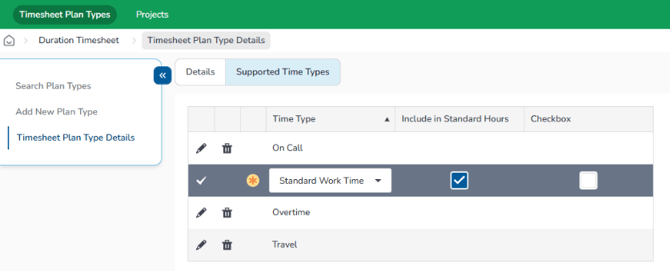
Manage supported Time Types
To control which Time Types are available for a Timesheet Plan Type, go to the Supported Time Types tab.
From here, you can add, remove or update the Time Types supported by the plan. Select the pencil icon to edit an existing Time Type, then use the drop-down menu to select a different Time Type.
Include in Standard Hours
The Include in Standard Hours setting determines whether time recorded against a Time Type counts towards an employee's contracted working hours.
This is used when validating a Timesheet against the employee's Working Time Pattern, helping the system determine whether the employee has completed their required hours.
Checkbox Time Types
The Checkbox setting allows a Time Type to be recorded as a simple yes/no entry instead of entering a number of hours.
This is useful when you only need to record that an activity took place. For example, an employee could select a Worked On Call Time Type without entering the number of hours worked.
📝 Note
We recommend allowing Timesheet Plan Types to support all Time Types. If certain employees should not use a particular Time Type, such as Travel, manage this by assigning only the relevant Activities to those employees. See Assigning Activities to Employees.
This keeps Timesheet Plan Types simpler and reduces the need to maintain multiple plans for different combinations of Time Types.
However, if a Plan Type is specifically designed for recording one type of time, such as Overtime Requests, you can configure it to support only the relevant Time Type. Employees assigned to that Plan Type will then only be able to record time against that Time Type.
Using Time Types within Projects and Activities
Updating Time Types within an Activity
Time Types can also be controlled at Activity level.
When creating or updating a Project Activity, you can select which Time Types employees can use when recording time against that Activity.
Navigate to the relevant Project, then open Project Activities.
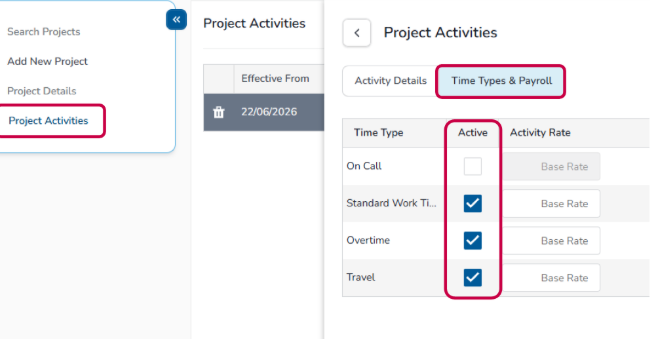
Manage Time Types for an Activity
When you add a new Project Activity, all Time Types are selected as Active Time Types by default. If a Time Type should not be available for that Activity, clear the relevant checkbox. This allows you to control which types of time can be recorded against each Activity.
For example, an Activity may support Standard Work Time and Overtime, but not Travel.
💡Tip
For more information, have a look at the following related articles.