.png?width=271&height=81&name=Knowledge%20base%20small%20(4).png)
Custom Fields allow hiring companies to define and collect specific fields or parameters that are relevant to their recruitment process. With Custom Fields, you have the flexibility to gather information that suits your unique hiring needs, whether it’s for candidates or job postings.
What you can do with Custom Fields
- Custom Field Creation: You can now create new fields directly from the Custom Fields settings. This feature is highly adaptable, allowing you to define data relevant to either a candidate (e.g., date of birth) or a job.
- Form Integration: Once a Custom Field is created, it can be seamlessly integrated into forms and documents. This ensures that the data you need is collected directly from candidates during the application process.
-
Data Collection and Display: After a form with Custom Fields is completed by a candidate, the information is automatically visible on their Candidate Profile. This streamlined process ensures that all relevant data is easily accessible to your hiring team.
-
Confidential Information Handling: For fields that collect sensitive information, such as tax numbers, you can mark these as ‘confidential’. Confidential fields are hidden by default and are only accessible to the ‘super admin’, ensuring privacy and security.
-
Location-Specific Display: Custom Fields can be configured to appear only in specific locations within the system. This means you can control where and when particular data is displayed, making your candidate profiles clean and relevant.
How to create and use Custom Fields
-
Click on your Settings then Custom Fields
-
Select Create a New Custom Field
-
Enter the name of the field (e.g., Date of Birth)
.gif?width=670&height=377&name=All%20searches%20GIF%20(1).gif)
What you an apply custom fields to
Candidate Data: These fields apply specifically to the candidate (e.g., date of birth) and can be collected via the application form or through the candidate’s profile.
Job Data: These fields apply to the specific job being advertised and are typically displayed on the job advertisement.
You can choose whether this data relates to a candidate or a job and whether the data you are collecting is sensitive. If it is sensitive information, you can select 'Yes,' and the information will be blurred for users without access and visible only to those who have Super admin permissions:
.png?width=590&height=490&name=2%20(1).png)
.png?width=580&height=702&name=3%20(1).png)
You can add a description to these custom fields and select the field input type from the drop-down list. You can also decide if this field is required by selecting 'Yes' or 'No.' Once you're satisfied, click 'Create Custom Field.'
By clicking on the location, you can toggle on and decide whether the custom fields are displayed to an Cezanne Recruitment user or a candidate:
.png?width=670&height=181&name=4%20(1).png)
You can edit an existing custom field by clicking on the green pen icon. You can also delete, enable, or disable it using the bulk action drop-down menu by selecting the custom field(s) you need to amend:
.gif?width=670&height=377&name=All%20searches%20GIF%20(2).gif)
Integrating with your application page
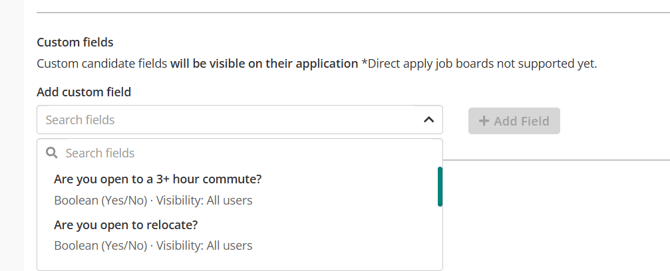
If you would like applicants to provide answers for your choice of custom fields, you can add them as questions on your application page.
Once you've created your custom field(s), when you create new jobs, or edit an existing job, click to the Application form tab.
On this page you can select which custom fields will appear as questions on your application page.
Integrating with Forms
You can add custom fields to forms intended for candidates. When candidates fill out this form, their answers will be captured and displayed on their Candidate Profile.
How to integrate forms to custom fields
-
Open your form, enter a suitable question title and select Link to custom field:
-
Confirm which custom field to link this question with
-
Once saved, you can send this form to a candidate
Candidate custom field values are visible in the left panel when you open any candidate application.
.png?width=670&height=387&name=6%20(1).png)
⚠️ Note
Custom fields won’t be supported for direct applications (Indeed). Fields marked as "sensitive" are only visible to the Super Admin. Once created, custom fields for candidates will appear on the candidate profile and can be edited after submission.