.png?width=271&height=81&name=Knowledge%20base%20small%20(4).png)
Cezanne Recruitment’s Job Listings feature provides a simple way to display your live job vacancies on your existing website. It allows you to:
-
Create dedicated Job Listings pages that display jobs directly from Cezanne Recruitment.
-
Embed these pages into your website using an iframe URL, with minimal development effort.
Job Listings pages use a consistent, professional design that can be tailored to your needs and company branding. You can:
-
Configure display options such as font size, colours and visible job details.
-
Maintain a consistent look that aligns with your website branding.
You can create multiple iframe-based Job Listings pages for any of your brands, each with its own filters and settings. For example, you can:
-
Create separate pages for internal-only roles, or roles grouped by job tags such as “Admin” or “Warehouse”.
-
Generate individual HTML embed codes for each Job Listings page.
To get started, follow the steps below to create and customise your Job Listings page(s), then ask your website provider to embed the page on your website using the provided URL.
Click here for an overview of all careers page options
Configuration
-
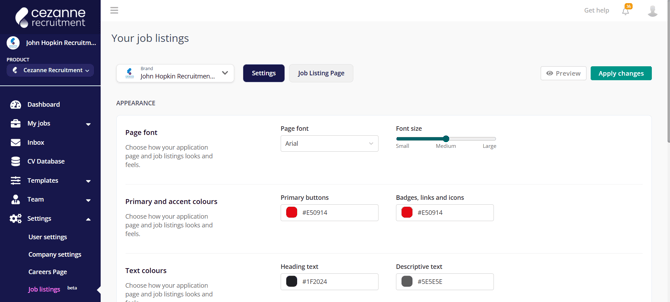
From the left side menu, click on "Settings", then "Job listings":
Settings Page
This page covers master settings for your Job listings pages. You can set options such as Page Font, Font size, Primary and Accent colours, Text and Descriptive Text colours.
You can change to configure Job listing pages for any of your individual brands using the Brand drop down.
Switch on the Application Page Header to add a new section to the Candidate application page where you can embed images of your choice. For best results use square formatted pictures.
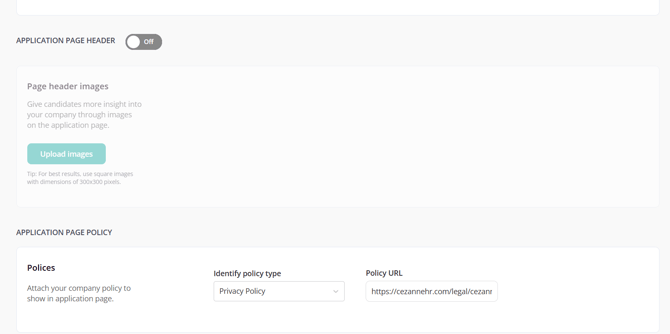
In the Policies section you can define a Privacy policy or Terms of service URL for candidates to view on the application page.
Click Preview at the top of this page to open a preview of a Jobs Listings page after changing any of these configuration options. Ensure to click Apply Changes to save your changes before moving away from this page.
Job Listings Page
Click to the Job Listings Page tab at the top of the page to create, edit and view all your configured Job Listings pages:
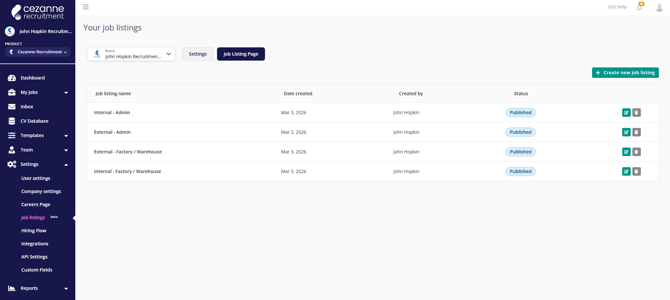
Note when you create a new Job Listing page, it will be created in "Draft" status initially, after you complete the setup you can choose to Publish it (using the Publish button at the top of the page), then you can click the Generate code button to generate the HTML code to embed the page on your website.
Click + Create new Job Listing to open the setup page:
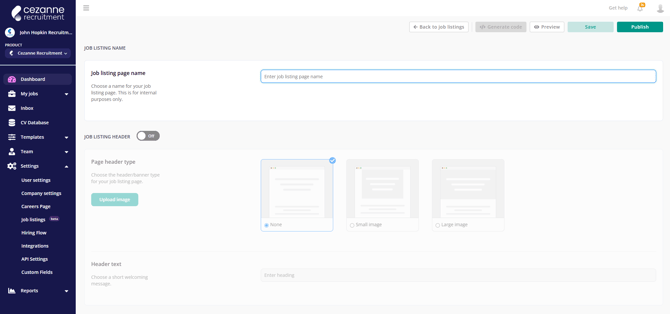
Job listing page name - Provide a clear name for your page that illustrates it's purpose. e.g. "Internal Admin only". This name is visible in the list of Job listing pages.
Job listing header - This toggle adds a header section to the page, you can add optional images.
Header text - Add an optional line of text to the header section.
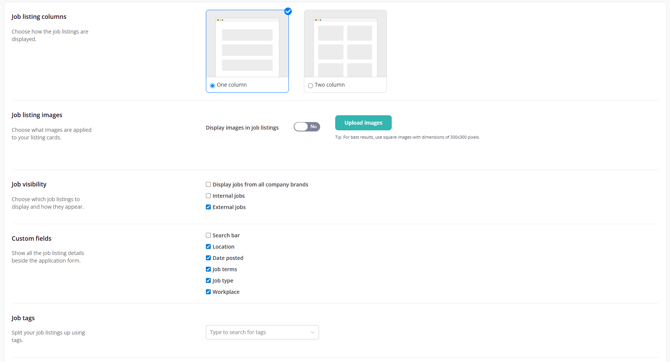
Job listing columns - Depending on your page layout, you can choose to list your Jobs in 1 or two columns.
Job listing images - Optionally add a small image to your Job Listing cards. e.g. a Company logo.
Job visibility - Select whether this page displays All Jobs, or only Internal, or only External jobs.
Custom fields - Optionally display additional Job fields on the application page.
Job tags - Filter which Jobs are displayed on this Job listing page using Job tags.
Custom CV source - The text entered here will be used in reporting as the Candidate source, for applicants that applied through this Job listing page. e.g. "Internal Job page".
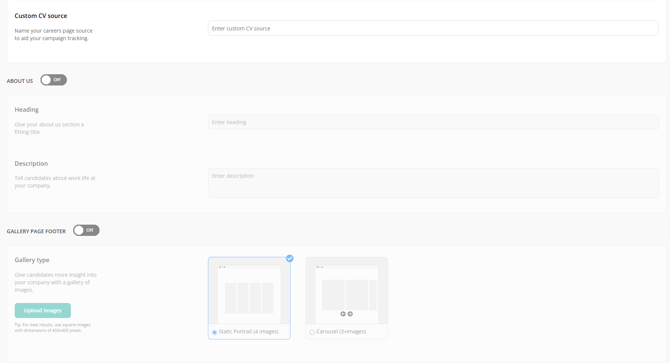
About us section - An optional section displayed to applicants where you can enter text content to provide candidates with information about your company.
Gallery page footer - Add a gallery of images to the footer of your page.
Remember to click Preview to review any changes made to your page. Click Publish to set the page live.
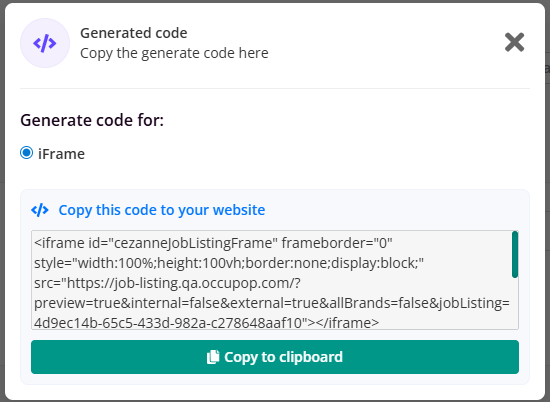
Click Generate code and the app will provide you with the iframe code snippet for you copy to your clipboard, and share with your website developer to embed it on your website.