.png?width=271&height=81&name=Knowledge%20base%20small%20(4).png)
| Jump to section |
| My Claims |
| Claims vault |
| My receipts |
| Credit card upload |
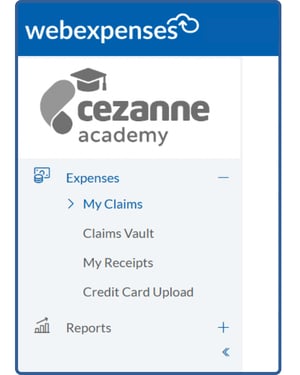
My Claims
This section shows all your claims, including:
- Claim title
- Claim ID
- Created date
- Status
- Total amount
Use the Dashboard to filter claims by status.
Claim statuses
- Open → Claim is in progress
- Submitted → Sent for approval
- Rejected → Requires changes
- Processed → Approved and ready for payment
📝Note
Claim status names can be customised by your company so the wording you see may differ slightly. For example, “Processed” may appear as “Ready for Payment”.
You can hover over the note icon to see the rejection reasons.
Claims vault
- Stores processed claims
- Helps keep your main list clean
To move claims:
- Filter by Processed
- Select the claims you want to move
- Click Claims vault
My Receipts
You can upload or view your existing receipts and add them to claims. When you upload a receipt, the system automatically scans:- Date
- Amount
Matching receipts are automatically attached to claim items.
Credit Card Upload
This is where you can upload a generic credit card file.
User settings (top right)
General
- Account details
- Bank details (for direct payments)
Vehicle
Required for mileage claims if rates depend on engine size or fuel type. This ensures that the correct mileage rate is applied to your claims.
Totals and calculations
- Claim totals are calculated automatically
- Some items (e.g. per diem) use fixed amounts
- Totals cannot be edited directly
💡Tip
Need more help with expense claims? We’ve got answers in the following articles:
- How to submit an expense claim
- Expense claims overview
- How to add expense items to a claim