.png?width=271&height=81&name=Knowledge%20base%20small%20(4).png)
- Posting a Job - Step-by-step through the six-tab flow for creating and publishing a new job.
- Managing an Active Job Posting - How to edit, pause, or close a job that's already live.
- Using Job Boards - Which boards you're posted to automatically, how to connect premium ones, and what makes a listing perform well.
- Using the Recruiter Marketplace & Favourite Suppliers - Getting agency bids on a role or auto-sending it to your preferred recruiters.
- Sharing a Job on Social Media - Posting an open role straight to your social channels.
- Assigning a Job to a Team Member - Setting job owners and giving colleagues visibility on a role.
- Adding a CV Manually - Adding a candidate who didn't apply through a job board or your application page.
- The Candidate Profile - A tour of every tab on a candidate's profile, from CV to activity history.
- Screening & Filtering Candidates - Setting up Smart Questions, filtering responses, and shortlisting through the hiring flow.
- Scheduling Interviews - Sharing interview slots with candidates and booking them in.
- Interview Scorecards - Scoring candidates yourself or requesting scores from other hiring managers.
- Messaging Candidates - Sending emails from a candidate's profile and tracking delivery status.
- Rejecting Candidates - Rejecting one candidate or many, with or without a message.
- Moving a Candidate to Another Job - Transferring a candidate to a different open role.
- Hiring a Candidate - Marking a candidate as hired for accurate reporting.
- Your Notifications & Calendar Settings - Personal settings for notifications, calendar connection, language, and time zone.
- Frequently Asked Questions - Quick answers on reposting, board timing, scoring, and application counts.
1. Posting a Job
2. Managing an Active Job Posting
Editing a job
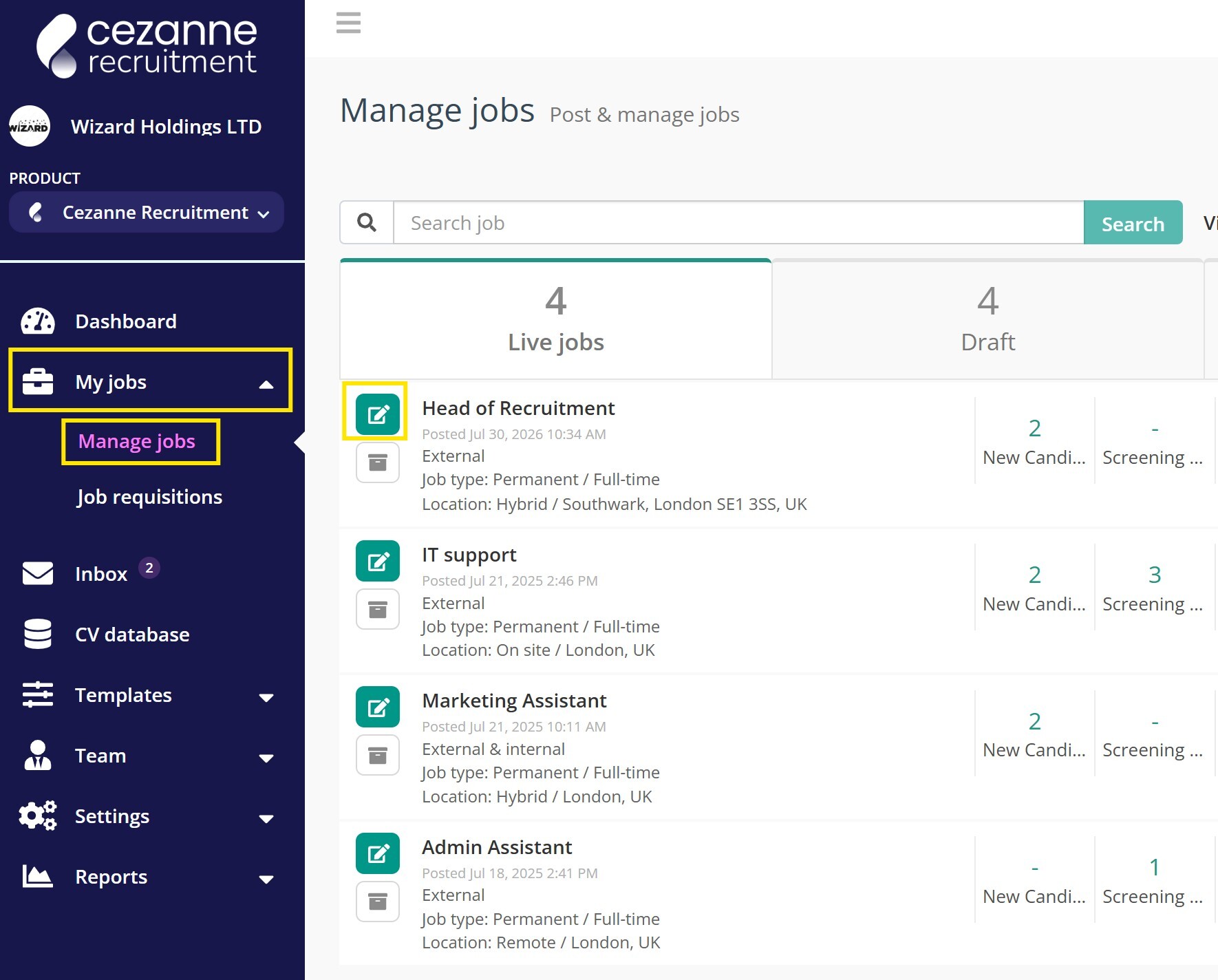
From My Jobs, click into Manage jobs either click the Edit icon next to a job, or open the job and click Edit Job in the top right.
You can change anything — description, job boards, hiring flow, team, and so on — in the same way you would when posting the job. Click Save when done.
Pausing a job (stop advertising)
If you want to stop receiving new candidates but keep working through the ones you already have, open the job and select Close for Applicants.
This stops new applications without removing the role from your live list, and you can still move existing candidates through your hiring flow stages.
If you fully close the role instead, it is removed from your live roles and you will no longer be able to move candidates between hiring flow stages. Job boards can take up to 24 hours to reflect either change.
Closing or archiving a job
If you've hired someone for this job, mark them as Hired first.
Then, from My Jobs or from within the job itself, use Close Job or Mark as Filled. Both remove the job from Live Jobs and from job boards. Allow a few hours for boards to refresh.
3. Using Job Boards
Cezanne Recruitment posts to a range of free and premium job boards.
Free boards are turned on by default for every new job. You can switch individual boards on or off when posting.
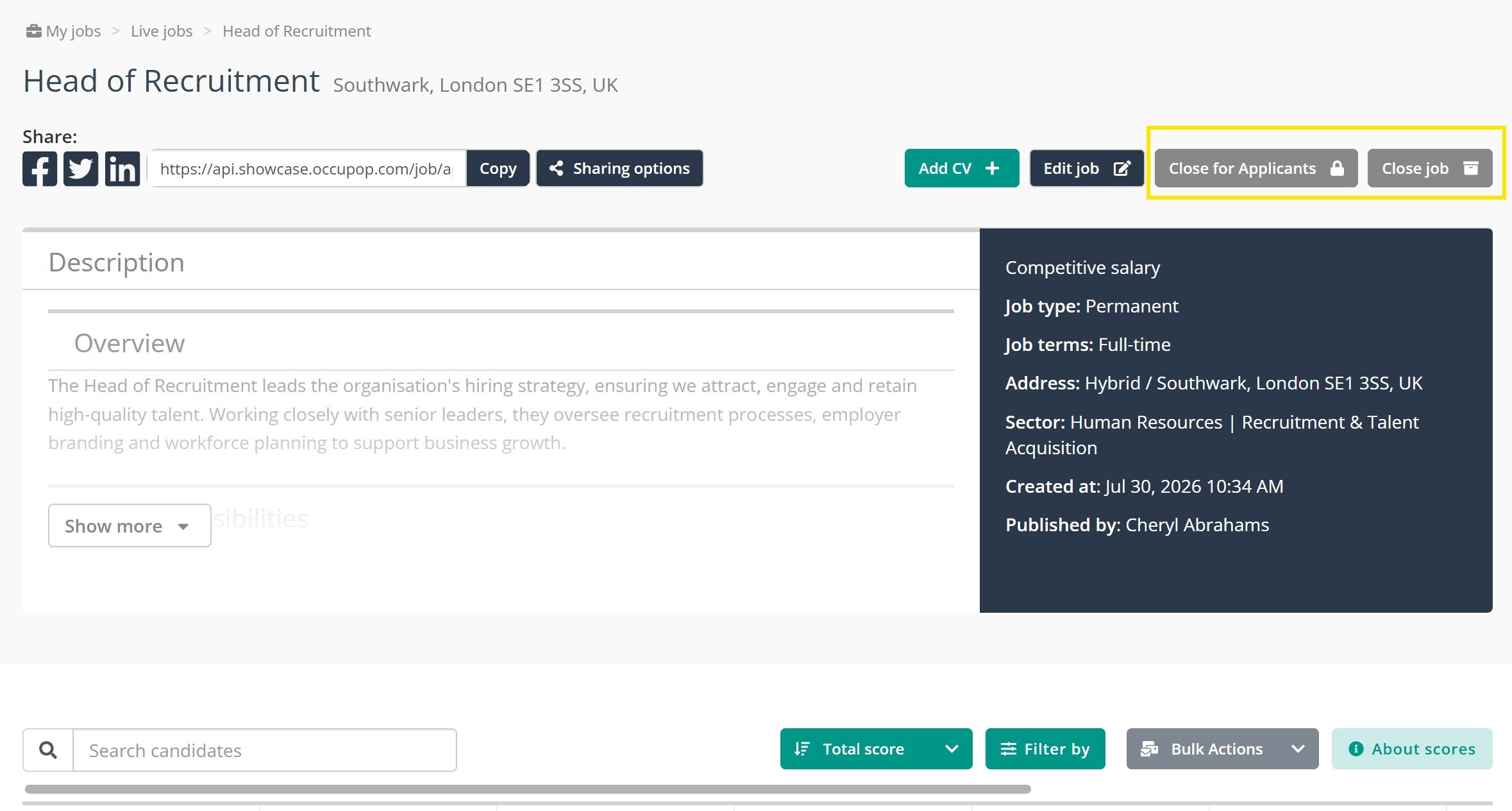
Premium boards need to be linked first. Go to Settings > Integrations and select the boards you want to integrate with, usually by adding the username/password credentials the board gives you.
Cezanne doesn't resell job credits. You need your own existing account with each premium board, which you then link.
It can take up to 12 hours for a job to appear across all free boards, so don't worry if it's not instant.
Getting the most visibility:
- Job titles: keep to 10–35 characters, no ALL CAPS, no special characters, and use common terms such as "JavaScript Developer" rather than internal jargon such as "Ninja" or "Jedi".
- Descriptions: aim for 700–2000 words, with an engaging opening, an honest list of day-to-day responsibilities and requirements, and how the role fits the company. Use bullet points to break up long text.
- Location: always include country and city, even for remote roles, and don't post the same job across multiple cities. Boards can blacklist you for it.
Each job board has its own posting guidelines, including Indeed, LinkedIn, Monster, Glassdoor, and Reed. These are worth checking if a posting isn't showing up.
4. Using the Recruiter Marketplace & Favourite Suppliers
Recruiter Marketplace
An optional feature that lets specialist agencies bid on your role, so you can work at a fee that suits your budget.
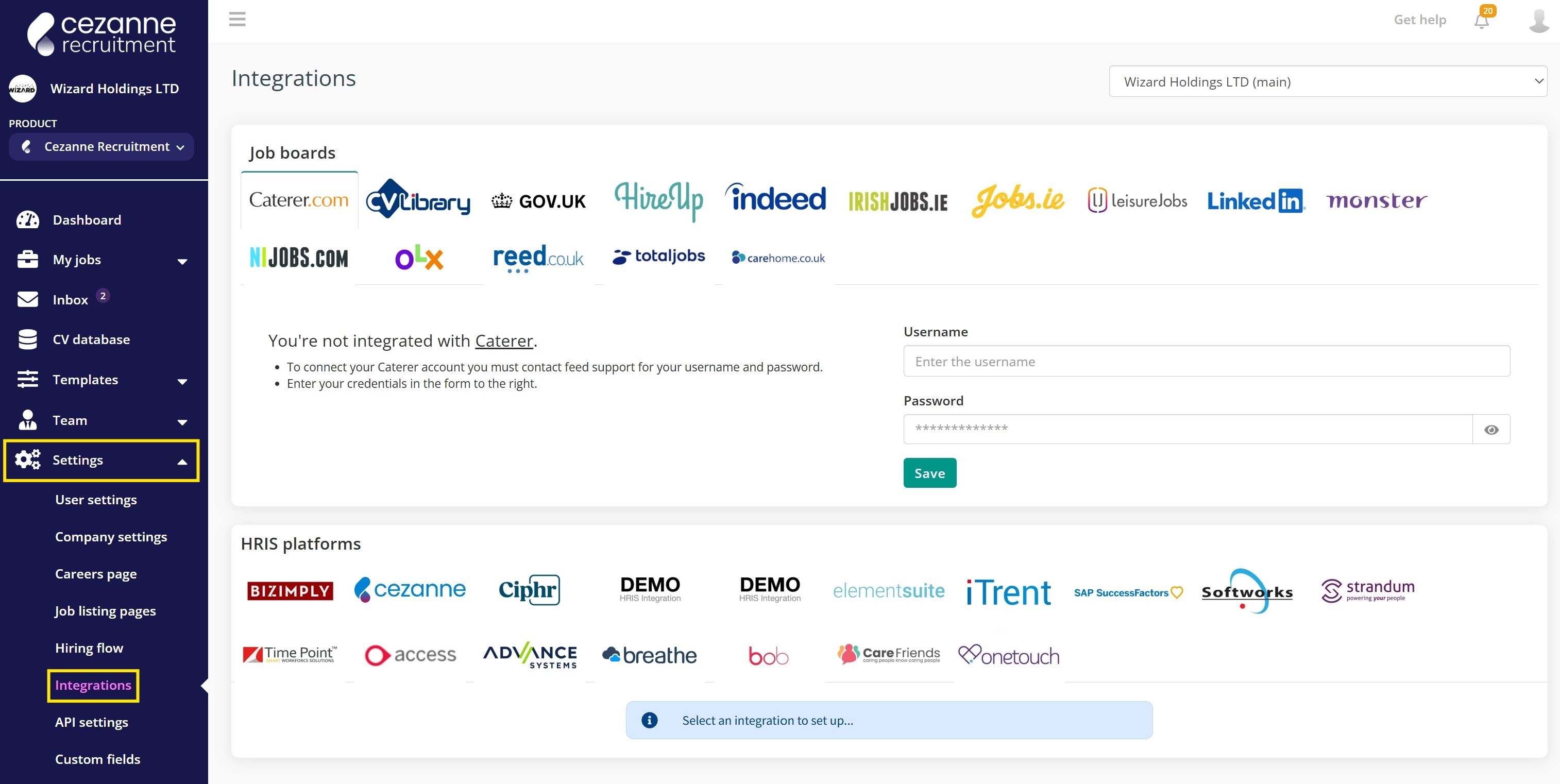
To activate it, when posting a job, move through the steps to Recruiters, toggle the Recruiter Marketplace on, and enter the salary range, which is needed for accurate bids, plus any extra information.
Favourite recruiters (PSL)
To automatically send a job to your favourite agencies, on the same Recruiters step, toggle on a favourite and select the agency from the dropdown.
If the agency you want isn't listed, contact your admin team to request it.
5. Sharing a Job on Social Media
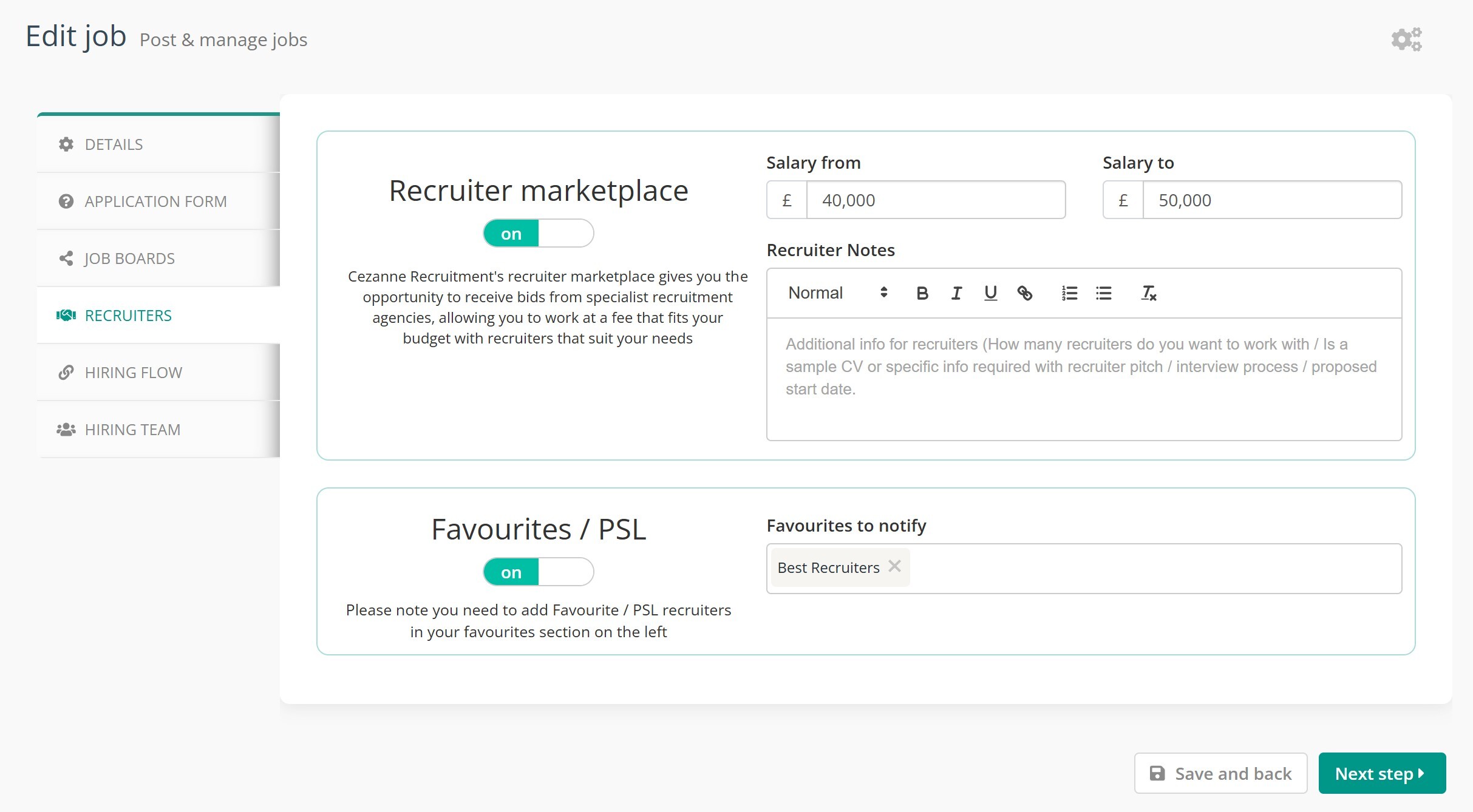
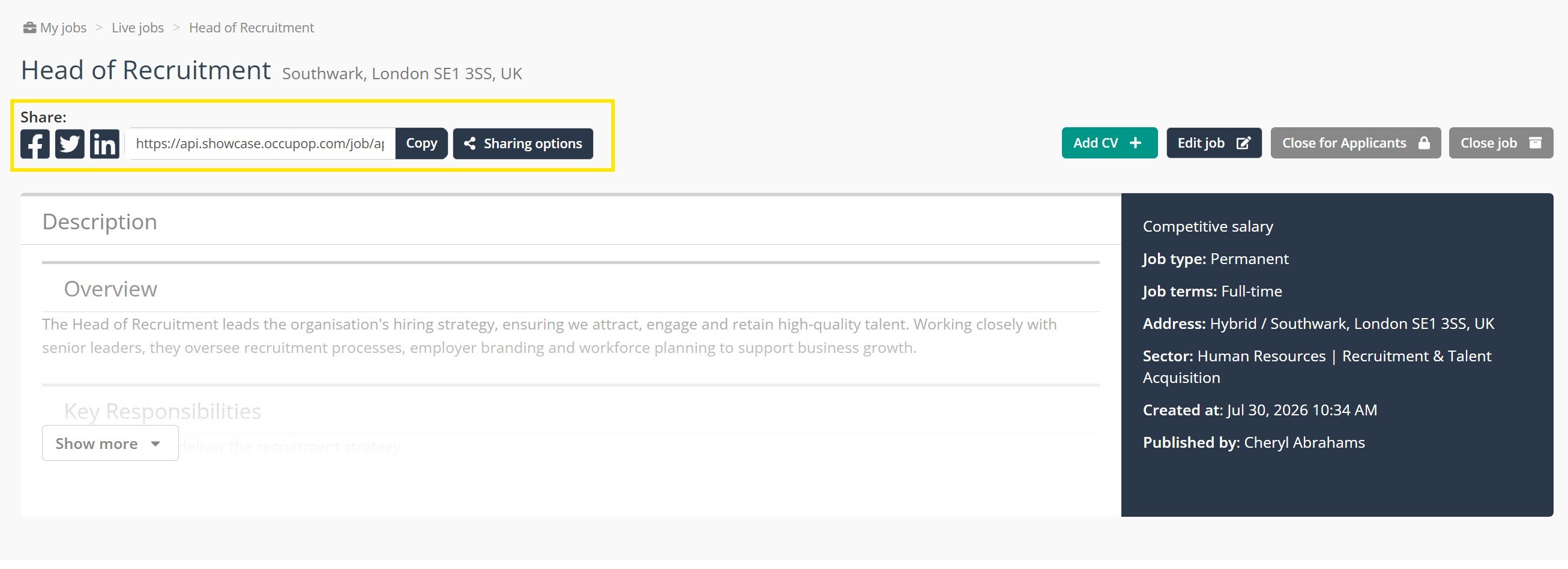
When you've clicked into a job listing from the manage jobs screen click the social media icons to post it across your channels
If you're not already logged in to the relevant platform, you'll be prompted to do so.
6. Assigning a Job to a Team Member
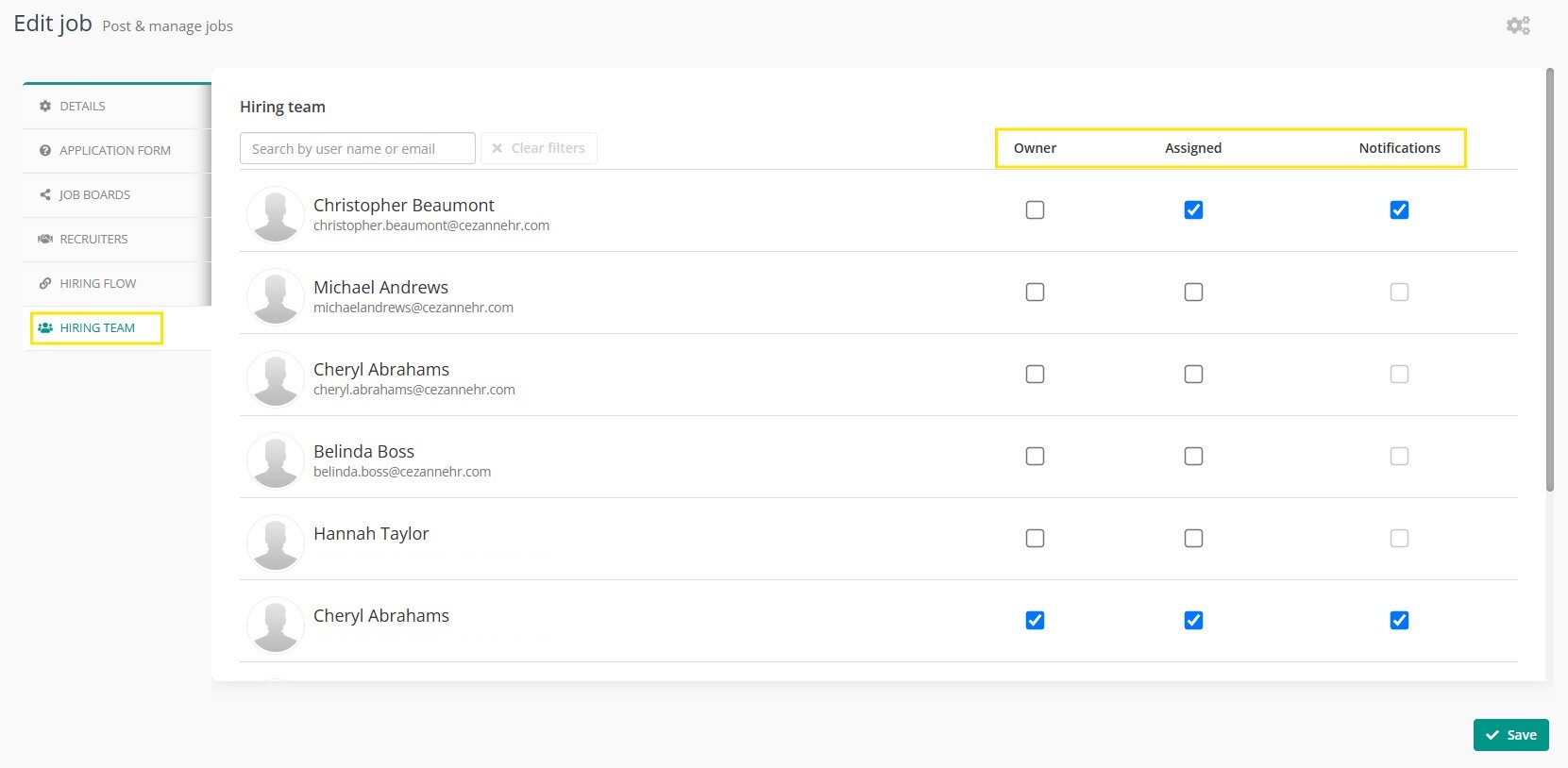
When posting or editing a job, go to the Hiring Team step and use the toggles to assign team members. You can also choose who gets notified about the role.
- Owner: used for reporting, shown as "Published by" on some job boards, and receives application emails.
- Assigned: the job becomes visible on that person's "Manage Jobs" page. Without this, they can't see or access it. Admins can always see every job regardless.
Don't forget to click Save before moving to the next step.
If a team member isn't showing up in the list, they haven't been added to Cezanne Recruitment yet. Ask your admin to add them.
7. Adding a CV Manually
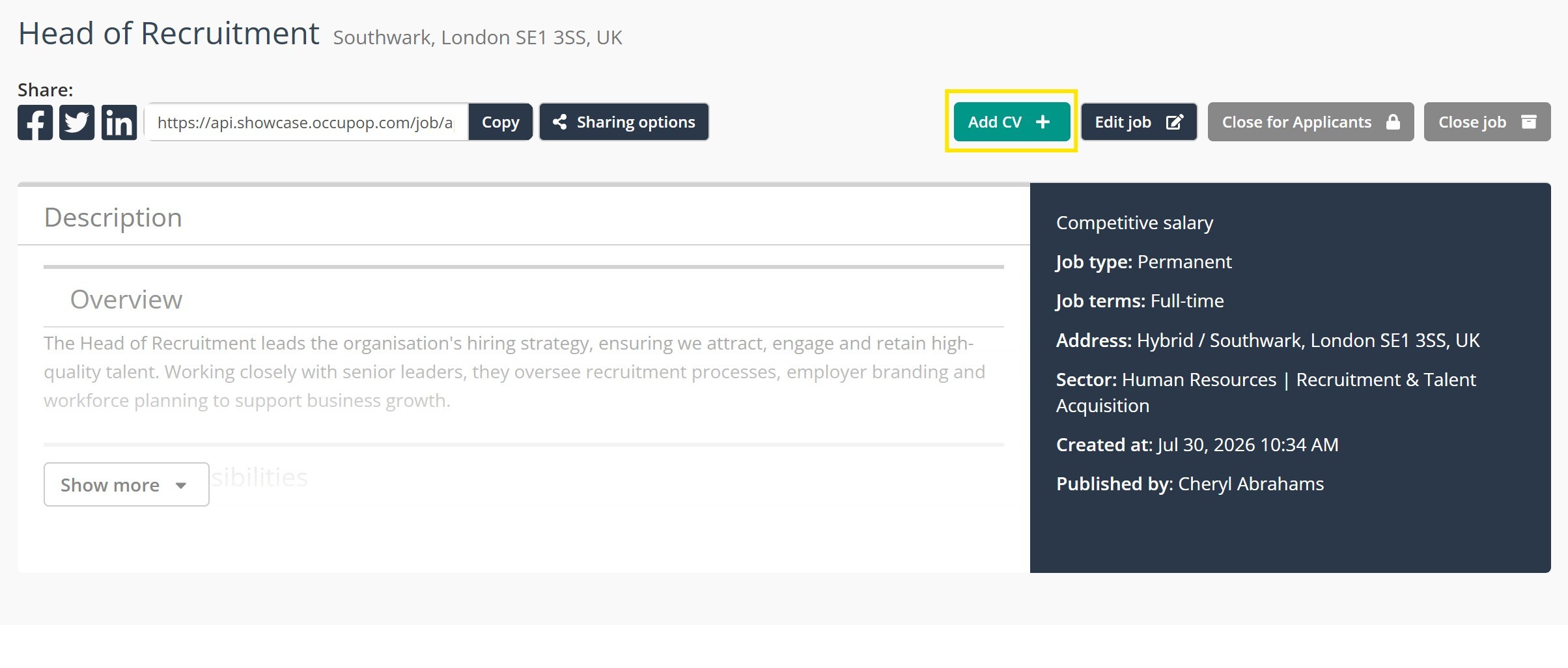
If you receive a CV directly rather than through a job board or your application page, open the relevant job and click Add CV+.
Fill in the candidate's details, attach the CV and cover note if you have one, then click Save.
Note: Screening questions aren't required with this method, so the CV score will only reflect the CV itself, not the full scoring you'd normally see.
8. The Candidate Profile
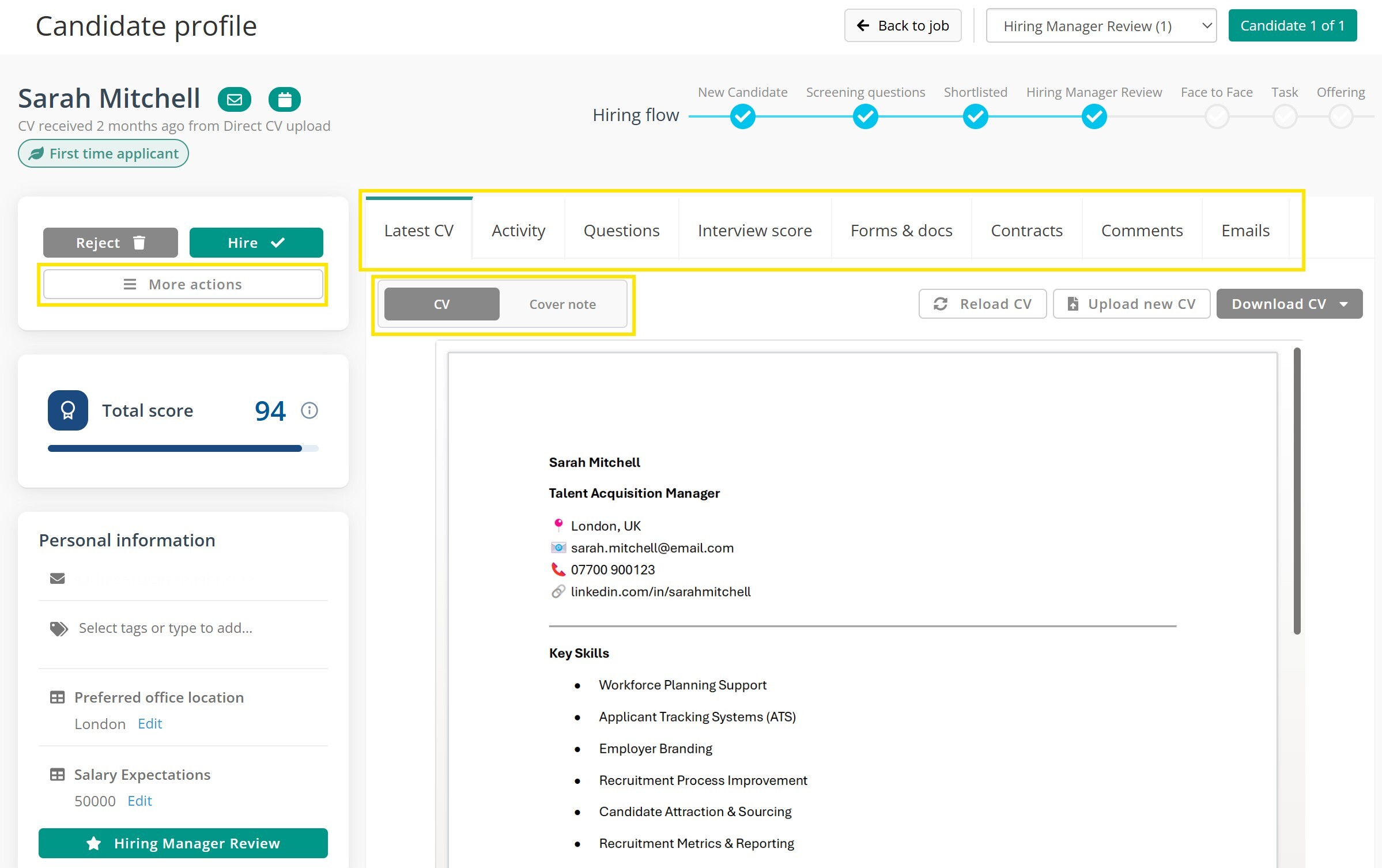
Access a candidate's profile from My Jobs > Manage Jobs, open the relevant role, then click a candidate's name.
Next to their name, you'll see how many roles they've applied for and, underneath, the source they applied from.
The profile is organised into tabs:
- CV and Cover Note: view, download, or upload a new one. View the cover note if one was submitted with the application
- Activity: a full log of everything that's happened on this candidate, including roles applied to, stage moves, interviews, and reviews, with dates.
- Questions: their Smart Question answers, if the job used them.
- Interview Score: request a score from another hiring manager, or score them yourself with Score Now.
- Forms & Docs: send forms to candidates or upload forms received from them.
- Contracts: upload contracts.
- Comments: leave notes and use @ to tag a colleague. They'll receive a notification email.
- Email: see everything sent to the candidate and compose new messages.
Have a look at the Interview scorecard guide for more information about interview scoring.
From More Actions, you can email the candidate, schedule an interview, send them for hiring manager review, or move them to another job.
You can also add tags, export their profile to CSV, delete it, or edit their details.
9. Shortlisting and moving candidates between stages
Setting up Smart Questions
When posting or editing a job, Smart Questions live in the Application Form step. Load a saved set from your admin's templates, or build your own:
- Choose the question type: free text, yes/no, or multiple choice.
- Rate how important the question is with a star score, for example 10 stars for a must-have such as a full driving licence.
- Click Edit Responses to weight each answer, for example "Yes" = 10 and "No" = 0.
- If your subscription allows it, you can also set answers to rule candidates out entirely. This can be useful for high-volume roles with a hard minimum requirement.
Filtering responses
Once candidates have applied, select the ones you want to review, or bulk-select all, click the Filter icon at the top left, and filter by their Smart Question answers.
Click Clear Filters to see everyone again.
Shortlisting candidates
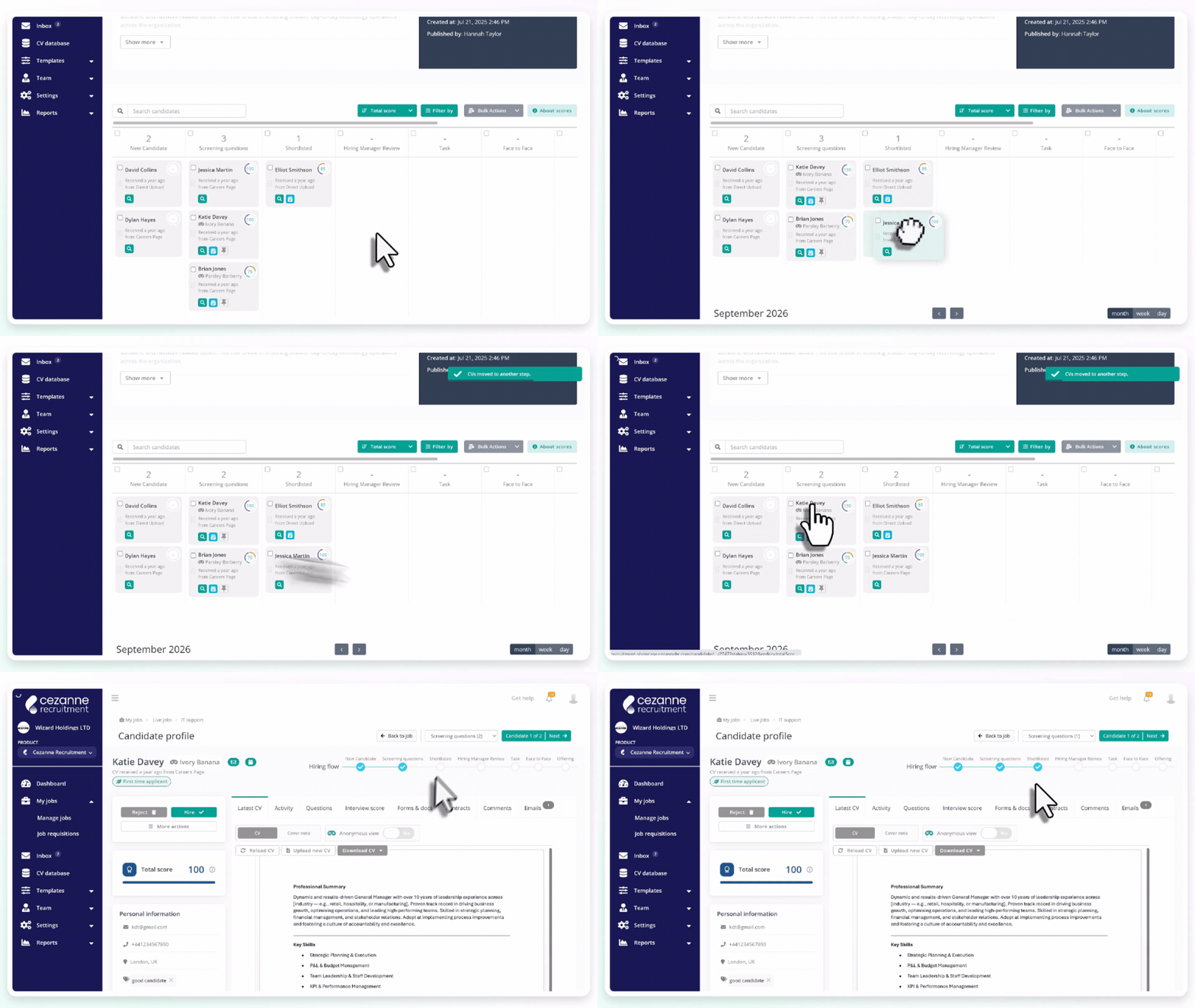
There are two ways to move candidates through your hiring flow stages:
- From the job page: drag and drop a candidate's card into the stage you want, or select multiple candidates and use Bulk Action to move them together.
- From a candidate's profile: use the stage selector at the top right.
10. Scheduling Interviews
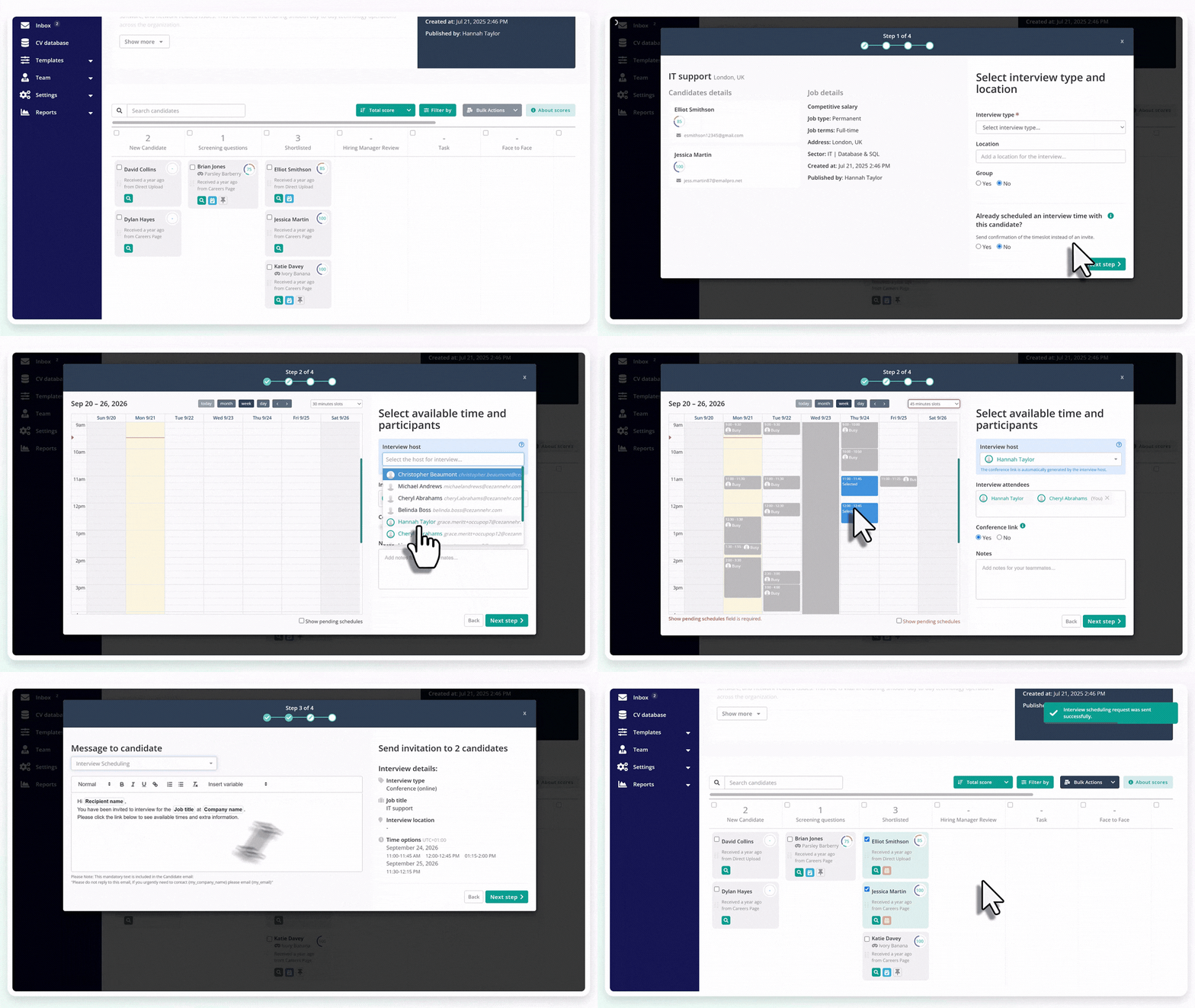
The interview scheduler lets you share time slots with one or more candidates in a single action. They can then pick a time that works for them in real time.
- From My Jobs, open the relevant job.
- Select a candidate, or multiple candidates via Bulk Actions, and choose Schedule Interview. Alternatively, open a candidate's profile and click the Interview Scheduler icon.
- Choose an interview type. Some options depend on your subscription. Recruitment Plus customers can additionally use Conference (Online). If you're not on Recruitment Plus and want an online interview, set the location to "Online" and add your own conferencing link, such as Teams or Zoom, after the invite is sent.
- If it's a group interview, turn on Group so every selected candidate can book from the same shared slots. If Group is off, each candidate gets their own set of slots, and a slot disappears for everyone else once it's booked.
- Click Next Step to see the calendar. If calendar integrations are set up, you'll see real interviewer availability. Select the slots to offer. You can't book over anything already marked busy, and you can change the interview length from the 30-minute default.
- Click Next Step to customise the invite email. Use a saved template or write one on the spot.
- Click Next Step to confirm. You can also turn on SMS reminders here if available and the candidate has a mobile number saved.
- Click Finish.
Candidates receive an email with their options. You're notified once they pick a slot, and that slot becomes unavailable to everyone else immediately.
11. Interview Scorecards
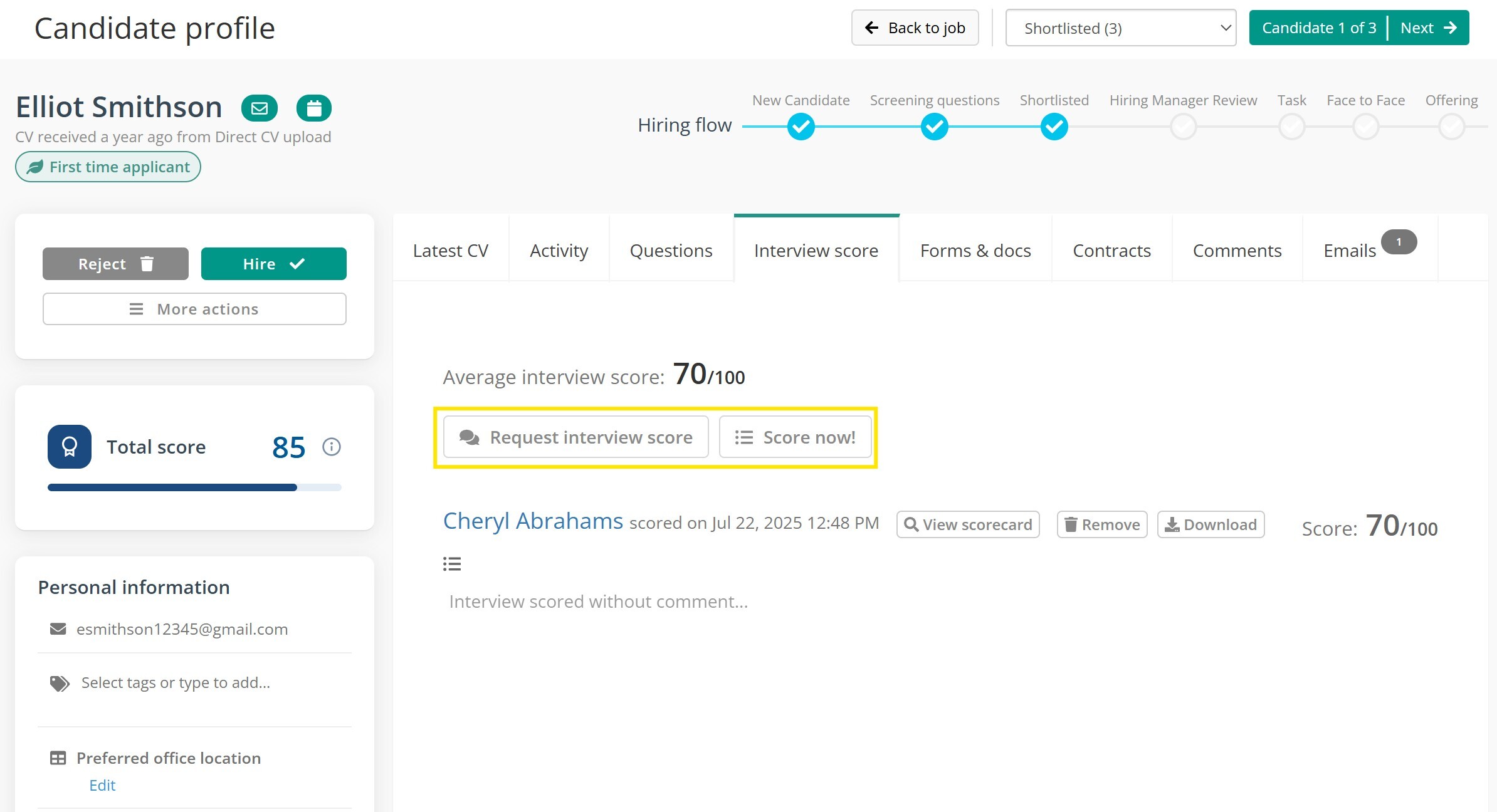
Interview scoring lets you score candidates on their interview performance using scorecards tailored to different interview styles, with every hiring manager able to contribute. Scores feed into the candidate's overall average.
From the candidate's profile, select Interview Score, then either Score Now yourself or Request Interview Score to send it to another hiring manager. Pick the scorecard and who to send it to.
You can also score in bulk. From the job page, select the candidates you want to score, choose With Selected, then Score Interview.
Have a look at the Interview scorecard guide for more information about interview scoring.
12. Messaging Candidates
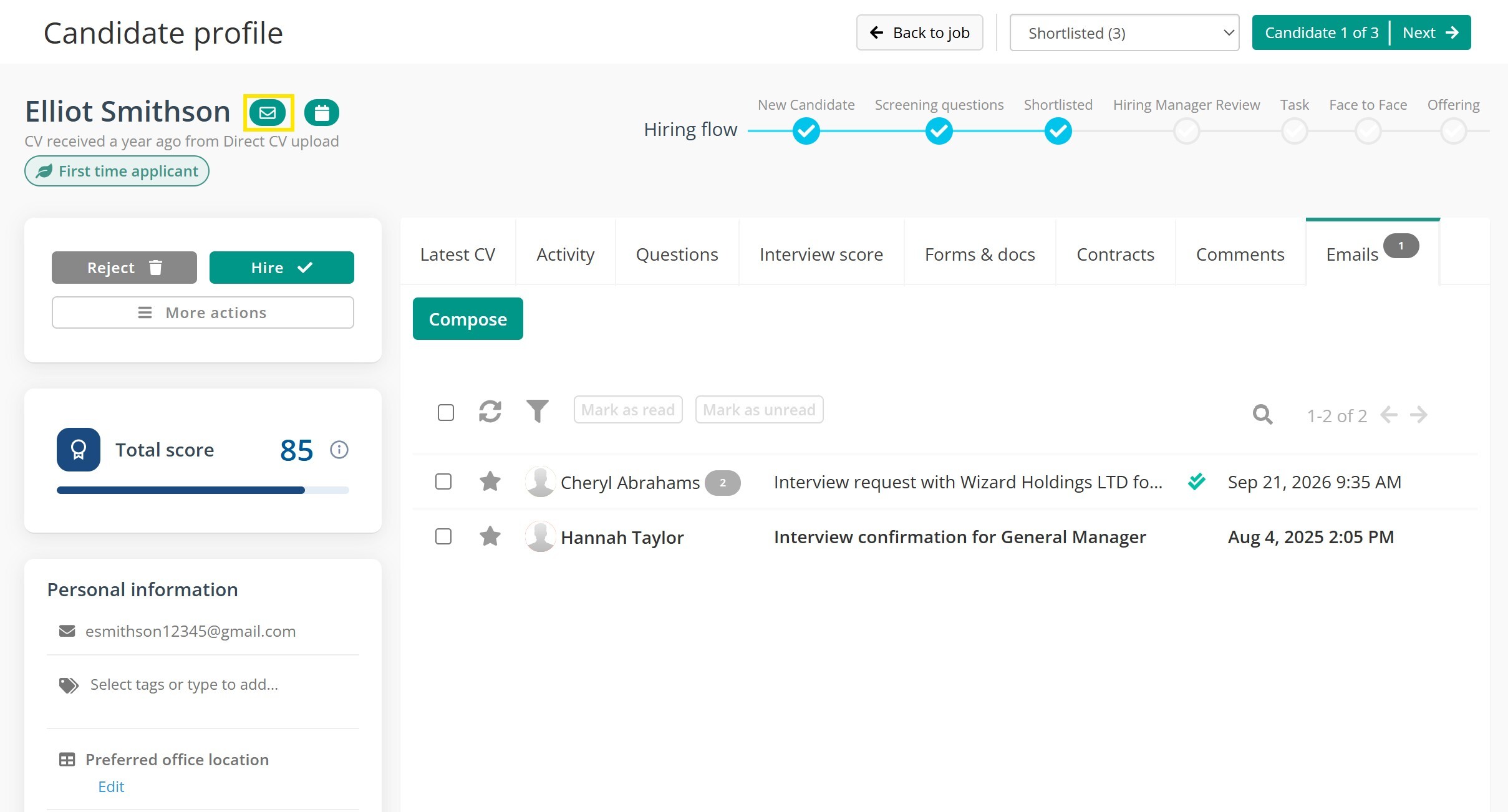
From a candidate's profile, click the Mail icon near their name.
Use a saved email template or write a new message, then click Send.
The Email tab shows everything sent to the candidate along with delivery status:
- Grey tick = sent
- Two green ticks = delivered
- Green circle tick = opened
13. Rejecting Candidates
From a candidate's profile, click Reject.
You can reject with or without a message. If you include one, you can pull it straight from a saved template, and optionally select a reason from your company's customised list.
You can also drag a candidate directly into the Rejected stage of the hiring flow.
To reject several candidates at once:
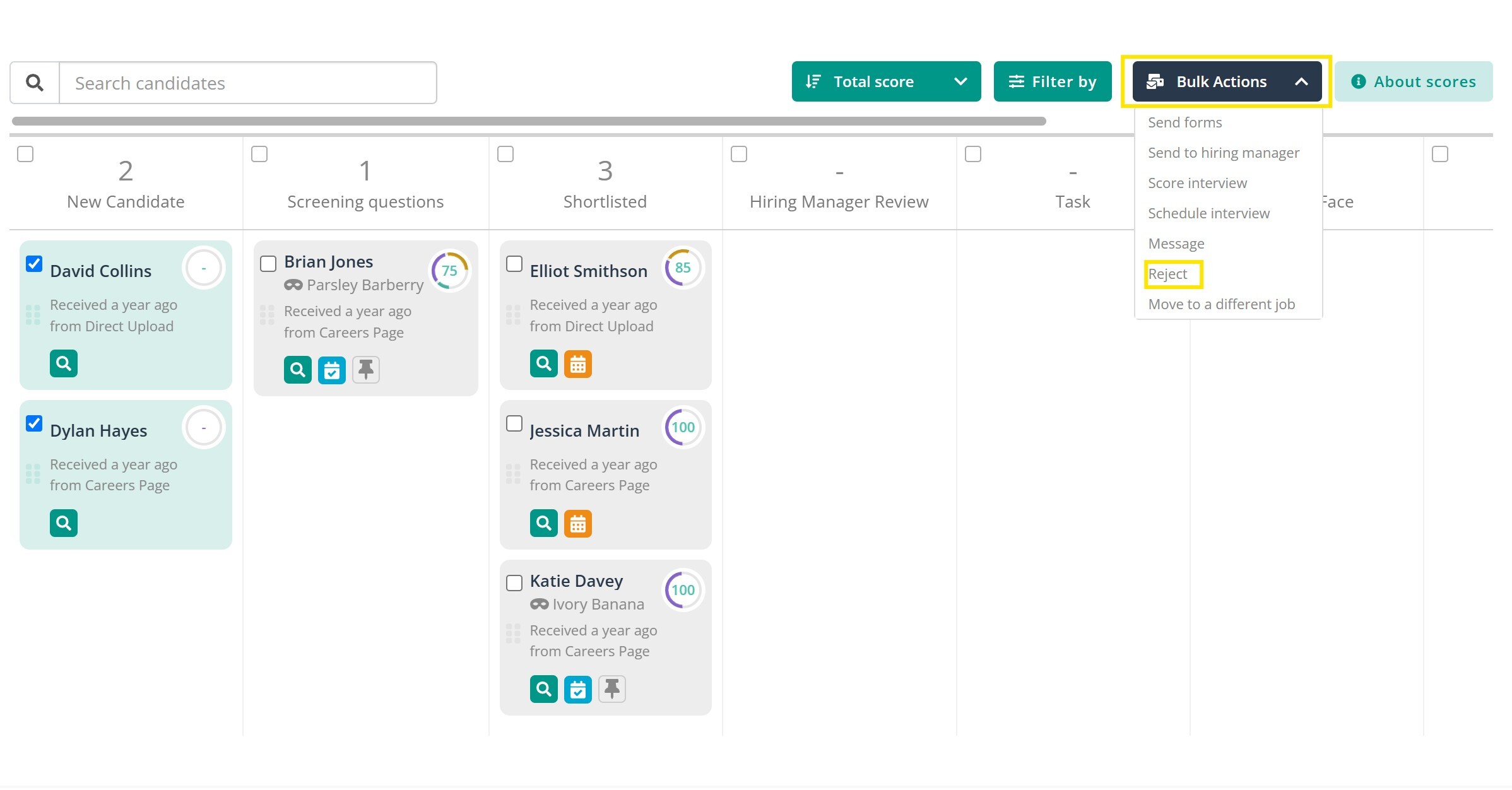
Select them from the job's candidate list, then use Bulk Actions > Reject, with or without a message.
Rejection reasons are visible afterwards in your Hiring Process report.
14. Moving a Candidate to Another Job
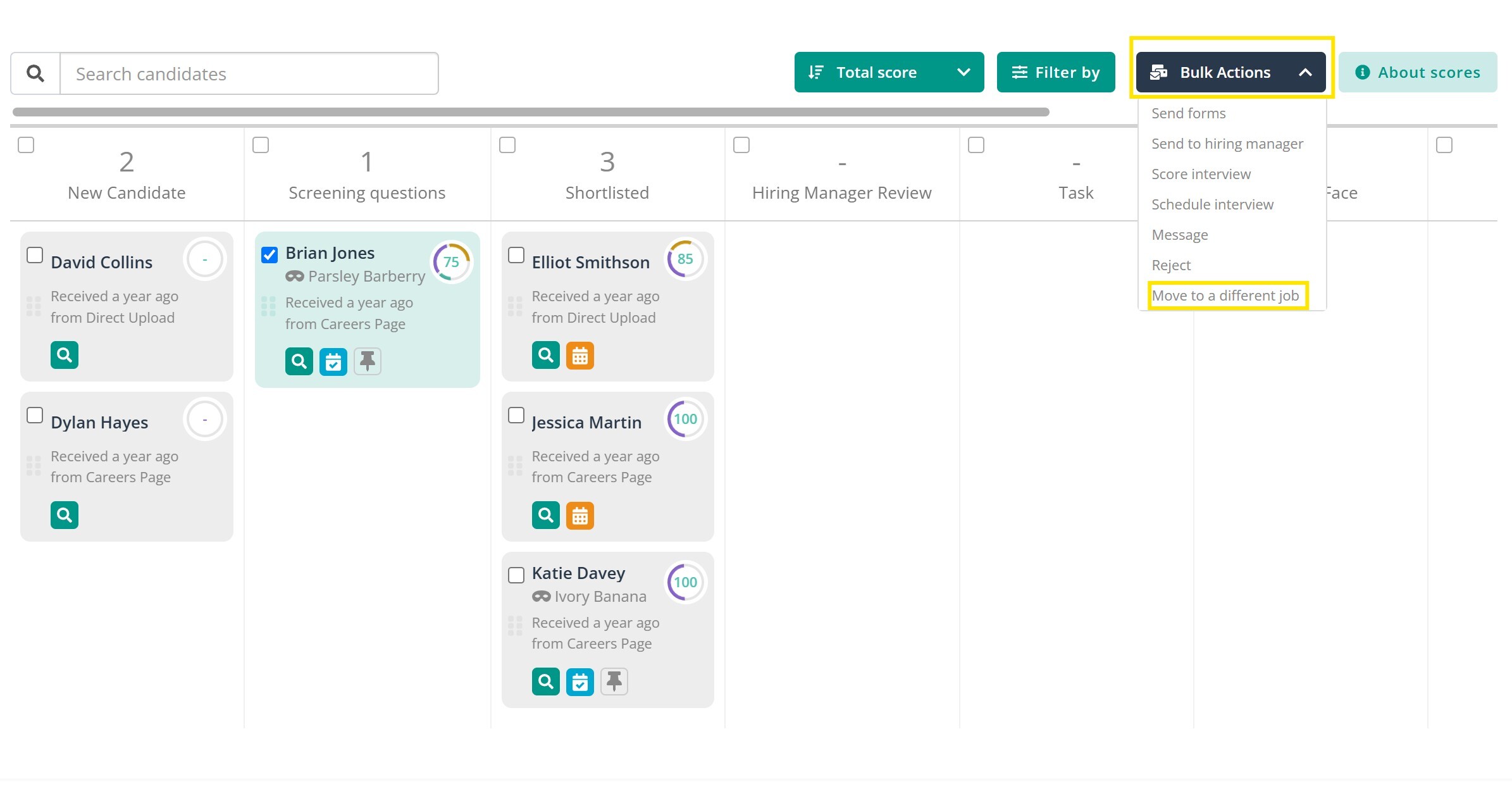
Open the candidate's profile, go to More Actions > Move to a Different Job, and pick a job from your live roles. You can also choose which hiring stage to place them in.
Click Move Candidate to confirm.
This also works in bulk from a job's candidate list. Select candidates, then use Bulk Actions > Move to a Different Job.
Two things to know:
- Candidates can only be moved if they've opted in for future job processes. Check Settings > Company Settings.
- You can only move a candidate into a job you own or are assigned to. Ask the job owner to add you to the hiring team if needed.
15. Hiring a Candidate
We recommend moving candidates to Hired for better reporting and tracking.
- From My Jobs, open the relevant job.
- Click the candidate to open their profile.
- Click Hire at the top left.
- Click Confirm.
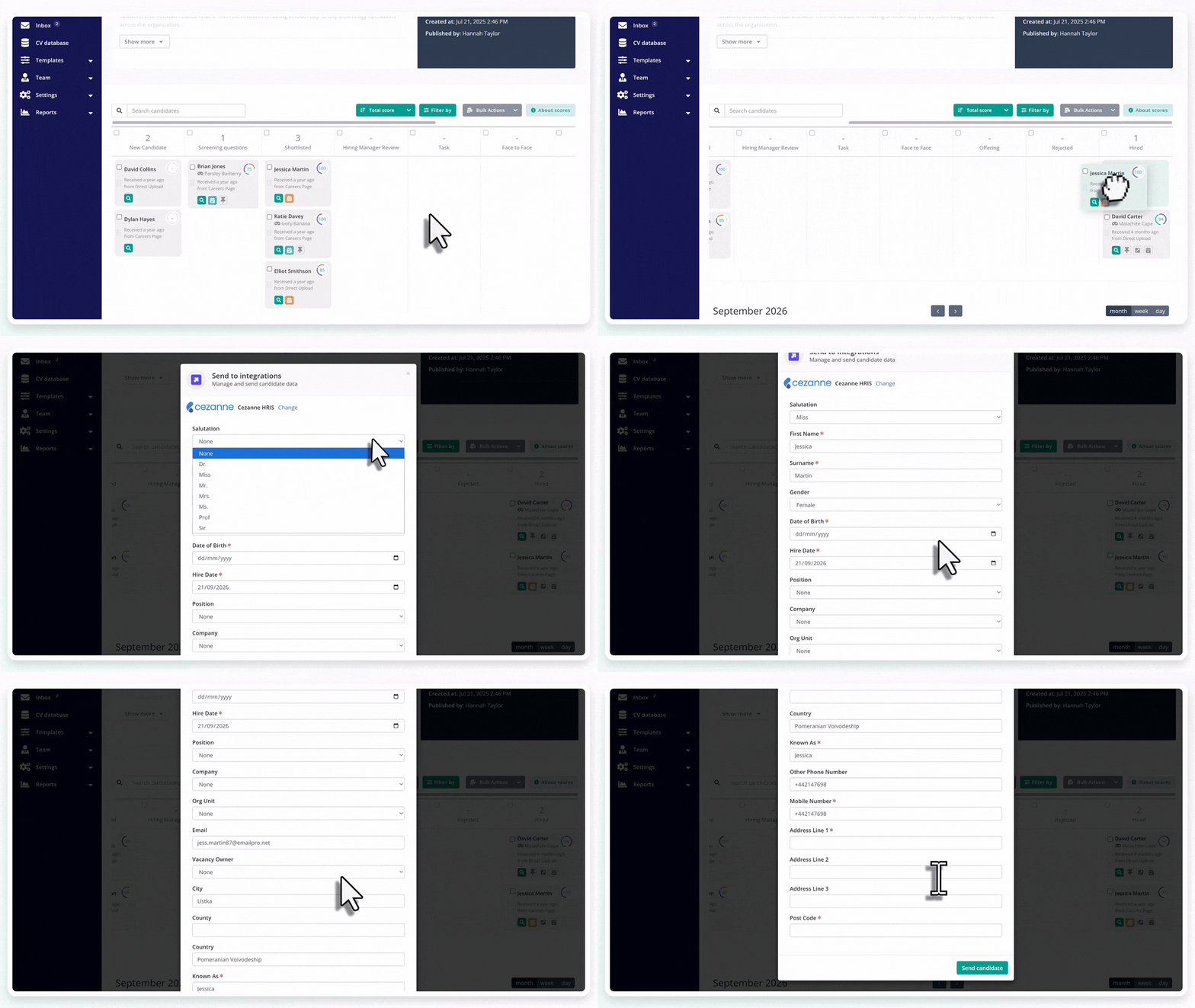
You can also hire candidates by moving them to the hired section of the candidate pipeline.
Keep in mind:
If you are a Cezanne HR client an integration box will appear once a candidate is moved to 'hired' asking for information so they can be sent to Cezanne and mapped correctly into the system. Some of this information, such as date of birth, is mandatory and others such as position and org unit are optional, so can be added once they are in the Cezanne system as well.
16. Your Notifications & Calendar Settings
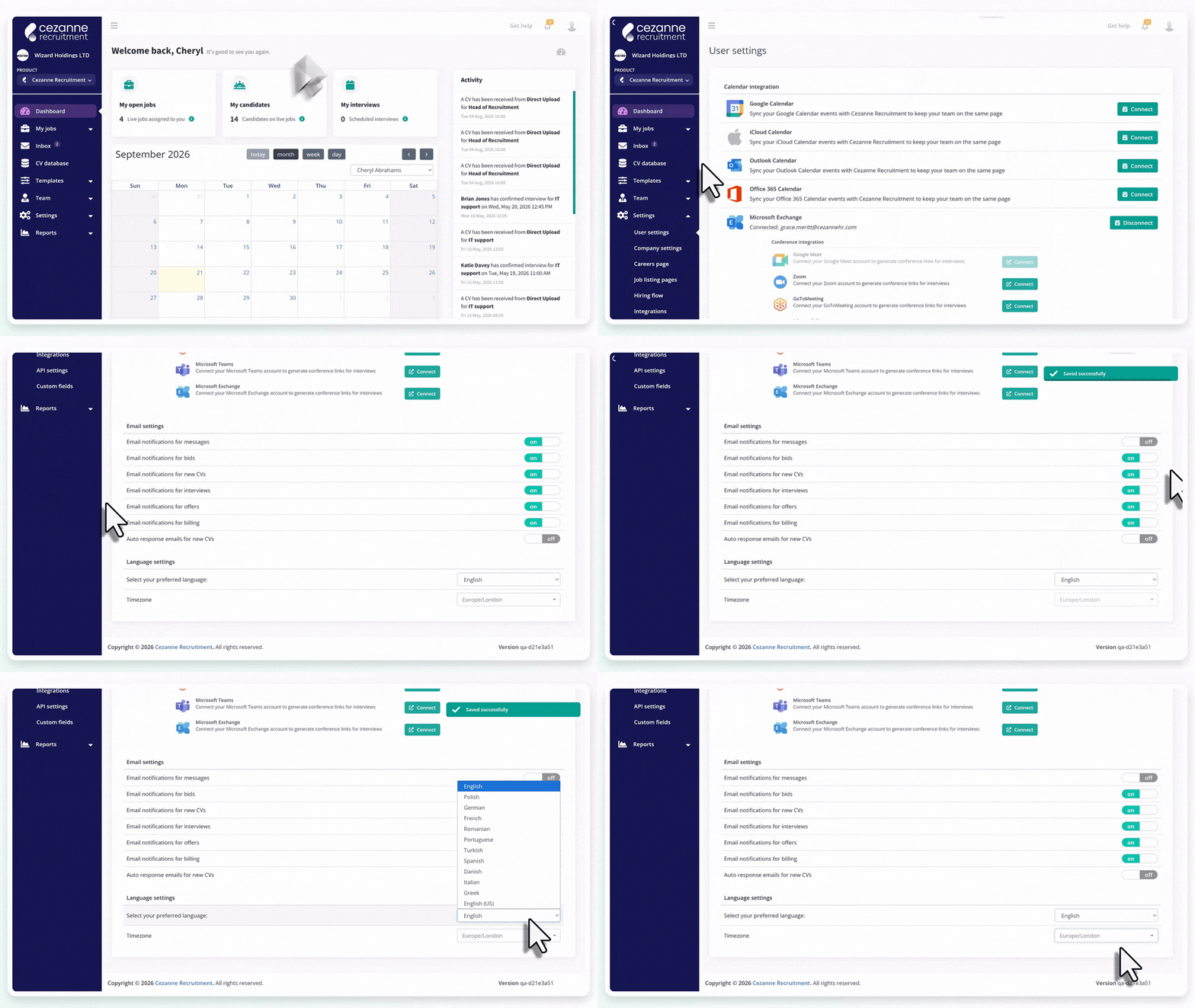
Calendar integration: if your subscription includes it, go to Settings > User Settings, select your calendar provider, and click Connect.
See Calendar Integrations in the Administrators guide for the full setup.
Email notifications: go to Settings > User Settings and use the on/off toggles to control which updates you get, such as a new CV received.
Note: the auto-response for "New CV Notification" is a company-wide default set by your admin. If it's on, it applies to everyone.
Language: go to Settings > User Settings > Language Options. English or Polish are currently available.
Time zone: go to Settings > User Settings and choose your time zone in the language settings section.
Getting this right matters for the interview scheduler and calendar integration, so interview times are sent correctly.
17. Frequently Asked Questions