.png?width=271&height=81&name=Knowledge%20base%20small%20(4).png)
The interview scheduler allows you to share interview time slots with multiple candidates in a single action. You select the interviewers and define their availability, and candidates can view the available slots in real time and choose a time that suits them.
1. From the left side menu, select “My Jobs.”
2. From the list of jobs, select the job you wish to manage.
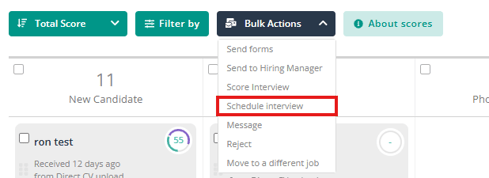
3. To schedule an interview, you can either select the Candidate(s) from the Job page, click bulk actions and "Schedule Interview":
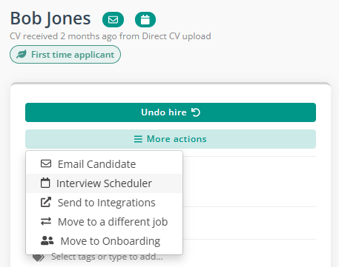
Or click into a candidate to enter the candidate's profile and select Interview scheduler:
4. The interview scheduler will open as shown below. Select an interview type from the drop-down list, Note that some of the options are restricted based on the subscription package you have. Recruitment Plus customers can additionally access "Conference (Online)".
Add a location, for non recruitment plus customers that wish to use this feature to schedule an online interview, we would advise to add a location of "Online", you will need to later re-open he appointment and manually add a link for your conferencing tool e.g. teams, zoom etc.
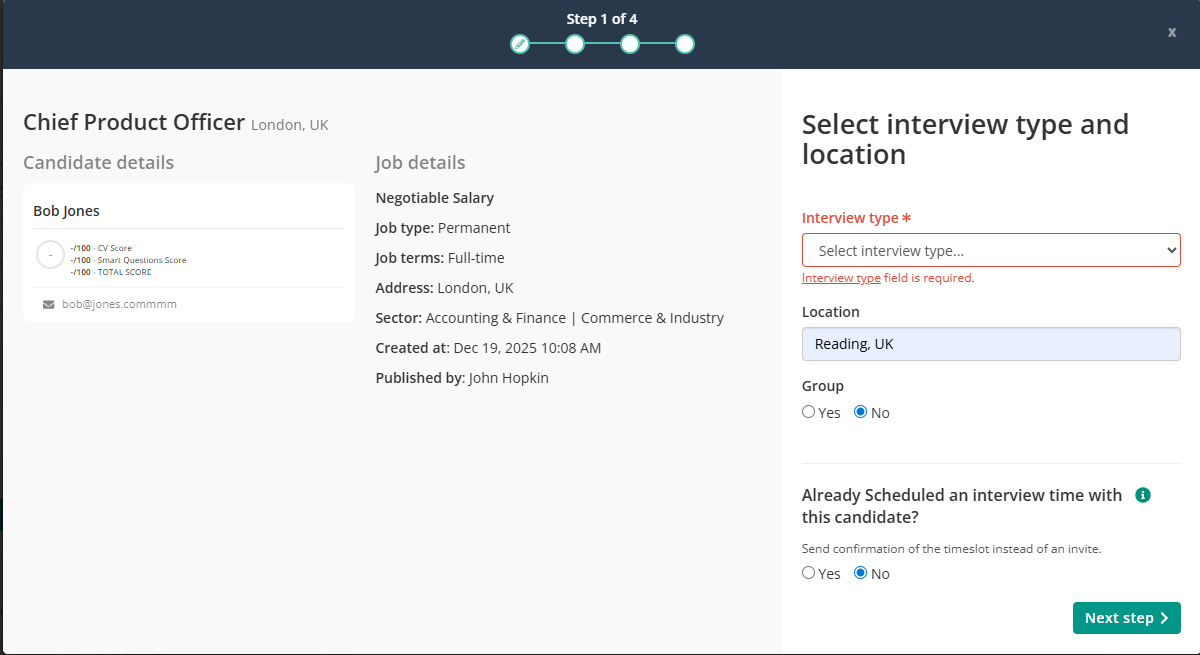
6. If you are inviting candidates to a group interview, select Group to allow all selected candidates to accept the same interview time slots.
When Group is selected, every chosen candidate can book one of the shared slots you set in the next step. If Group is not selected, candidates will receive an email asking them to choose from the available time slots, and once a slot is taken it will no longer be available to other candidates.
7. Click Next step to open the calendar view. If calendar integrations are enabled and configured for your interviewers (Recruitment Plus only), you will see their availability in real time. Select the time slots you want to share with the selected candidate or candidates, note that you cannot book over existing appointments marked as busy.
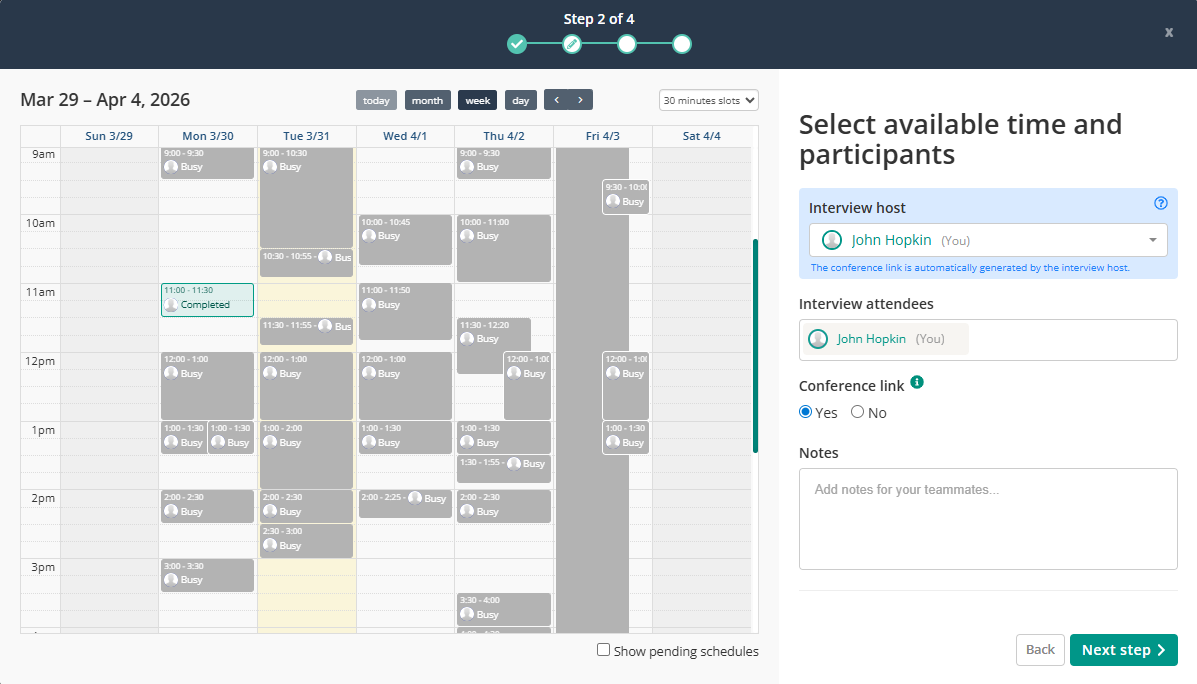
You can select and offer multiple timeslots. In the top drop-down list, you can select the interview intervals if you wish to book a different duration than the default 30 minutes.
You can also include a Conference link in the meeting invitation, provided you have configured this under your user account (Recruitment Plus package only).
8. Click Next Step to customise the email inviting Candidates to schedule their interview time:
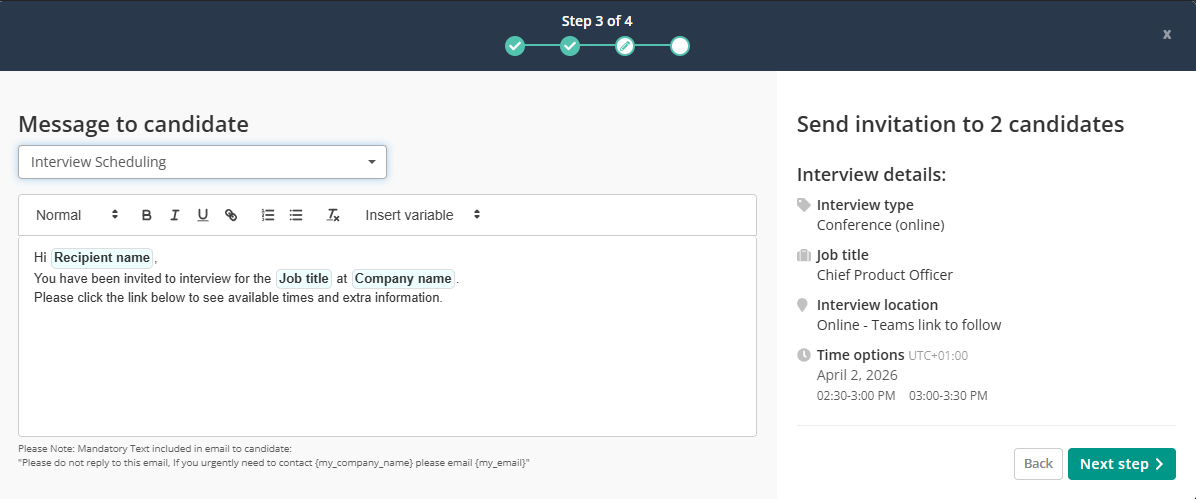
You can select an existing email template, or create a fully customized email on the go.
9. Click Next step to confirm the itinerary.
Here, you have the option to set up SMS reminders for your candidates if you wish to (Recruitment Plus package only). Note SMS can only be sent if you have a Mobile number saved for the Candidates.
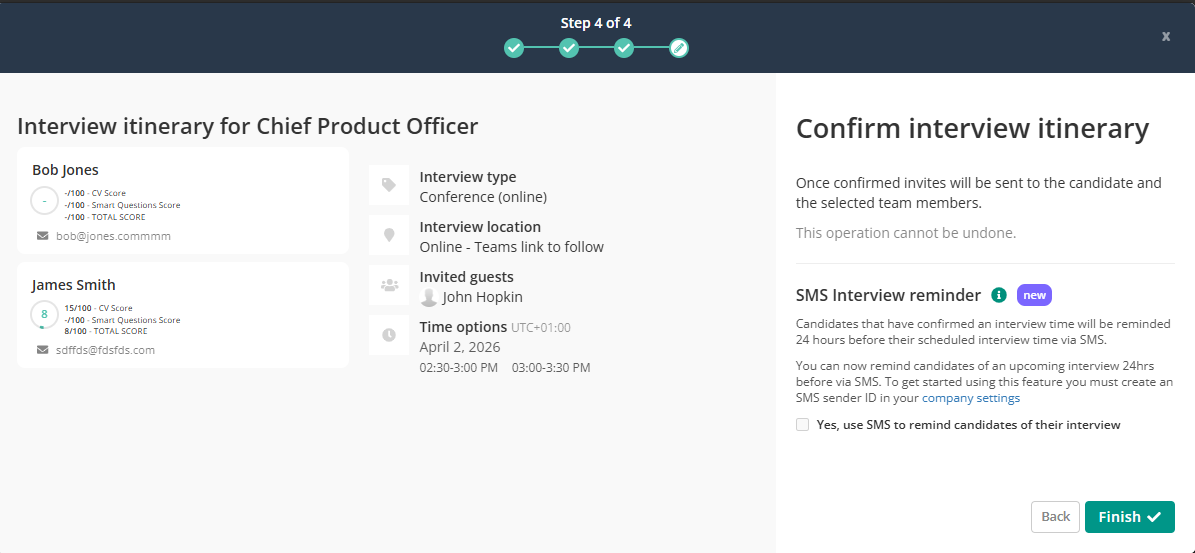
Once everything looks correct, just click on Finish.
*Note: An email will be sent to the candidate with the interview options. Once the candidate selects a time, you will be notified. You can send the same slots to multiple candidates; the slots update in real-time, so when one candidate selects a slot, it becomes unavailable to the other candidates.
📹 Please find the below videos on how to schedule interviews with or without a calendar integration:

