Before you start
Before creating your plan, consider:
- who should own and sign off the plan
- which employees should be included
- the date the new salaries should take effect
- how your organisation wants the salary budget to be calculated.
Work through the steps below in order to complete your Compensation Plan setup.
1. Create your Compensation Plan
Go to Administration > Compensation Planning and select Add New Compensation Plan.
Enter the main details for your plan:
- Enter a name that makes the plan easy to identify.
- Select the Plan Type: Salary, Bonus or Salary & Bonus.
- Select the Plan Owner. The owner has full permissions for the plan and signs it off once the review has been completed.
- Select your Base Currency.
- Enter the Reference Dates. See the information below for further guidance.
- Select any additional functionality you want to use, such as Protected Characteristics or Suggested Ranges.
- Choose whether the Salary Budget Type is Manual or Percentage.
- Enter the date the new salary will be effective from.
- Save the plan.
Reference dates
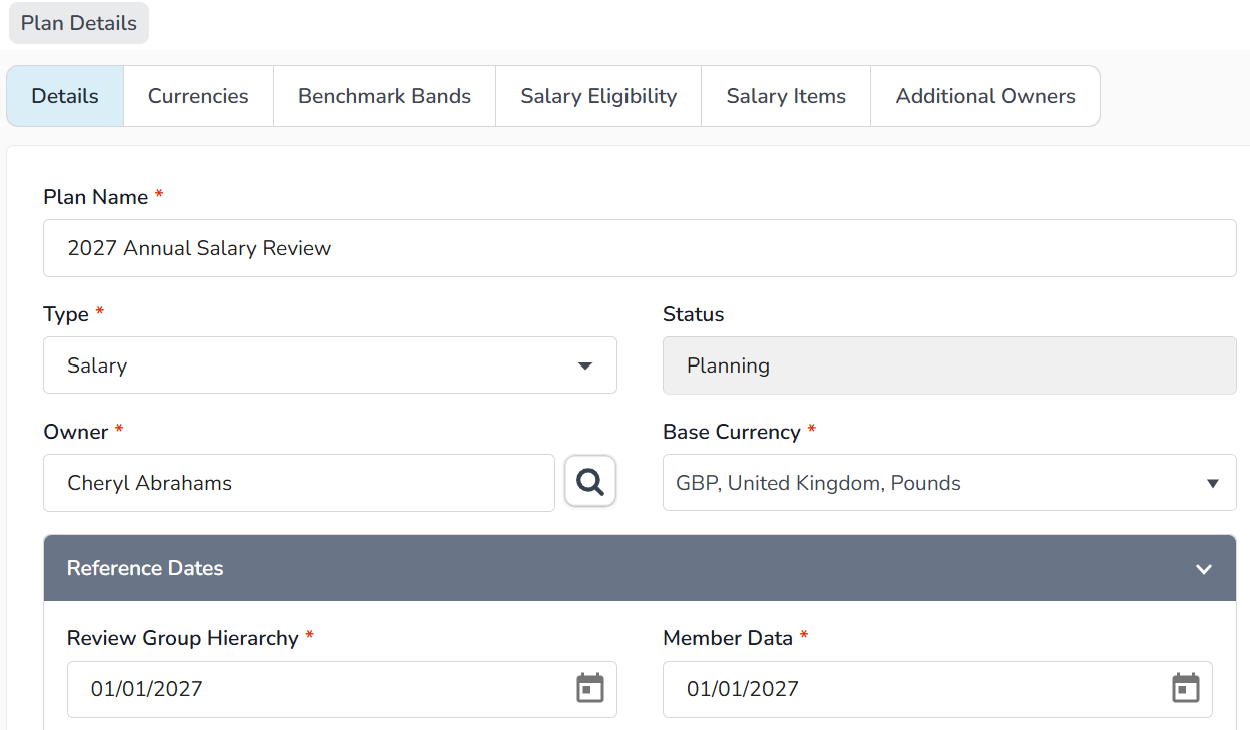
The reference dates determine the point in time Cezanne uses when looking at information for the plan:
- Review Group Hierarchy date determines which reporting structure is used to build your review groups.
- Member Data date determines which employee information is brought into the plan.
- Salary Eligibility date determines when your eligibility rules are assessed.
In most cases, these dates should reflect the point at which your compensation review process begins.
2. Configure salary items
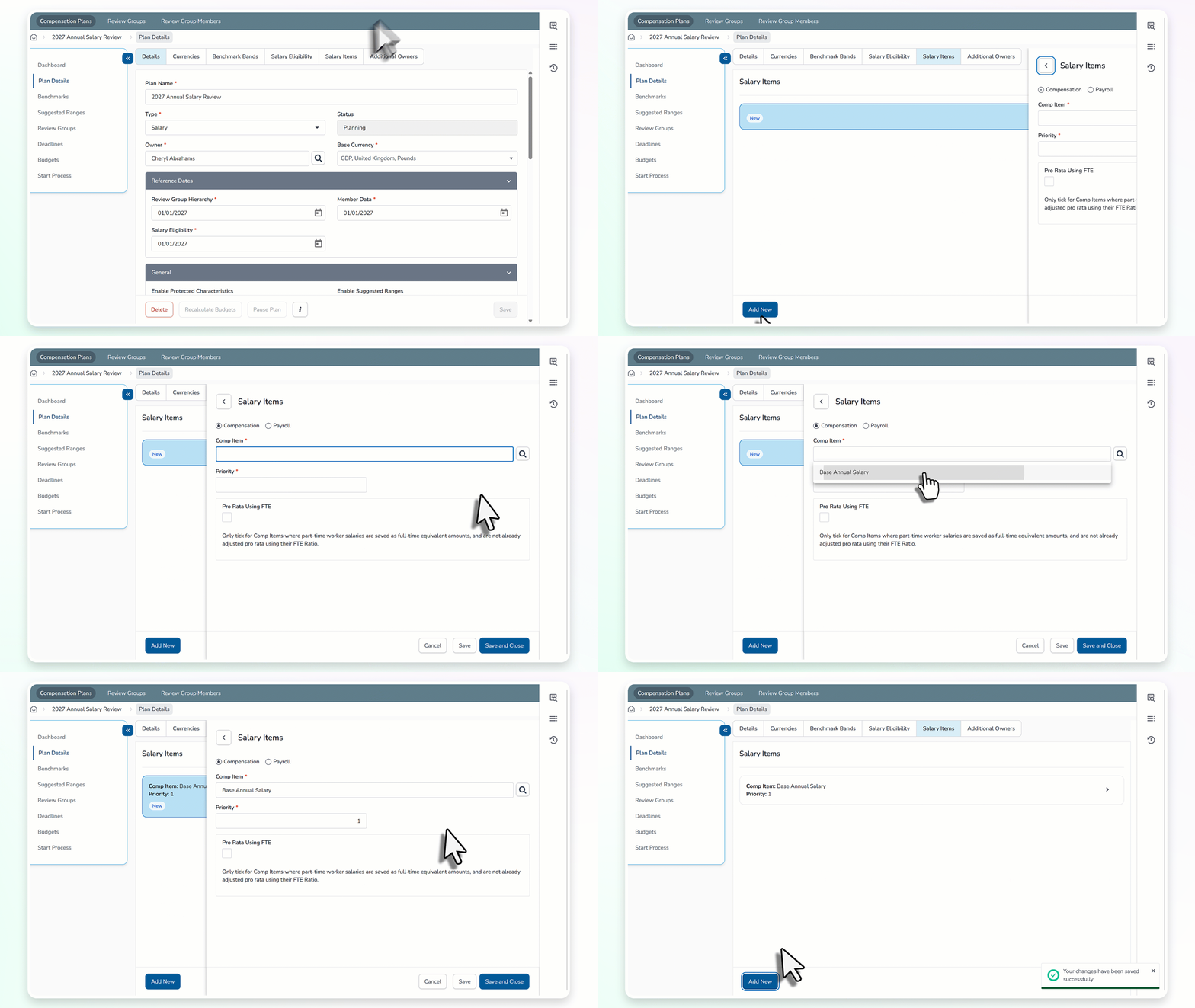
After saving the plan, return to Plan Details and open Salary Items.
You need to configure the salary information Cezanne should use. Without this, Cezanne cannot bring through the salary information required to calculate your budgets.
- If you don't use Cezanne Payroll, add the Compensation Item used for salary and set its priority.
- If you use Cezanne Payroll, you may instead select the relevant Company Payroll and Pay Schedule. If you have multiple Pay Schedules, set their priority.
3. Configure currencies (if applicable)
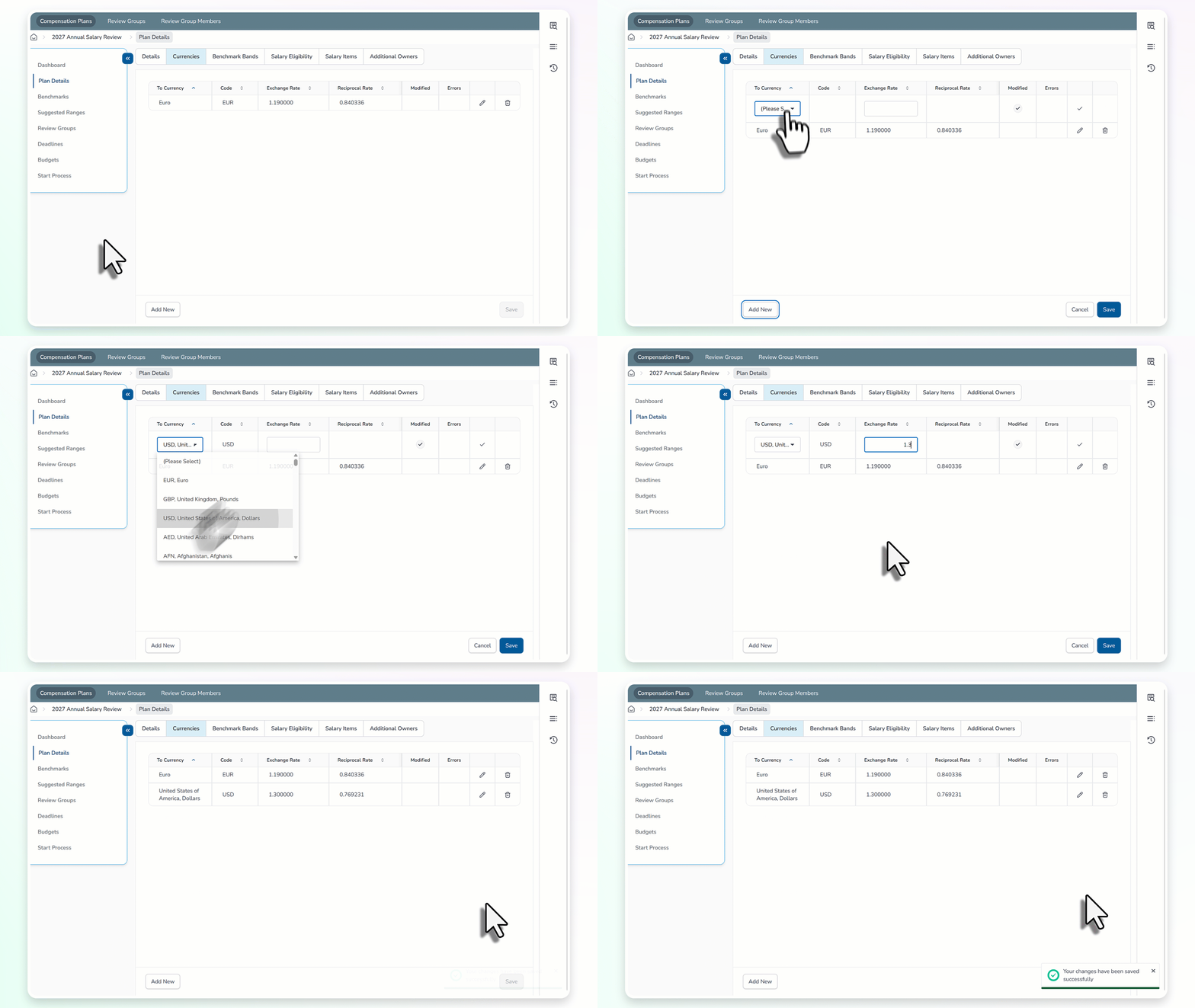
If employees in the plan are paid in a currency other than the Base Currency selected when you created the plan, add the additional currencies in Plan Details > Currencies.
The currency conversions are specific to this Compensation Plan and must be added manually by an administrator.
Take note
If a required currency hasn't been added, you'll receive an error when you try to start the plan and the full salary budget won't be shown.
4. Set salary eligibility (optional)
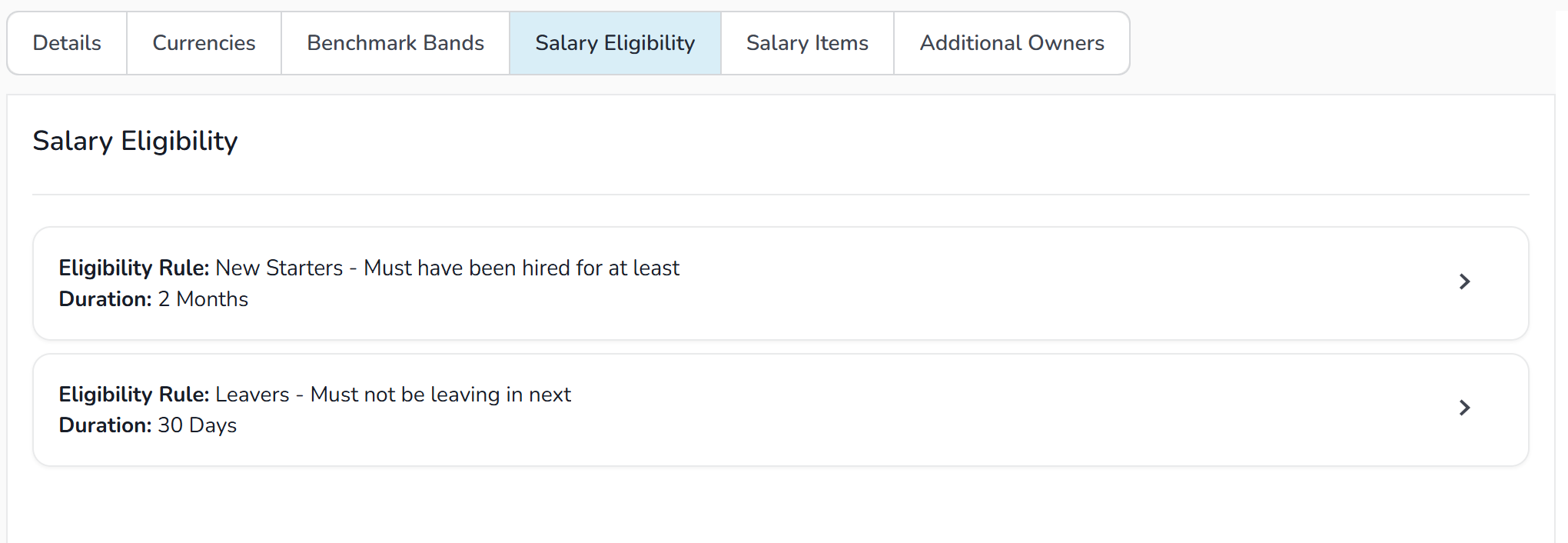
From Plan Details, open the Salary Eligibility tab and configure any eligibility rules required for your plan, such as length of service.
Once a rule has been entered, Cezanne calculates the cut-off date using the Salary Eligibility date entered when the plan was created.
5. Configure salary benchmarks (optional)
If you're using salary benchmarks, these need to be configured as part of your Compensation Plan setup.
Please get in touch with support if you need guidance on this. Please also be aware the first time you set up salary benchmarks this can take a while to complete.
6. Create and check your review groups
Review groups determine:
- who is included in the compensation review
- how employees are grouped
- who is responsible for reviewing them
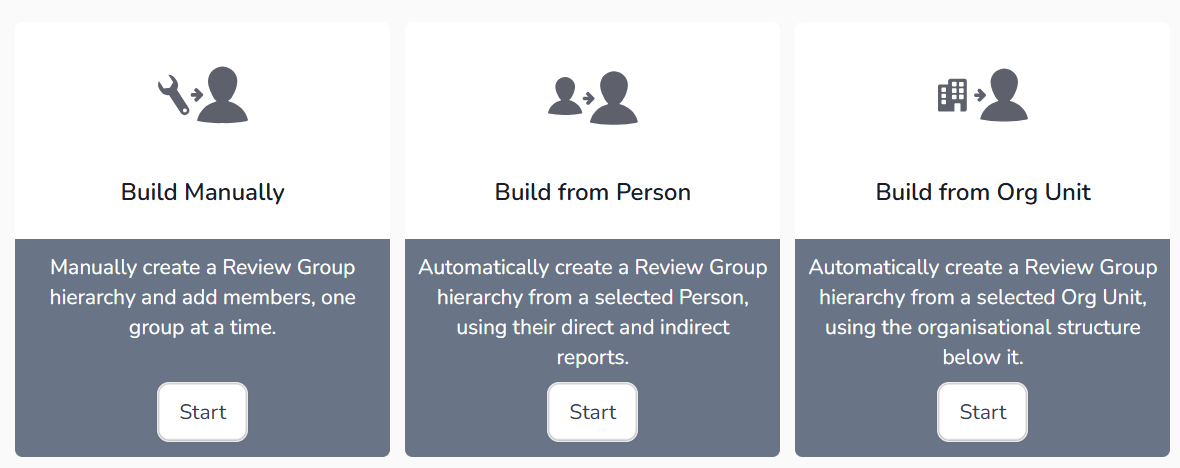
When creating your initial review groups, you can:
- build them manually
- build from a person
- build from an org unit
If the plan includes most or all of your organisation, building from a person at the top of the organisational structure is recommended. This can reduce the risk of employees being missed because Cezanne brings through their direct and indirect reports.
Building from an org unit uses the existing organisational structure and makes the managers of the org units the reviewers. If an org unit doesn't have a manager, employees within it may not be included.
Populate member data
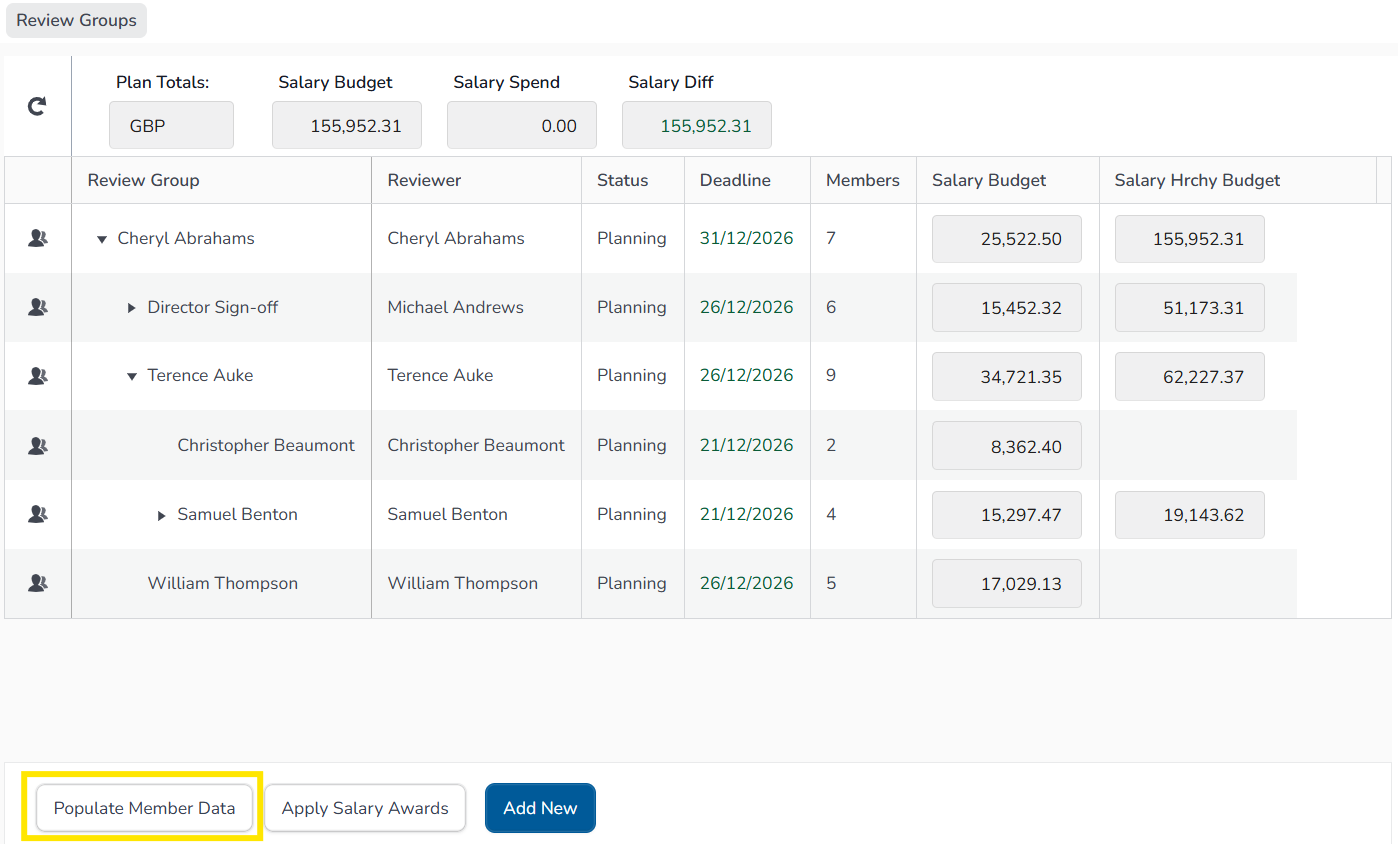
Once you've created your initial groups, select Populate Member Data.
Cezanne will bring through the employee information required for the plan, including salary and employment information. This may take a few moments.
You can then adjust the groups to match your compensation process. For example, you can:
- add or remove employees
- move employees between groups
- change the reviewer
- move or merge an entire group
- rename groups
Tip
Once your review groups are ready, go back to the compensation dashboard and check that the total number of members matches the number of employees you expect to be included. This can help identify anyone who may have been missed.
7. Set the deadlines
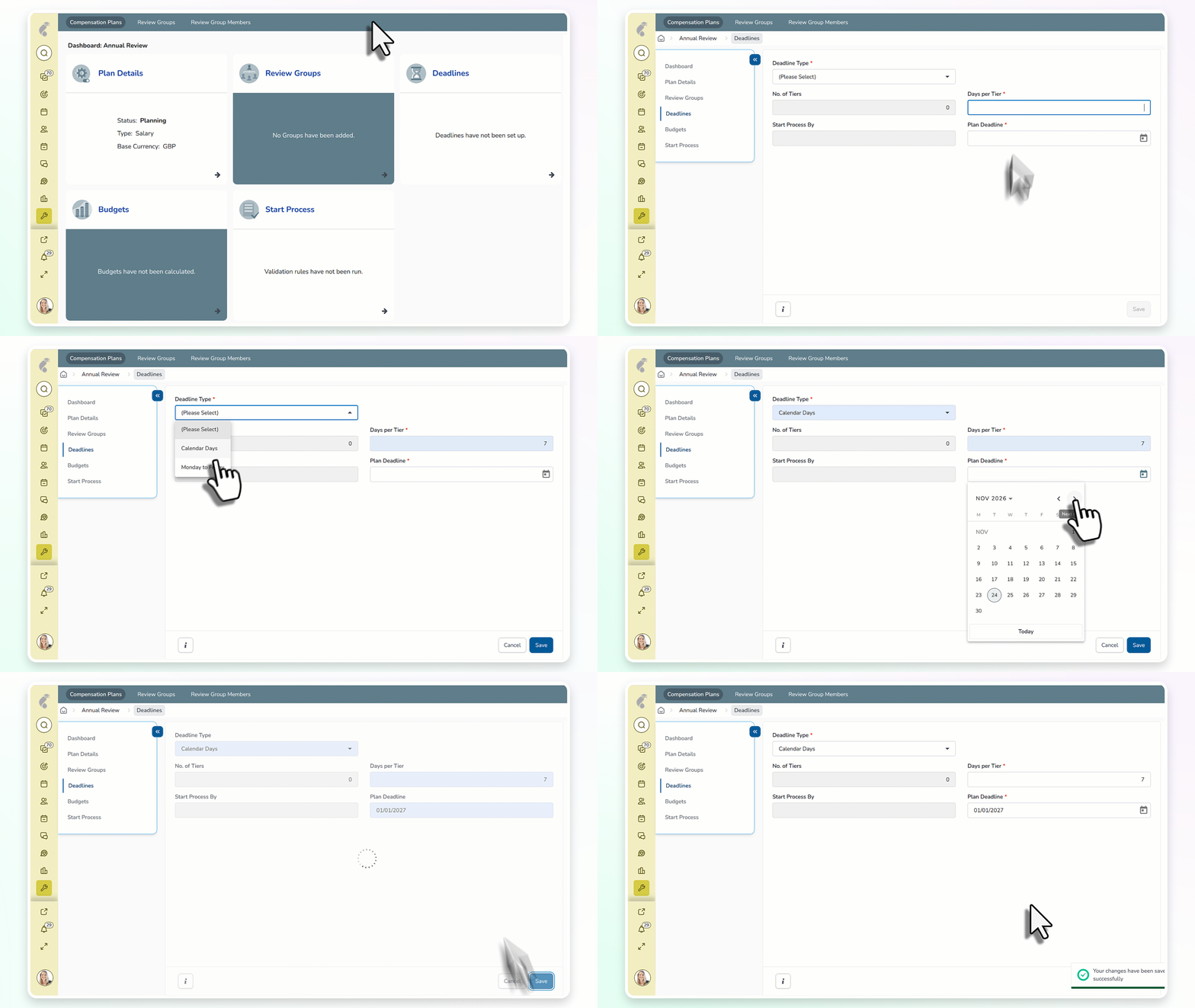
Open Deadlines and enter the Plan Deadline, which is the date by which all salary amounts need to have been submitted.
Then:
- Enter how many days each manager should have to complete their compensation proposals.
- Choose whether these are calendar days or Monday to Friday.
- Save your changes.
Cezanne uses this information, together with the number of tiers in the review-group hierarchy, to calculate when the plan needs to start so that each reviewer has the required amount of time.
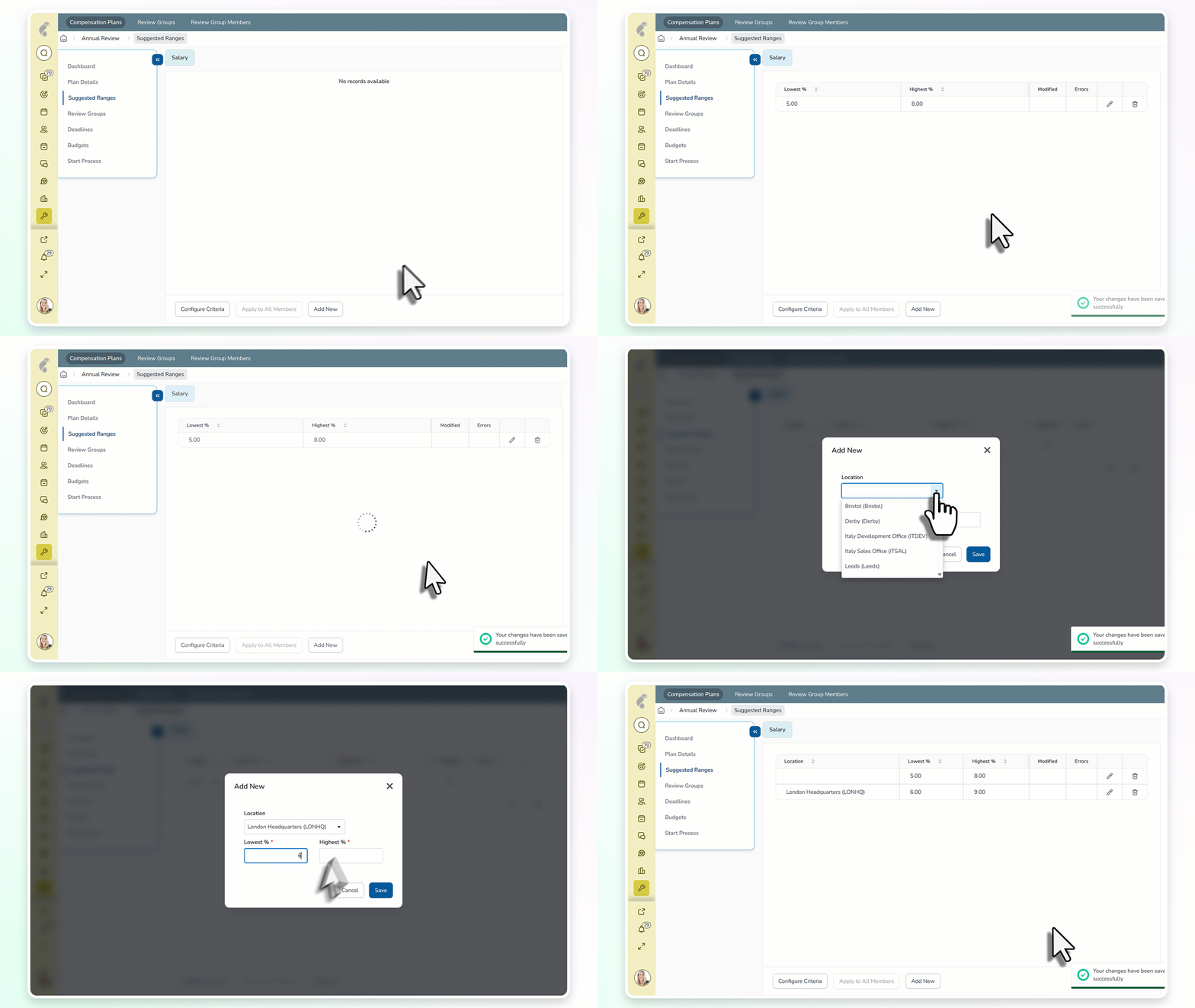
8. Add suggested ranges (optional)
Suggested ranges can provide managers with guidance about the salary increase range suggested for an employee, but don't feed into the salary calculations themselves.
If you're using them, you can:
- add a general suggested range
- select Configure Criteria to create more specific suggested ranges
If an employee matches multiple ranges, Cezanne uses the most specific matching range when displaying the information to the reviewer.
9. Configure the budget
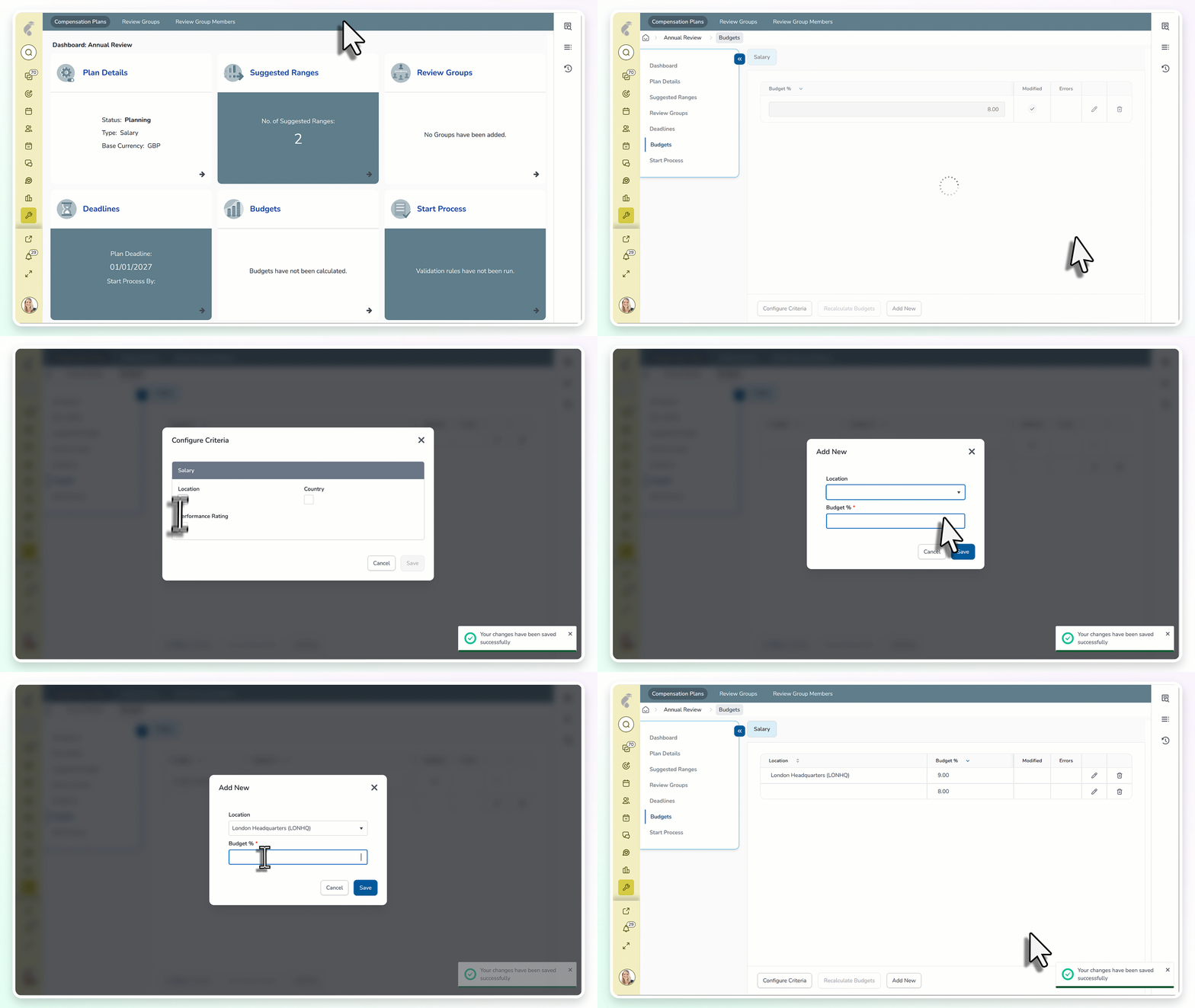
Open Budget and select Add New.
Add the budget as either:
- a percentage
- a manual amount
depending on the Salary Budget Type selected when the plan was created.
Configure different budgets
If required, select Configure Criteria to vary the budget for different groups of employees.
Budgets can be varied by:
- Location
- Country
- Compensation Group, where configured
- Performance Rating, if you use Cezanne Performance
If an employee matches more than one criterion, Cezanne uses the most specific matching budget.
Tip
Once your budgets have been configured, go back into Review Groups and select Populate Member Data again so that the budget calculations are brought through for the plan.
10. Validate the plan
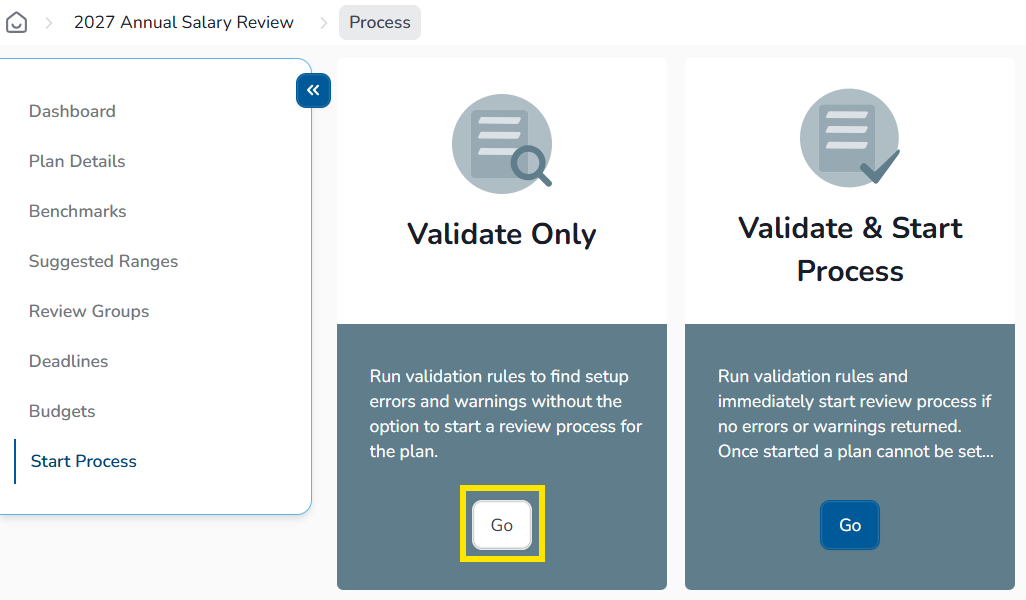
Before starting the Compensation Plan, go to Start Process and select Go under Validate Only.
This identifies errors or warnings that may affect the plan starting, giving you an opportunity to investigate and correct them before launch.