
In this area you can:
- View upcoming Tasks and Events
- View engagement metrics and completion reports from a glance
- Have learners view their mandatory training from their dashboard
- Switch dashboards based on the data you want to see
Key sections
Editing Dashboards:
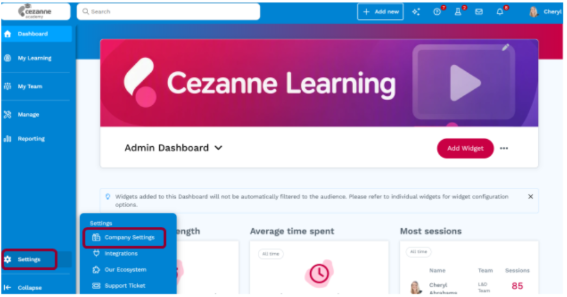
Step 1: Click into the company settings screen by clicking on “Settings” and then “Company Settings” on the left-hand menu.
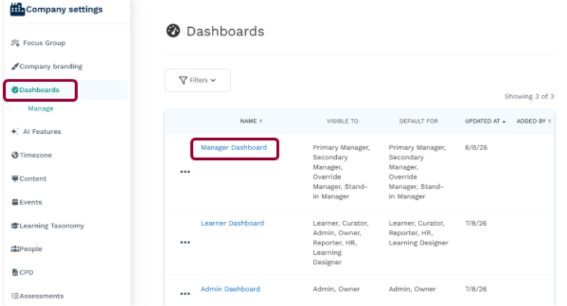
Step 2: Within the company settings screen, click on Dashboards. Within this, click on the dashboard you are looking to alter.
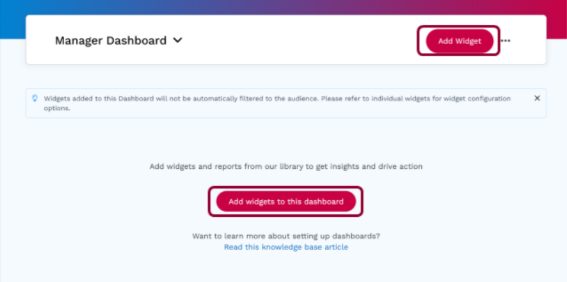
Step 3: Within the chosen dashboard, you will be able to click on the “Add Widgets” button.
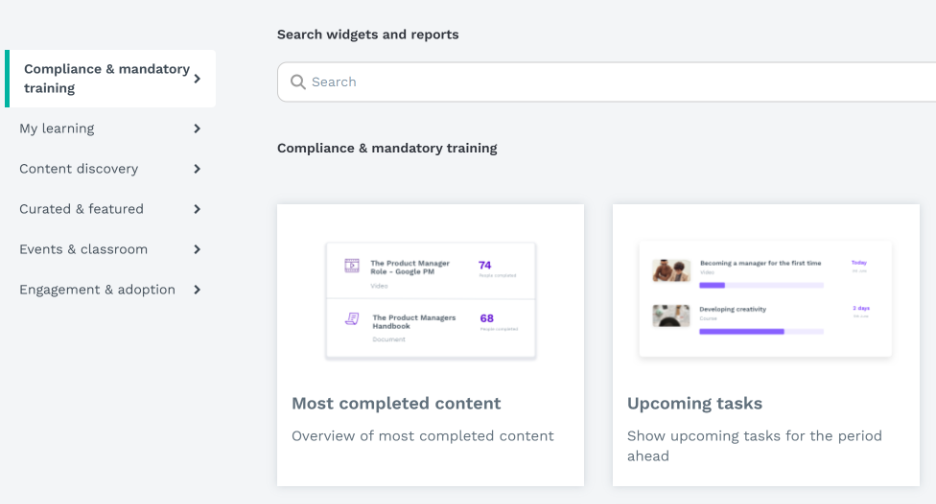
Step 4: You will then see a list of all available widgets with a description of what each one shows. Select a widget, configure its settings, then add it to the dashboard.
Resizing / Editing Widgets
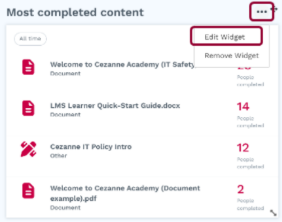
Every widget within the system can be configured by clicking the “…” above it once placed, this allows you to edit the name/ behaviour of the widget.
You can also move any widget by clicking and dragging the arrow icon at the top-right corner of each widget.
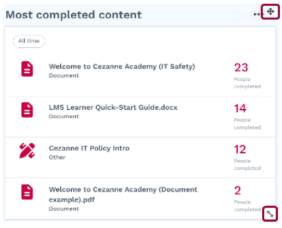
Or re-size the widget by clicking and dragging the arrow icon at the bottom-right corner of each widget.