
Before you start
All review groups must have been submitted before the plan can be signed off. Once the final review group has been submitted, the plan status changes to Completed and the administrator is notified via email that the plan is ready for final review and sign-off.
Steps to Follow
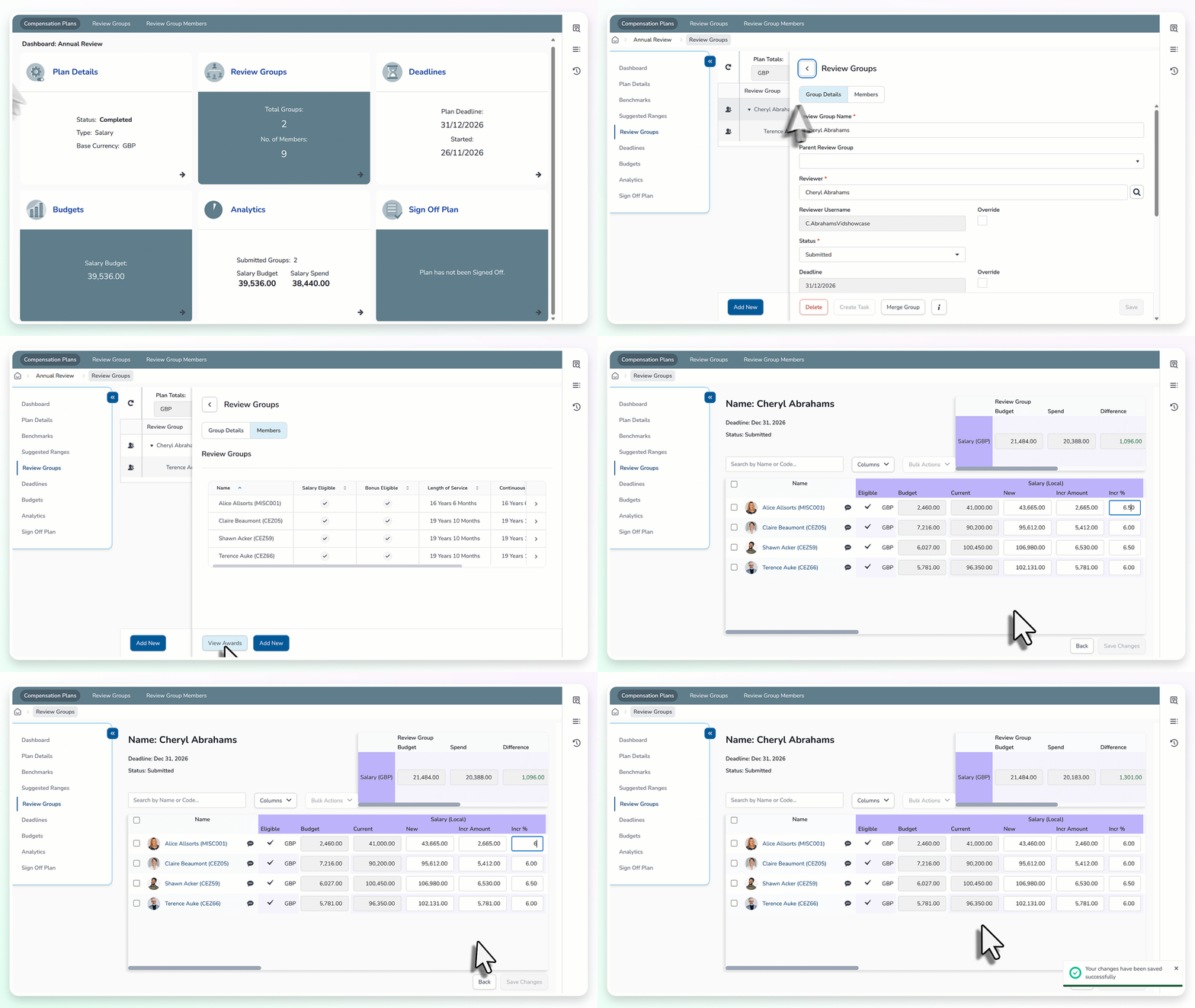
Step 1: Review the completed plan
1. Before signing off, review the proposed compensation changes to make sure you're happy with what has been submitted.
At this stage, you can still:
-
- Change proposed salary amounts
- Add comments for reviewers
Step 2: Sign Off the Plan
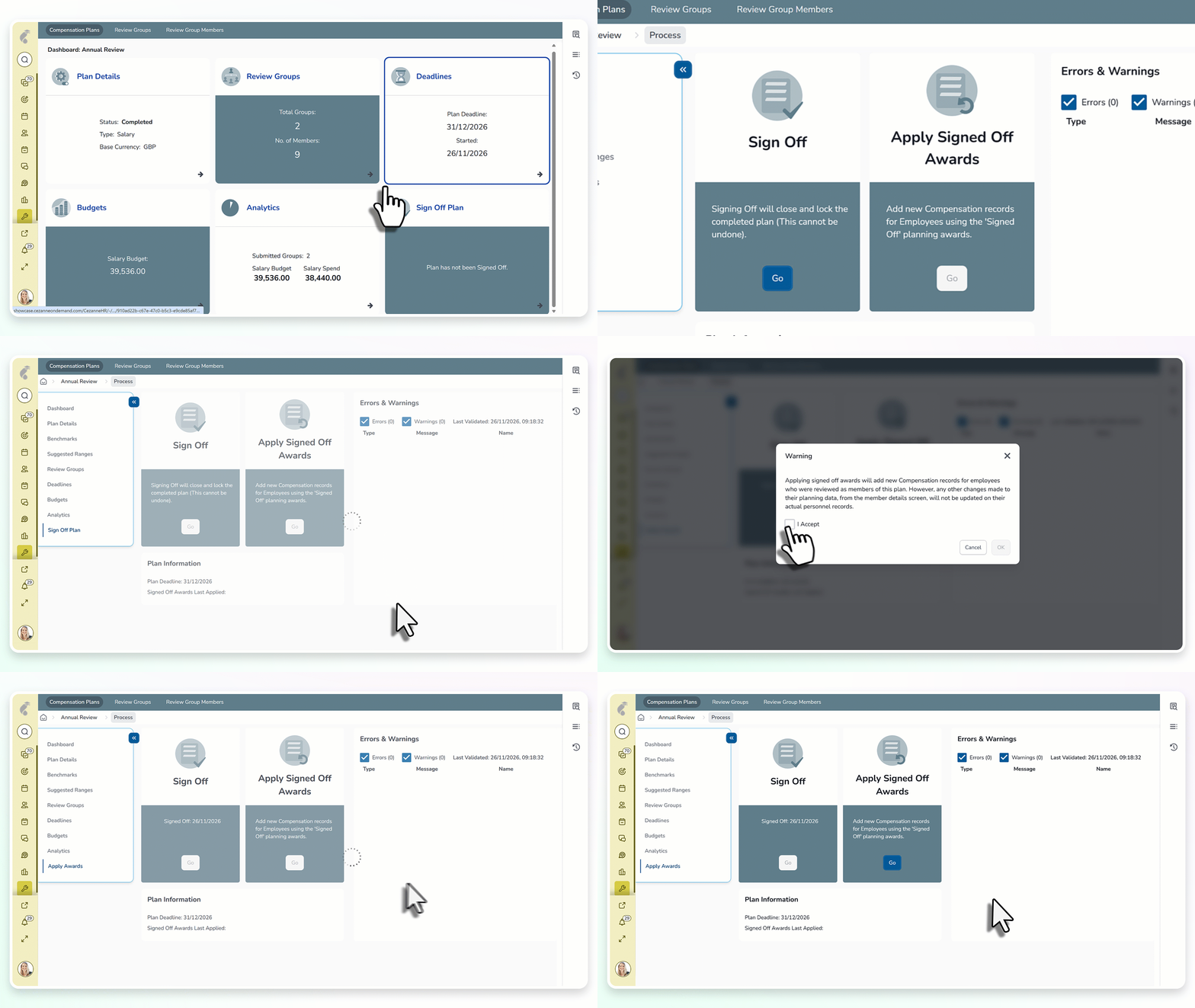
1. Once you're happy with the submitted compensation changes, click into Sign Off Plan and under Sign Off, press Go. Signing off locks the Compensation Plan, meaning no further changes can be made.
Take note 📝
Signing off the plan does not apply the compensation changes to employee records. You must complete the next step to do this
Step 3: Apply the Signed Off Awards
1. Select Apply Signed Off Awards to apply the agreed salary changes to the relevant employee records in Cezanne.
Where the new salary appears depends on whether you added compensation items or payroll pay schedules into the salary items screen when setting up the plan.
- If you added Payroll pay schedules: the new salary is added as a new Regular Pay record.
- If you added compensation items: the new salary is added as a new Compensation record.
Where the relevant screens are available to employees in Cezanne, they will then be able to see their updated salary information from the date the new salary is effective from.