.png?width=271&height=81&name=Knowledge%20base%20small%20(4).png)
Cezanne HR's Time module helps organisations manage employee time, attendance and timesheets in one central location. It supports accurate payroll, reporting and compliance while reducing administration and giving greater visibility of how employee time is used.
💡Tip
Have a look at the Time module e-course on Cezanne Academy for in depth learning.
If you need access to the Academy, reach out to your CSM or raise a ticket with our support team.
What you can you do in the Time module
- Create new Timesheet types
- Run reports on how employee time is being used
- Create projects and activities for employees to list
| Jump to section |
| Different Timesheet Types |
| Time types |
| Projects and Activities |
| FAQ |
Different Timesheet Types
1. Clock in/ Clock out
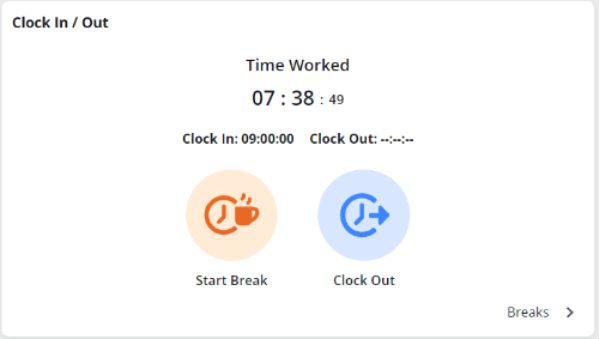
A Clock In/Clock Out Timesheet allows employees to record their start and finish times, including breaks where applicable. Managers can review and approve timesheets, helping support accurate payroll, compliance and visibility of hours worked.
The feature provides clear visibility of attendance patterns, overtime, and actual hours worked, reducing manual administration and improving workforce reporting.
Key features of a Clock in/ out timesheet:
- Real-time Clock In/Clock Out, either manually or automatically.
- Track attendance, including late arrivals and who is in today.
- Record the IP address of Clock In/Out records.
- Set up a central onsite device or tablet for clocking in and out.
- Configure an authorisation process.
- View an employee's absences, working pattern and calendar details.
- Link to Percentage-based Absence plans to calculate holiday entitlement (with the Absence module).
- Record time against tasks based on duration or when the work was completed.
💡Tip
Have a look at How to create a Clock-In/Out Timesheet plan to learn more.
2. Duration
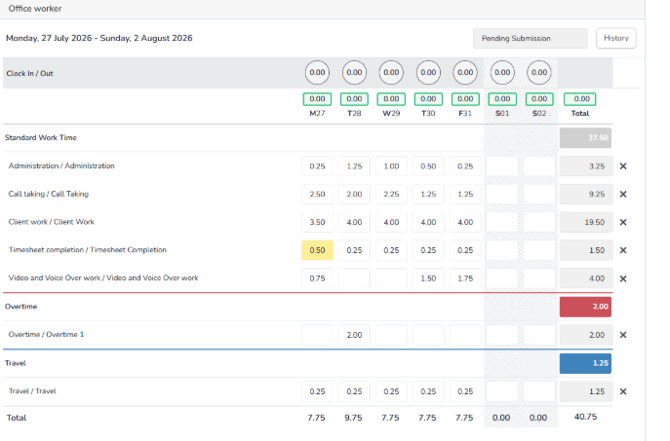
Timesheets provide a detailed way to track billable and non-billable time. Duration timesheets allow employees to record the hours spent on different activities each day.
Key areas for a Duration timesheet:
- Configurable authorisation process.
- Displays an employee's absences, working time pattern and calendar details.
- The ability to link with Percentage-based Absence plans to calculate holiday entitlement (available with Absence Module).
- Employees enter time completed for a task based on how much time they spent on that task.
💡Tip
Have a look at How to create a Duration timesheet plan to learn more.
3. Time in/ Time out
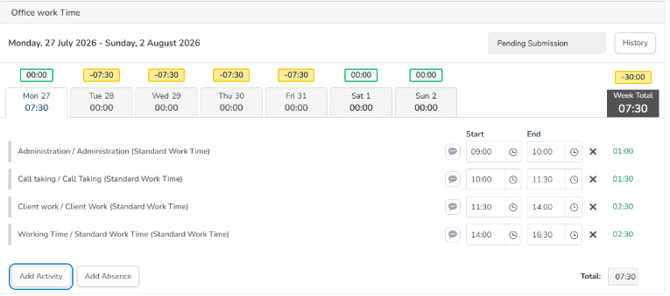
Timesheets are used to record the amount of time an employee has spent on different activities each week and are a more appropriate and in-depth method of tracking billable and non-billable time than Clock In / Clock Out. Time In / Time Out timesheets enables employees to enter the times that they started and finished activities each day.
Key areas for a Time in/Time out timesheet:
- Configurable authorisation process.
- Displays an employee's absences, working time pattern and calendar details.
- The ability to link with Percentage-based Absence plans to calculate holiday entitlement (available with Absence Module).
- Employees enter time completed for a task based on when in the day it was completed.
💡Tip
Have a look at How to create a Time in/out timesheet plan to learn more.
Time Types
What is a Time Type?
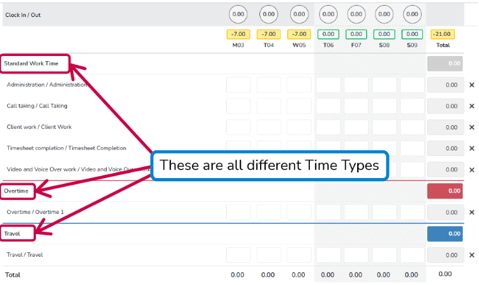
A Time Type is a way of classifying different activities on the Timesheet, e.g:
- Standard Work Time
- Overtime
- Travel
Time Types help categorise the time employees record on their timesheets, such as standard work, overtime or travel. For example, time recorded against an activity can be classified using the relevant Time Type. This improves reporting, supports payroll accuracy where applicable, and provides better visibility of how employee time is spent.
Time Types allow you to:
- Categorise employee time by distinguishing between different kinds of work, such as standard hours, overtime, travel, training, or other business-specific activities
- Improve reporting and analysis by allowing organisations to see how employee time is being spent across different activity categories.
- Support payroll and costing processes by separating time that may need to be paid, charged, or costed differently, such as overtime versus contracted hours.
- Provide flexibility for different business needs as additional Time Types can be created through picklists to match an organisation's specific tracking requirements.
💡Tip
To learn more about Time Types and how they interact with Timesheets, Projects and Activities, have a look at How to use Time Types.
To learn more about making a new Time Type, have a look at How to create Time Types.
Projects & Activities
Time is recorded on a timesheet within Cezanne by using Projects and Activities.
- A Project is a collection of required Activities.
- An Activity is what an employee does within a Project.
- Activities do not exist independently and must be added as part of a Project.
- If you want to add an Activity with the same name to different Projects, it will need to be added separately to each Project.
- In order to use a timesheet, at least one Project with one Activity is required
💡Tip
To learn more about creating Projects & Activities, have a look at How to create Projects & Activities.