.png?width=271&height=81&name=Knowledge%20base%20small%20(4).png)
The Timesheet Approval History screen allows users to view the timeline of the changing approval status of a timesheet, including the time and date of when each status changed and the user who changed it.
How to view the Timesheet Approval History
To open the Timesheet Approval History Screen, click on the History button at the top right of any timesheet screen:
- Go to the person's navigation menu
- Navigate to Time Recording then Timesheets
- Select a Timesheet (HR Professionals or Line Managers and Self Service Users)
-
Click on History
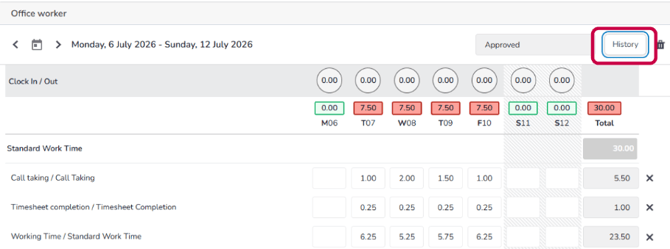
Once clicked, a pop-up screen will open displaying a timeline of the different approval stages of a timesheet: 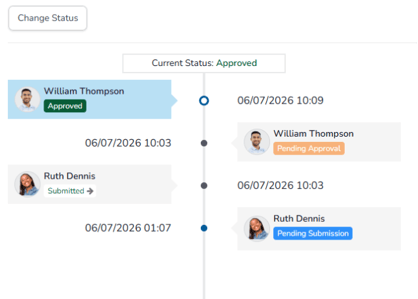
📝 Note
The above example shows a timeline of a timesheet that has been involved in a process flow.
How to Change the Status of a Timesheet
Depending on their permissions and timesheet settings, some users can use Change Status on the Timesheet Approval History screen. For example, HR Professionals can change a completed timesheet back to Open, allowing it to re-enter the process for editing or approval.
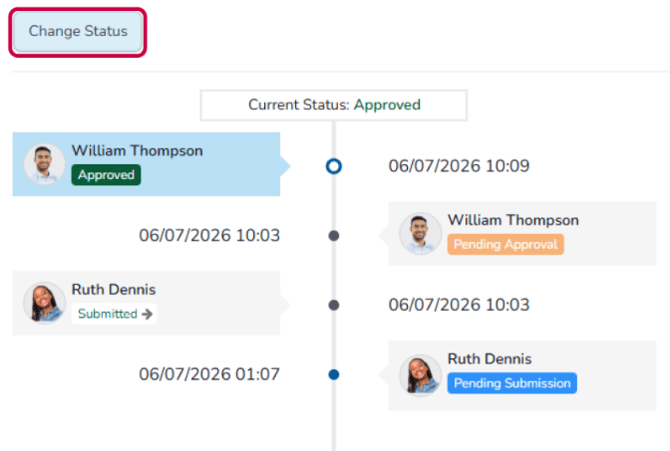
- Click Change Status at the top of the Approval History Screen to open the Status and Approved by fields
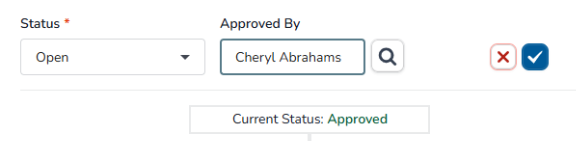
- Under Status, select Open from the picklist
- Under Approved By, type or search for the user who you want to connect to the action
- Click the tick to save the changes
This will now be open for the employee once more.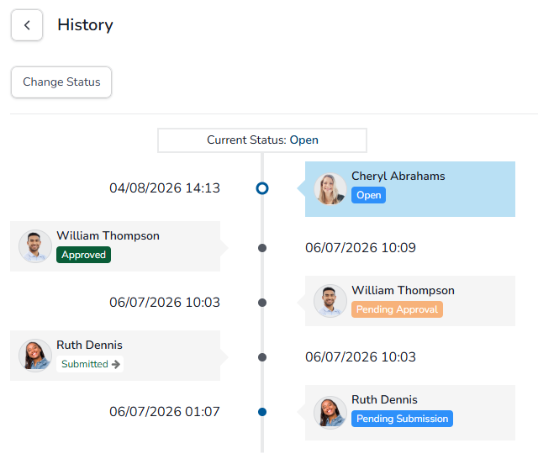
Related articles
For more information on the Time module, have a look at the Time Module Overview guide.