
Saving, Scheduling and Filtering Reports in Cezanne Learning
Learn how to filter reporting data and save and schedule reports in Cezanne Learning.
Cezanne Learning allows you to filter the information available within Logs and save your configured view as a report. Saved reports can also be scheduled to send automatically.
Accessing Reports
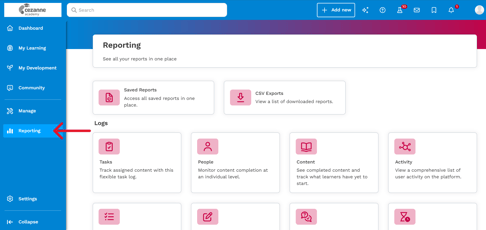
Select Reporting from the left-hand menu. From here, you can access the available Logs, Saved reports and CSV exports.
Filtering Reports
Select Reporting, then open the Log you want to work with. The example below uses the Tasks Log.
Filtering Reports
Select Reporting, then open the Log you want to work with. The example below uses the Tasks Log.
Basic filters
For the Tasks Log, you can filter the information shown using:
- Segments: Filter the results using specific Teams or Groups.
- Scheduled: Filter based on whether the Task is scheduled to be issued to learners.
- Deadline: Filter by the Task deadline using one of the preset periods or your own date range.
Advanced Filters
Use Advanced Filters to refine the information shown using additional criteria, such as users, Groups, content, dates or completion status.
Where you use multiple criteria:
- AND: Requires all conditions to be met.
- OR: Requires at least one condition to be met.
Examples
Department = Sales AND Completion Status = Completed
Only learners in the Sales department who have completed the content will be shown.
Department = Sales OR Department = Marketing
Learners from either the Sales or Marketing departments will be shown.
Saving Reports
Save a filtered view when you want to return to the same reporting criteria without configuring the filters again.
To save or export a report or log, click on the relevant button on any report.
When saving a report, you will need to fill in the following information:
- Report Name: Enter a name for the report.
- Date Range: Choose the period the report should cover. You can use Rolling where you want the period to update whenever the report is viewed, for example, the previous 30 days.
- Visibility: Choose who can access the saved report.
To access it later, go to Reporting > Saved reports.
Scheduling Reports
You can schedule a saved report to be sent automatically at a recurring interval.
Within any saved report, click the three dots and select Send report via e-mail.
Setting up scheduling
- Visible to: Choose who can access the report.
- Send…: Choose when and how frequently the report should be sent.
- Mail to: Choose who should receive the scheduled email:
- All permitted users
- Selected roles: Owner, Admins or Reporters
- Selected users
- All except selected users
Recipients receive an email containing a View Report button, which opens the report in Cezanne Learning.
💡Related Articles
To learn about the Logs available within Reporting and the information available in each one, see Available Logs in Cezanne Learning.