
Fields mapped from Cezanne HR to Cezanne Expenses
To ensure users sync through to Cezanne Expenses, certain fields must be populated on each person’s record. These are:
- First Name
- Surname
- Internal E-mail
- Supervisor (or Expense approver if different than their supervisor)
- Expense Division
- Cost Centre
How to access or amend the details that are synced through from a person’s record:
Cost Centre
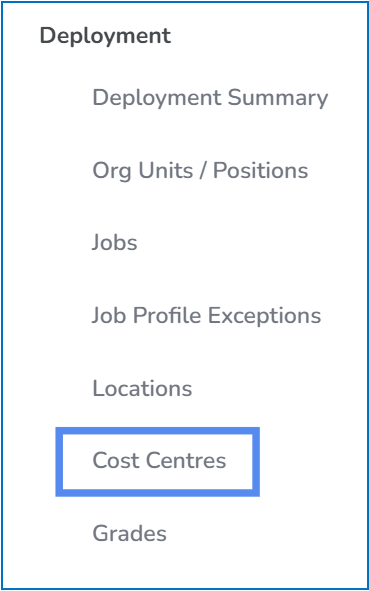
Cost Centre can be assigned via Deployment > Cost Centres
Approver
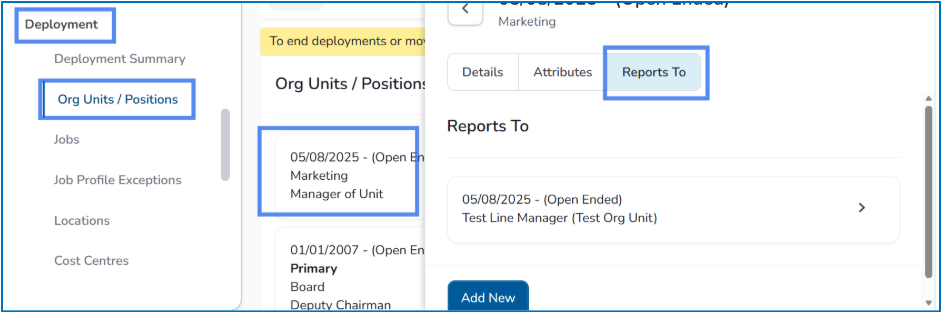
The Approver in Cezanne Expenses is always the person’s Supervisor in Cezanne HR by default. This is assigned via Deployment > Org Units / Positions > Current org unit > Reports To
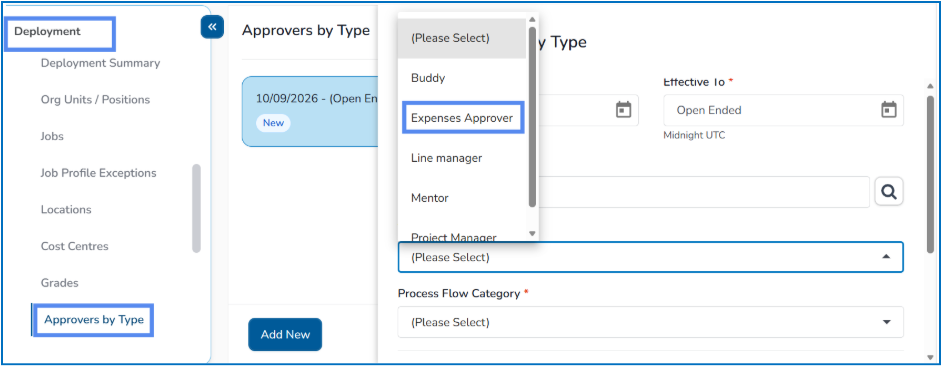
If the person’s supervisor is not their approver, Approvers by Type allows you to override the supervisor and set a new approver.
This is done by going to Deployment then Approvers by Type and selecting Add New and completing the mandatory fields, ensuring the type is ‘Expenses Approver’
💡Tip
If you are using Approvers by Type but you cannot see this screen within a person’s Deployment record, you will need to turn this screen on in your Security Role Settings.
Expenses Division
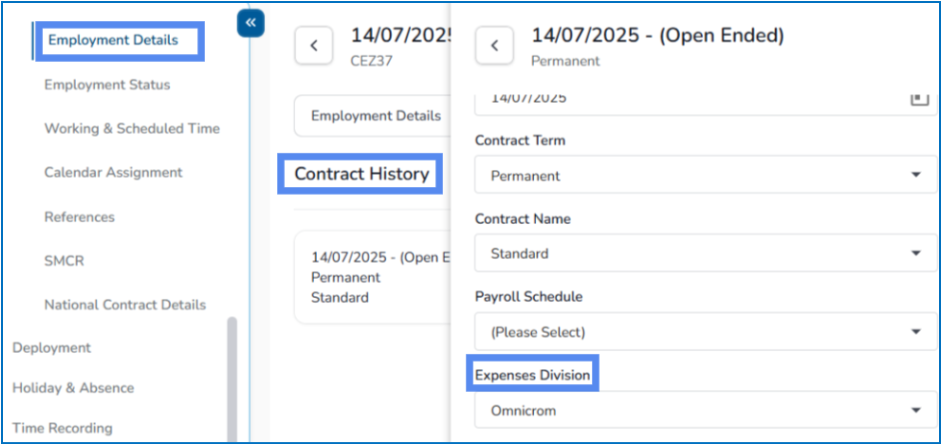
To sync an employee into the correct Division in Cezanne Expenses, they must be assigned to an Expenses Division.
This can be configured by going to Employment > Employment Details > Contract History > Add New > Expenses Division
📝 Note
If an employee moves from one Division to another after they have been synced across, you will need to update their Division in Cezanne but then update this in Cezanne Expenses manually on the Parent level.
Running the sync
Users will automatically sync once daily from Cezanne HR to Cezanne Expenses.
If you need the sync to be pushed through sooner, you can do this via the Parent Admin user account, accessible through Proxy.
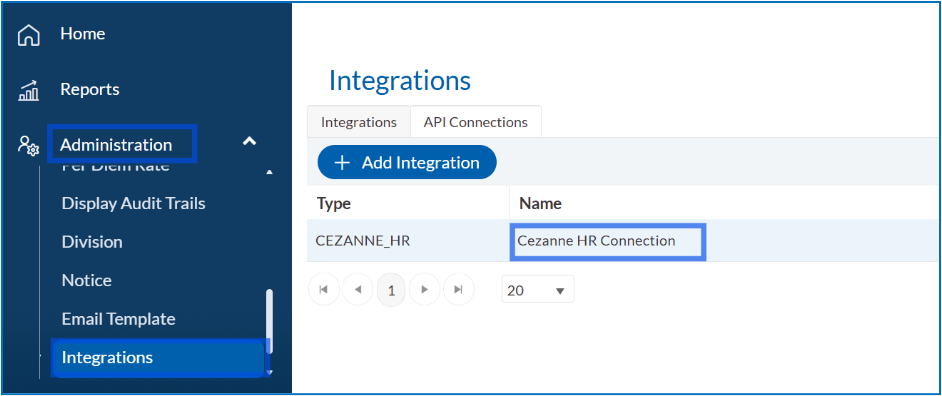
1. On the navigation, select Administration then Integrations and click into the Cezanne HR Connection
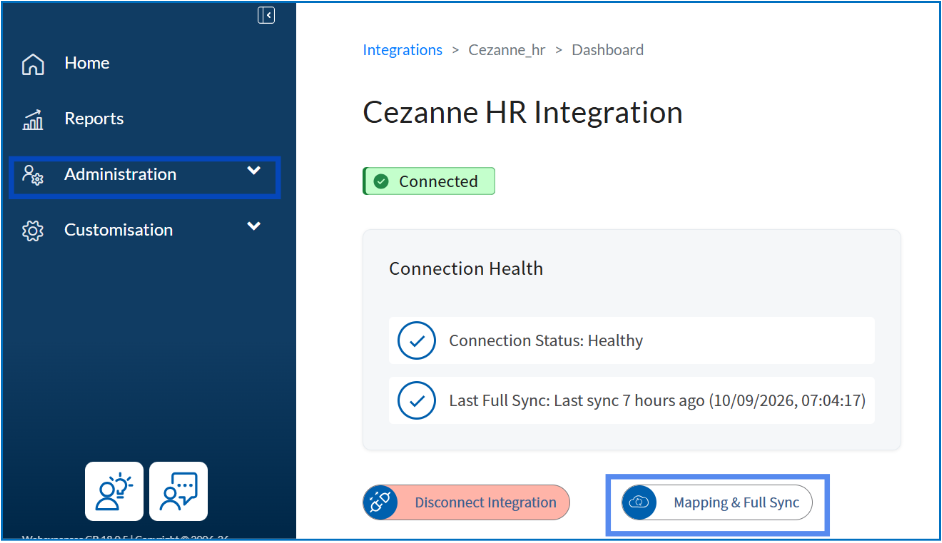
2. Next, select Mapping & Full Sync
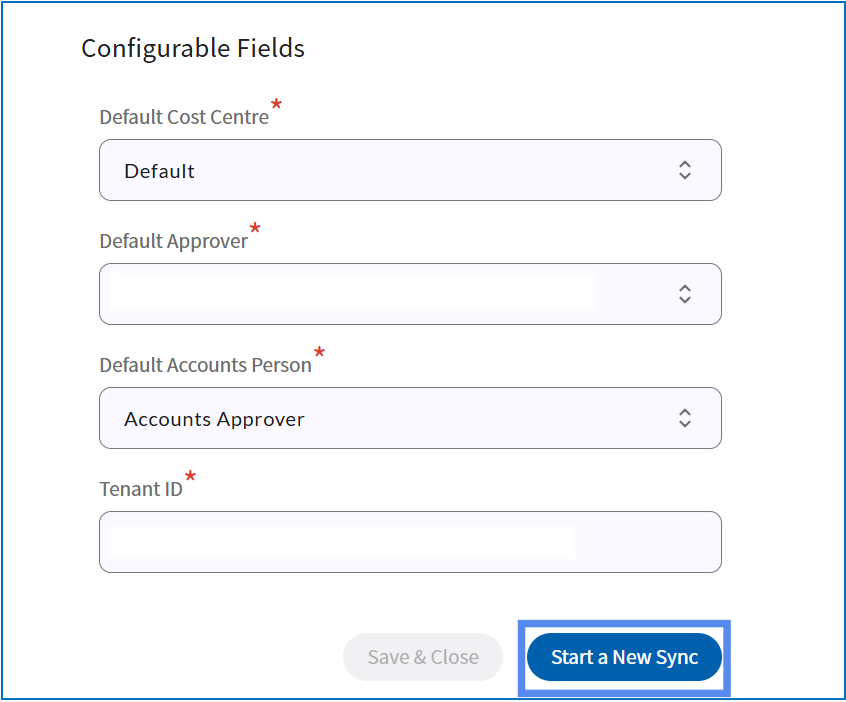
3. Click Start a New Sync. Do not change any options in the drop-downs menus on this screen
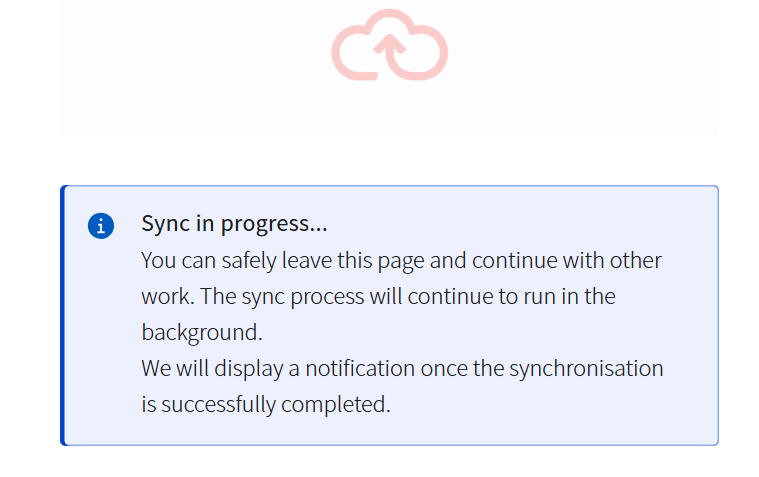
4. The sync will then take a few moments
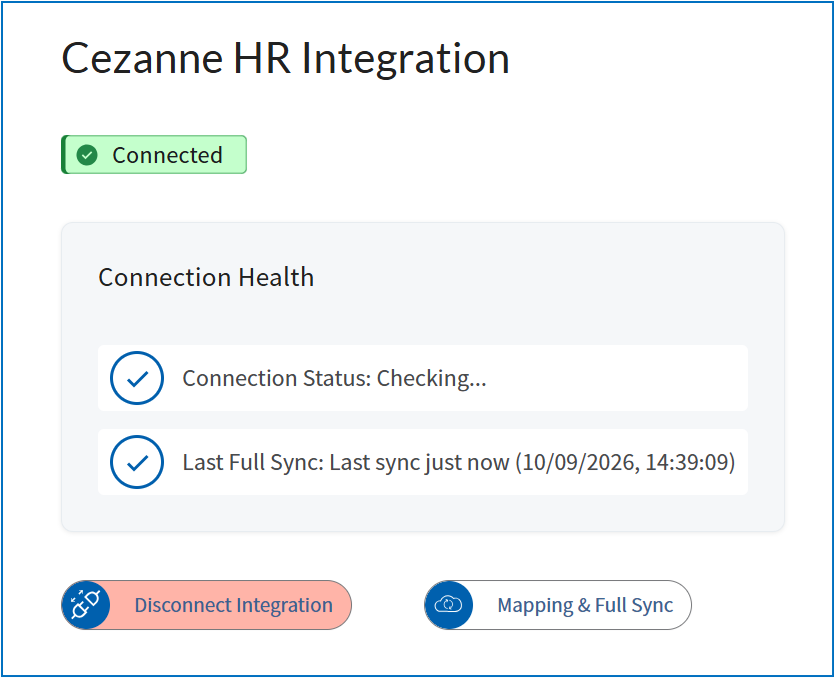
5. Once the sync has run, you will see the Integration overview screen again, with an updated time and date:
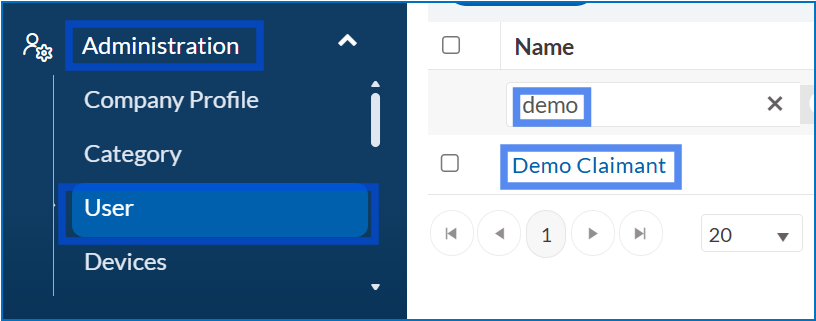
5. After the sync, you will see updated and new user information in Administration > Users.
Additional User information
You can update information such as payroll ID, bank details, offset mileage or user role on an user’s settings within the platform.
Navigate to Administration > User, select your user and add in the relevant detail onto their record.
Bulk importing user information
You may wish to bulk upload information into Cezanne Expenses relating to your users, such as YTD mileage or offset mileage.
This can be done via a user import. Cezanne’s Support team can provide a copy of the import file should you need it and validate your data before you complete your upload.
Related articles
If after following this help article, the users aren’t appearing in the User area, please refer to this guide: Managing Pending Users in Cezanne Expenses