
Cezanne Learning offers three core visibility settings for most content:
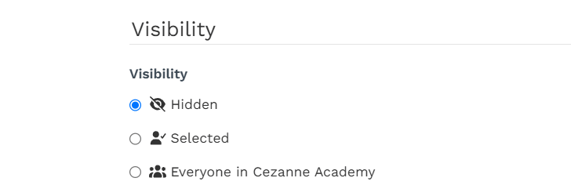
How Visibility Differs by Content Type
- Items and Learnlists: Use the three standard visibility settings above
- Channels: Have "Dashboard visibility" which controls whether the Channel appears on users' homepages
Visibility vs Assignment
A key distinction in Cezanne Learning:
- Visible content can be seen and accessed by users
- Assigned content has a deadline or expectation of completion (usually mandatory content)
📝 Note
For Channels specifically, any content that is visible is also considered "assigned" in reporting. This is different from Items and Learnlists, where visibility and assignment are separate concepts.
How to change visibily settings
- Navigate to Settings
- Select Learning Content
- Click into the learning content you want to change (eg. Items, Learnlists, channels, etc)
- Click the three dots next to the item
- Select Edit
- Scroll to visibility and select the desired option
- Select Update to save