Take Note ✍️
This functionality is part of Cezanne HR and is separate from the Cezanne Learning platform.
Development Plans help you organise, manage and report on your organisation's training and development needs, activities and sessions. They are usually created for a group of people. Common uses include:
- Annual career development plans for the whole organisation
- Ongoing induction programmes for new employees
- Mentoring or apprenticeship programmes for selected employees or interns
Development Plans may or may not include entitlement amounts, and they can include carry-over settings or multi-year entitlement settings.
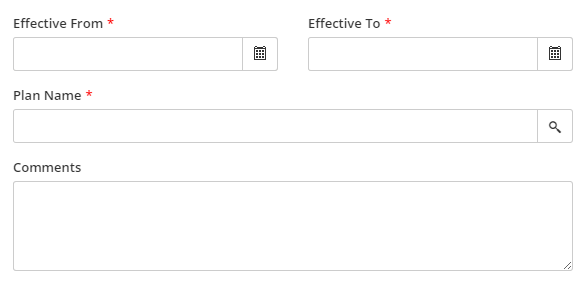
Once you have created a 'group' Development Plan, you create Personal Development Plans for the people who will be undertaking Activities in the Plan.
This article shows how to add Development Plans and contains the following sections:
1. Creating 'Group' Development Plans
You can create a Development Plan with or without entitlement.
Create a Development Plan
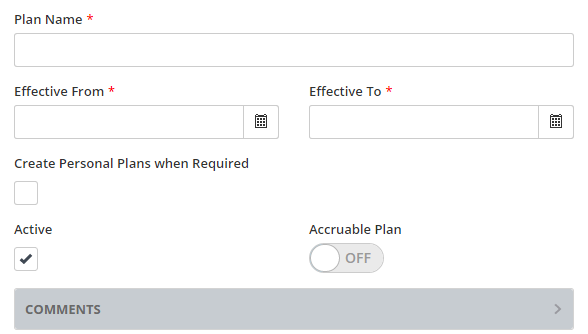
- Go to Training >> Development Plans >> Add New Development Plan.
- Enter a Name and Effective From / To dates for the Plan.
- To help you manage, and report on, training activities, you can select the option to Create Personal Plans when Required. With this setting enabled, anytime a Development Need or Activity is created within this Plan, the employee who will undertake the training will be enrolled on the plan, if they haven't already been enrolled. That way, even if you initially create all the Personal Plans at once using the Create Personal Development Plans Process, any new employees who are added will still be included in the Development Plan whenever an Activity or Need is created for them.
Create a Development Plan with Entitlement
If you would like to provide a number of hours to be used for training purposes, switch on Accruable Plan.
Employee entitlement is automatically adjusted based on the number of calendar days they work during the plan's lifespan. You can choose to base the entitlement amount on the person's FTE ratio (the percentage of full-time hours that they work). You can also choose to provide the entitlement only to employees who have worked in your organisation for a minimum number of months.
2. Creating Personal Development Plans
When it comes to creating Development Plans for individual employees, you have three choices:
1. Switch on a setting so Cezanne will do it for you when required
You can automate Cezanne to create Personal Development Plans for any Development Need or Development Activity created under a 'group' plan.
All you need to do is, when creating a Development Plan for a group, select the Create Personal Plans when Required option. Then, instruct your employees and line managers to associate their Needs and Activities with that Development Plan and their Personal Plans will be created automatically.
2. Create Plans for a group all at once
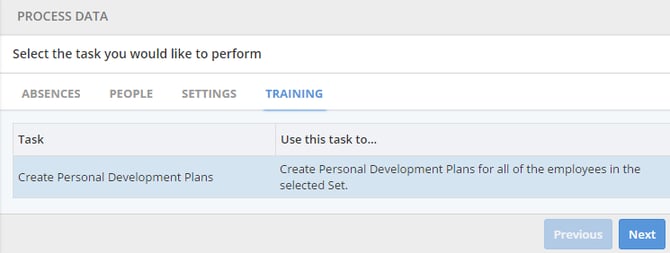
You can quickly add Personal Development Plans for a group of people by using the Create Personal Development Plans Process. This is especially useful if you have to enrol everyone on a Development Plan every year, which is required in some countries. This way, you will know that everyone has a Development Plan, even if they and their supervisor do not create any Development Needs or Development Activities for themselves.
Create a Set of People
- For more information, see: Sets.
Use the Create Personal Development Plans Process
- Go to System Setup >> Data Management >> Process Data >> Training >> Create Personal Development Plans.
- Enter a reference, select the Development Plan and the set of records you created in step 1, and click Go. The request will be processed as soon as the servers are able to process them. At peak times, this may take longer, but usually it takes only a few minutes.
3. Create Plans for everyone individually
Sometimes it's more appropriate to create a Development Plan for each person individually.
- Go to People >> Training >> Development Plans and search for the person.
- Select the Development Plan you want to create for them and, if necessary, adjust the dates.
- Click Save.