.png?width=271&height=81&name=Knowledge%20base%20small%20(4).png)
📅 Connecting your Microsoft calendars with Cezanne's recruitment software allows for seamless interview scheduling and improved efficiency in managing your hiring processes. By integrating your calendars, you can effortlessly view and manage interview appointments within the Cezanne Recruitment platform.
Note that Cezanne Recruitment uses a middleware provider called Chronofy to manage the calendar connection.
Follow the step-by-step guide below to connect your Microsoft calendars and start enjoying the benefits of streamlined interview scheduling.
Step-by-step guide:
1. Access user settings:
On the left-hand side in Cezanne Recruitment, click on "Settings" and "User settings"
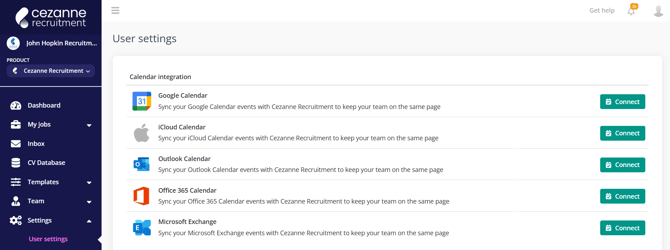
Click on the appropriate option for your Microsoft calendar integration. Please note that there are three Microsoft options available: Outlook, Office 365, and Microsoft Exchange.
3. Connect your selected Calendar:
Once you have chosen your calendar integration, click on the "Connect" button next to it.
4. Approve user permissions:
A permissions prompt will appear to grant Cezanne Recruitment access to your calendar data.
Review the permissions requested and click "Approve" or "Accept" to authorize the integration.
5. Enter user credentials:
In the provided fields, select or type in your user credentials associated with your Microsoft calendar.
If you see a message such as:
-
“Need admin approval”
-
“Admin consent required”
-
“This app is blocked”
-
“User consent is disabled”
Due to your organization's IT policies, your IT team may need to approve the calendar connection. Once approved, other users should be able to connect their calendars without this additional step. If you are blocked at this stage, contact your IT admin and request they approve the Chronofy integration. Click here for an admin guide you can share.
6. Complete the connection:
After entering your user credentials, follow any additional prompts or steps required to complete the connection process.
7. Success message:
Once the connection is established successfully, you should receive a success message on your screen, confirming that your Microsoft calendar has been connected.
8. Check Calendar Connection:
Return to the Cezanne Recruitment platform and navigate to the relevant section where your calendar is used, for example the Interview scheduler.
If the calendar connection was successful, you should see either "Calendar Connected" or "Installing" in the Cezanne Recruitment platform, indicating the integration is active.
Troubleshooting:
In case the calendar connection is not successful and you are a Microsoft user, attempt connecting to the other Microsoft calendar options (Outlook, Office 365, and Microsoft Exchange) following steps 2-6.
If you encounter persistent issues, please contact support@occupop.com for further assistance.
Note: Depending on your organization's IT policies, your IT team may need to approve the calendar connection. Once approved, other users should be able to connect their calendars without this additional step.
Should you require any assistance, please don't hesitate to reach out to support@occupop.com for dedicated support.
