.png?width=271&height=81&name=Knowledge%20base%20small%20(4).png)
Integrating your calendars with Cezanne's recruitment software enables seamless interview scheduling and enhances efficiency in managing your hiring processes. With this integration, you can easily view and manage interview appointments directly within the Cezanne Recruitment platform. This article focuses on integrating with Office 365.
Cezanne recruitment uses "Cronofy" as a calendar middleware:
-
Each end user individually connects their Microsoft 365 account via OAuth
-
Cronofy obtains and maintains tokens and creates a connection (connection/account)
-
Our product uses the Cronofy API to:
-
Read calendar availability (when applicable)
-
Create/update/cancel calendar events (when applicable)
-
Subscribe to change notifications/webhooks (when applicable)
We operate with individual (per-user / delegated OAuth) connections, meaning:
-
Each user authorises their own account
-
Access is limited to that user’s calendars
-
This is not a “tenant-wide/app-only” model
For clarity, we use an Individual connection (Per-user / Delegated OAuth):
-
The user completes Microsoft login and grants consent.
-
Tokens are tied to a specific user.
-
Usually does not require tenant-wide admin consent, unless the tenant entra policy blocks user level consent.
To access this feature:
1. Users navigate to Settings > User Settings > Calendar Integrations. From there, you can select the calendar that corresponds to the product your company uses, in this example we use Office 365
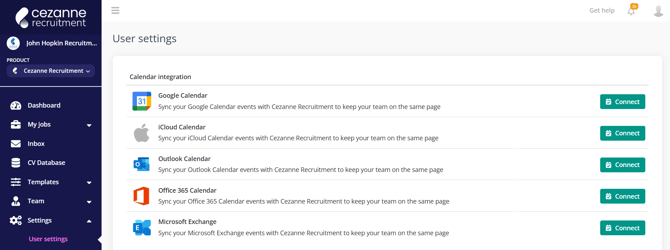
2. The User clicks Connect, and will be redirected to their Microsoft login page (Entra)
3. The User will see the Microsoft consent screen, requesting they approve this integration.
4. The User accepts and approves.
5. Cronofy creates/links:
-
-
cronofy_account_id/connection_id(terms may vary)
-
6. The Calendar integration is complete, the User can schedule interviews etc through Cezanne recruitment.
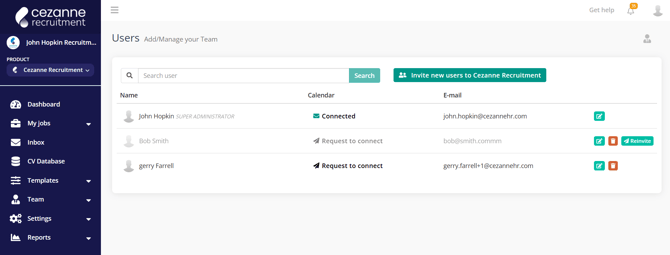
As an administrator, you can also check and ensure that your team members or the individuals who need calendar integration are properly synced. To do this, go to Your Teams and look for an indication that the person is connected to their calendar. If they are not, you can send a request for them to connect their calendar directly from this section.
Choose one path that matches your security policy:
Option A — Allow users to consent (recommended if your policy allows it)
Allow user consent for the Cronofy app / required permissions.
Option B — Use Admin Consent Workflow
Approve the app through your existing admin approval workflow so users can complete the connection.
Option C — Allow only a limited set of users to connect
If you require app assignment:
-
Enable User assignment required for the enterprise application
- Assign only the allowed users/groups
This controls who can sign in and complete the delegated connection.
Note: Since this is per-user delegated access, the cleanest restriction is “who is allowed to sign in to the app”, not tenant-wide application permissions.
1. Sign in to Microsoft Entra admin center
Use an administrator account with permission to manage enterprise applications and grant consent.
2. Open Enterprise Applications
Go to:
Microsoft Entra admin center → Enterprise applications → All applications
3. Search for the Cronofy application
Search for:
Cronofy for Office 365
Open the application.
4. Confirm the correct application
On the Overview page, confirm the Application ID is:
f573e3d3-ea9c-4d8d-9d8f-20107b8cedbd
This is the application that should be approved for this connection flow.
5. Open the Permissions section
Inside the Cronofy enterprise application, go to:
Security → Permissions
6. Grant admin consent
Click:
Grant admin consent for [your company Name]
Confirm the action when prompted
7. Verify the permission state.
After approval, verify that the permissions page no longer shows:
No admin consented permissions found for the application
The application should now show admin-consented permissions.
8 .Retry the connection
Ask the affected user to retry the Microsoft 365 calendar connection from our platform.
9. If it still fails
Collect a new failed sign-in record after the consent change, including:
-
timestamp
-
affected user
-
error code
-
correlation ID
-
failure reason
Raise a ticket to Cezanne recruitment support team with the details above.
Are you requesting tenant-wide access to calendars?
No. Our default model is individual user authorisation. Each user grants access only to their own calendar.
Why does Microsoft say “admin approval required” then?
Because your Entra configuration is enforcing admin approval for third-party apps. This is a policy choice made by your Office 365 Entra admin.
Can we restrict this to a small group of users?
Yes. The recommended approach is to require assignment to the enterprise application and assign only those users/groups.
Does this integrate with Cezanne SSO permissions?
No. Cronofy is a separate application in Entra. Cezanne SSO permissions do not automatically apply to Cronofy.
Troubleshooting guide
Use this procedure if the user sees errors such as:
-
Admin approval required
-
Admin consent required
-
This app is blocked
-
sign-in failure with error code 90094
-
permissions page showing No admin consented permissions found for the application
Cronofy application to check
In Entra, the correct application for this integration is:
-
Application name: Cronofy for Office 365
-
Application ID:
f573e3d3-ea9c-4d8d-9d8f-20107b8cedbd
Do not confuse this with other Cronofy applications or object IDs.
Common mistakes
-
Mixing up tenant policy enforcement (admin approval) with tenant-wide calendar access (app-only). They are not the same.
-
Approving Cezanne SSO and expecting it to apply to Cronofy (different apps).
-
Assuming “admin consent prompt” means we are using enterprise connect/app-only (often it’s just consent policy).
What to send to Cezanne support if you’re blocked
To diagnose quickly, please provide:
-
Screenshot of the error screen (redact personal data)
-
Your Microsoft 365 tenant domain (e.g.
company.onmicrosoft.com) -
Timestamp of the attempted connection (with timezone)
-
The user email that attempted the connection
-
Whether any user in your tenant has been able to connect successfully