
Adding a Development Activity to the Catalogue
Take Note ✍️
This functionality is part of Cezanne HR and is separate from the Cezanne Learning platform.
Using the Training Module in Cezanne HR, you can build a catalogue of standard training activities. This article describes how to add a new Development Activity to the Catalogue and contains the following sections:
Note:
- When an employee is enrolled on a Catalogued Development Activity, many of the details you enter here will be copied to the Personal Plan(s) automatically.
1. Development Activity Details Tab
The Development Activity Details tab is used to record the main details about the training activity (e.g. Name, Duration and Max Participants).
Navigate to: Administration >> Training >> Development Activities >> Add New Development Activity
- Enter Activity Code and Activity Name.
- Fill in the other information as required (an explanation of each option is available in the table below).
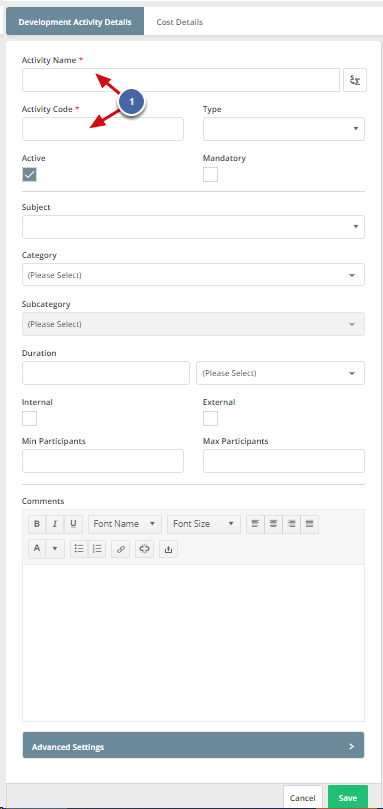
| Type | This Picklist shows the format of the activity - such as course, video, e-learning course, independent study. |
| Subject | This Picklist refers to the subject matter of the Activity. It may be the title of the book, or course that the Activity relates to. |
| Category / Subcategory | These Picklists are empty by default, so you can use them to categorise your Training Activities whichever way you see fit. |
| Mandatory | This checkbox shows whether the Activity is Mandatory. You can use it with the Mandatory Training Notification to track and schedule Activities that must be repeated on a regular basis, such as First Aid certification. |
| Internal / External | These checkboxes are used to indicate whether the Training is delivered internally or externally. The Sessions also allow you to indicate whether the Session is public or private. |
| Duration (and time units) | This field is used to record the length of the Activity. We recommend using the same units throughout your Training Catalogue to ensure that the Development Plan Summary can accurately display the total units of training being undertaken by your employees. |
| Min and Max No. of Participants | You can set the Minimum and Maximum number of Participants as a guideline here, and it can be changed when the Activity is used later. |
| Comments | You can enter important information about the training course. Using the editor controls, it is possible to include links, bullet points, numbering, etc. |
| Advanced Settings | Advanced Settings includes 7 drop-down boxes which are populated from Picklists. All of the Picklists are customisable apart from the Attendance Picklist entries, which cannot be changed. The drop-down boxes are:
|
| Attach Files | You can upload any documents related to the training course, e.g. training materials, maps. |
Note:
- To edit any of the Picklists, navigate to: Administration >> Picklists >> Training.
2. Cost Details Tab
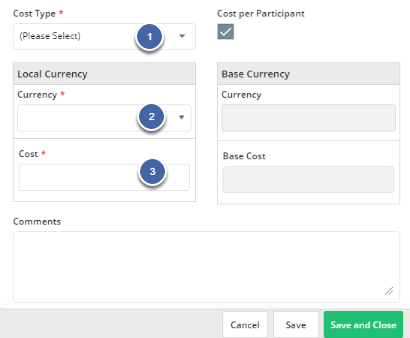
The Cost Details tab is used to record details of the associated costs with the training activity (e.g. travel or training provider costs).
Navigate to: Administration >> Training >> Development Activities >> Add New Development Activity >> Cost Details Tab.
- Select Cost Type.
- Choose Local Currency.
- Enter Cost.
Note:
- Base Currency can be changed from the Currencies picklist (Administration >> Picklists >> Common >> Currencies).