
Take Note ✍️
This functionality is part of Cezanne HR and is separate from the Cezanne Learning platform.
Development Needs are expressed by employees and line managers to show that an employee requires (or desires) some training or other development.
A Need can either:
- be followed up by one or more Activities (and Sessions if appropriate). OR
- remain as pending to show that it is required, but cannot be completed for a particular reason.
This article shows how to add Development Needs and contains the following sections:
1. Create Development Needs
You can create Development Needs for employees if they are not entered by the employee or their line manager.
Employees and line managers can create Development Needs during a Performance Appraisal or they can be created in the Employee's record directly:
- Go to People, select the Person whose need you would like to enter and go to Training >> Development Needs >> Add New.
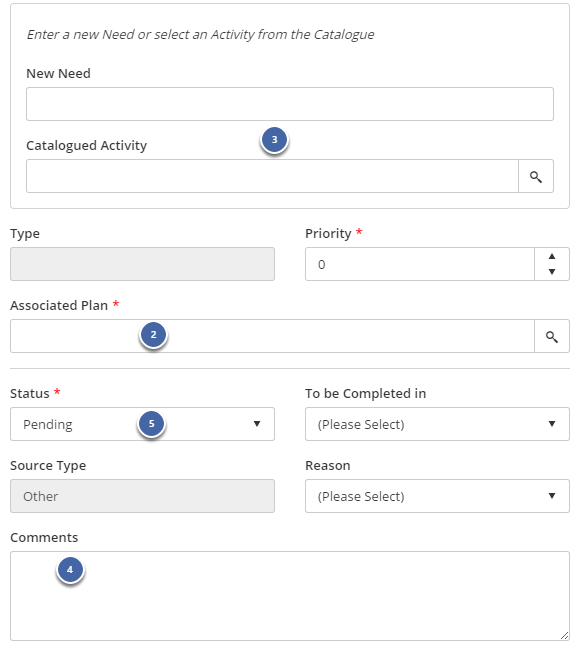
- In the Associated Plan field, select the Development Plan in which the Need should be created.
- To add a Need, search the Catalogue to select a suitable existing Activity. If one does not exist, enter a new need using the New Need field.
- Further details about the Need can be entered in the Comments field.
- If the Need is already approved, in the Status field, select 'Approved'. If not, leave it at 'Pending'.
- Add any other relevant details and click Save.
2. Convert a Development Need to a Development Activity
Development Needs are not completed automatically. In order to show that a Need is being fulfilled, you can convert it to one or more Development Activities.
There are two main ways of creating an Activity from a Need:
- Creating an Activity within the original Development Need.
- Enrolling the employee on a Session at the same time as others, which creates the Activity automatically.
If the Need is shared among many people, and you want to enrol them all based on that shared Need...
Enrol many people on a Development Session at once. For more information, see: Adding a Development Session.
If the Need is particular to this person...
- Go to People >> Training >> Development Needs and select the person whose Need you would like to convert to an Activity.
- Select the Need you would like to convert to an Activity.
- On the Activities tab, click Add New. Either select an existing Session to enrol the employee on, or follow the instructions to enter the Activity details in the New Activity field or choose an appropriate Activity from the Catalogued Activity list.