
Take Note ✍️
This functionality is part of Cezanne HR and is separate from the Cezanne Learning platform.
Welcome to the Training Module for Cezanne HR. This module allows you to record and plan all of your employees' training in one place, making it easy to track employee development across your business.
Other key benefits include:
- Ability to build a catalogue of training courses.
- Enables employees and managers to record training needs.
- Ability to notify users if training activities are due for renewal.
This guide introduces key components of the Training module and how it can be used within Cezanne. Please refer to the Knowledge Base for more detailed information about specific components.
Development Activities
The Person Development Activities screen is used to record when an employee will be taking part in or has been on some training.
An Activity can be entered as either:
- An existing Activity contained within the Catalogue. OR
- A Standalone Activity entered on the fly,
People >> Training >> Development Activities:
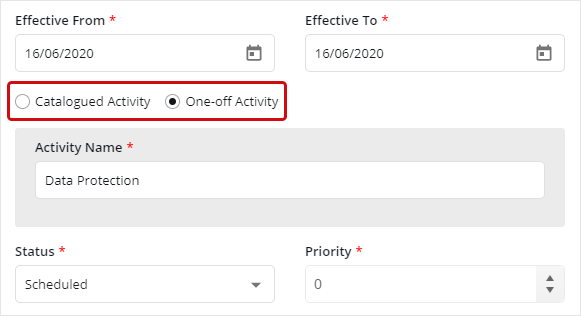
On this screen, you can also:
- Store information such as Duration and Total Cost.
- Enter a Renewal Date.
- Update Status and Outcome.
- Associate a Development Activity to a Development Plan and / or Need.
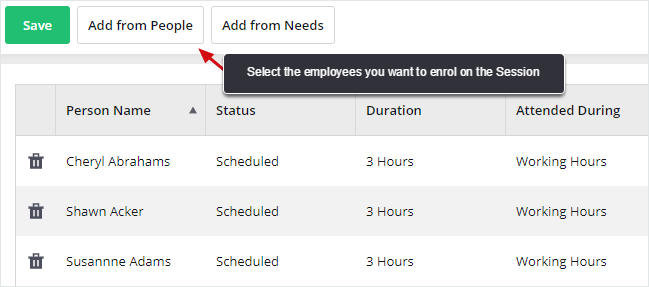
- Enrol an employee on a Development Session.
Development Sessions
Development Sessions are pre-scheduled Development Activities, such as courses or on-line training. They are optional and are most commonly used when there is a need to enrol a number of employees on the same Development Activity, being run on the same day(s).
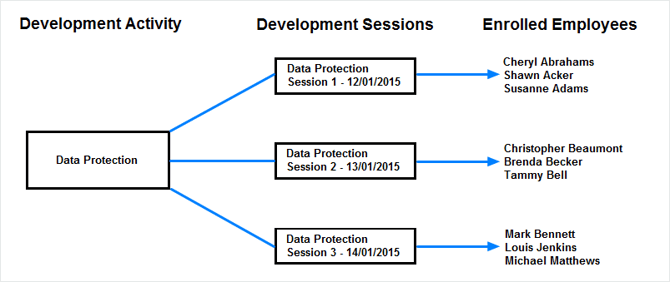
For example, if you had a single Catalogued Activity called "Data Protection" that was run on three different days, you could create three separate Sessions, associated to the same Catalogued Activity but each with different effective dates.
This would then enable you to quickly enrol a different set of people on each Session (as shown in the diagram below):
Employees are enrolled on a Session using the Development Session Enrolments screen.
Administration >> Training >> Development Sessions >> Development Session Enrolments:
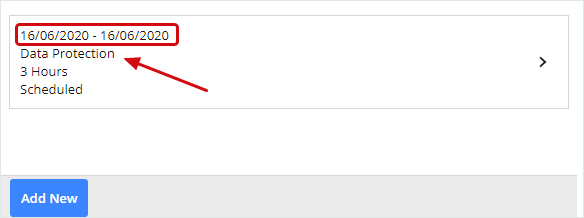
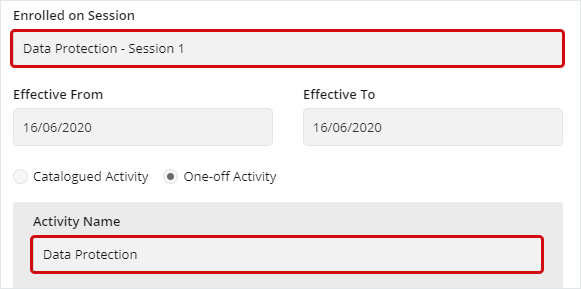
Once an employee is assigned to a Session from the screen above, a Development Activity record will appear on their Person Development Activities screen.
People >> Training >> Development Activities:
Development Needs
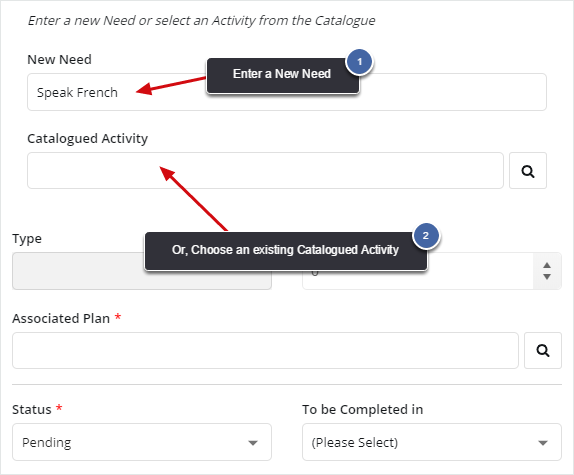
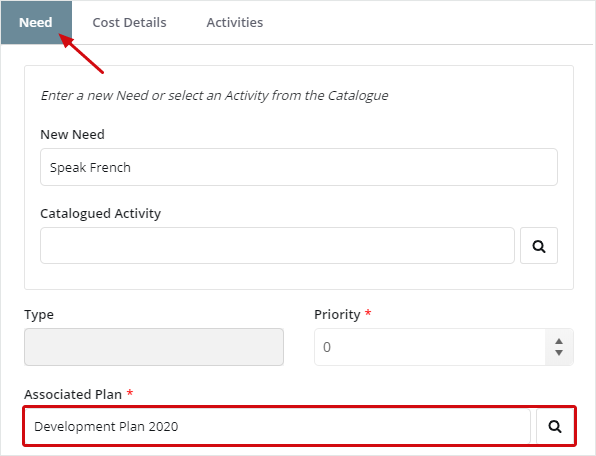
The Employee Development Needs screen is normally used to record the skills and knowledge that an employee requires to perform better in their role. Development Needs can be used to form the root of your Training and Development Process in Cezanne (see Set up section below), however they are optional.
A Need can be entered as either:
- A New Standalone Need on the fly OR
- An existing Catalogued Activity that best represents that Need.
People >> Training >> Development Needs:
Adding Development Activities to meet a Development Need
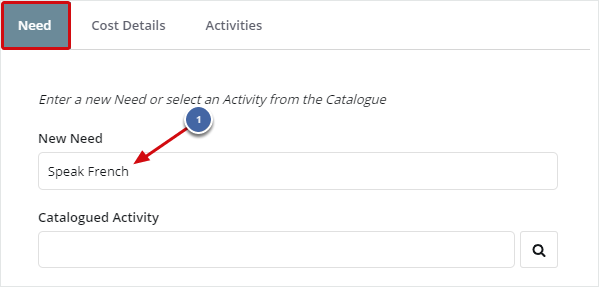
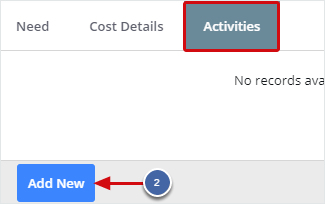
Once a Need has been entered it is then possible to link it to one or more Development Activities, using the 'Activities' tab:
1. Development Need entered on 'Need' tab:
2. Add one or more Activities to meet the Need, from the 'Activities' tab:
Note:
- Once an employee is assigned to an Activity from the screen above, a Development Activity record will appear on their Person Development Activities screen.
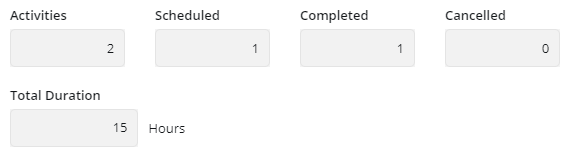
- The status and progress of linked Activities can then be monitored using the following fields, at the bottom of the Needs screen:
Development Plans
Development Plans can help you organise, manage and report on your organisation's training and development needs, activities and sessions. You can set up multiple Development Plans, enabling you, if required, to track different groups of employees across your organisation.
Although they are optional, you will have to use Development Plans if you want to take advantage of the following functionality:
1. Development Plan Summaries
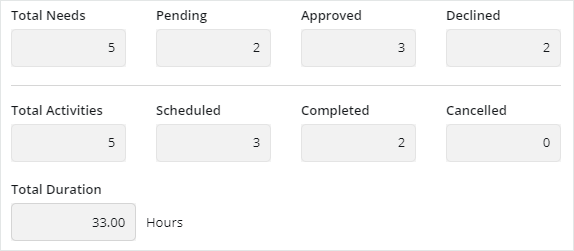
Personal Development Plan Summary (People >> Training >> Development Plans):
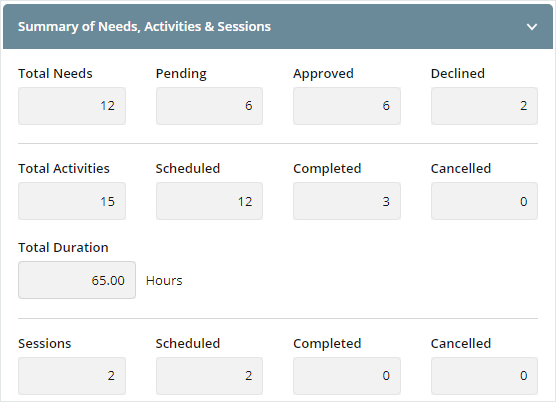
Summary of Needs, Activities and Sessions for all employees enrolled on a Development Plan (Administration >> Training >> Development Plans >> Development Plan Details):
2. Training Entitlement
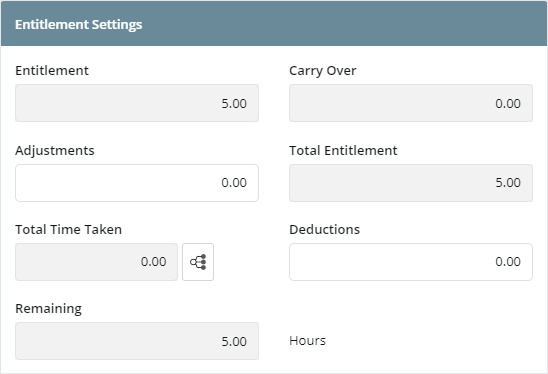
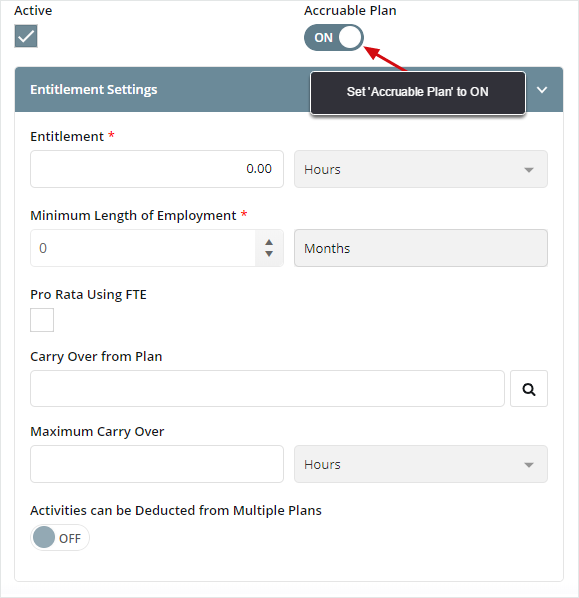
It is possible to set up an accruable Development Plan to:
- Award employees an entitlement amount
- Allow employees to carry-over unused entitlement
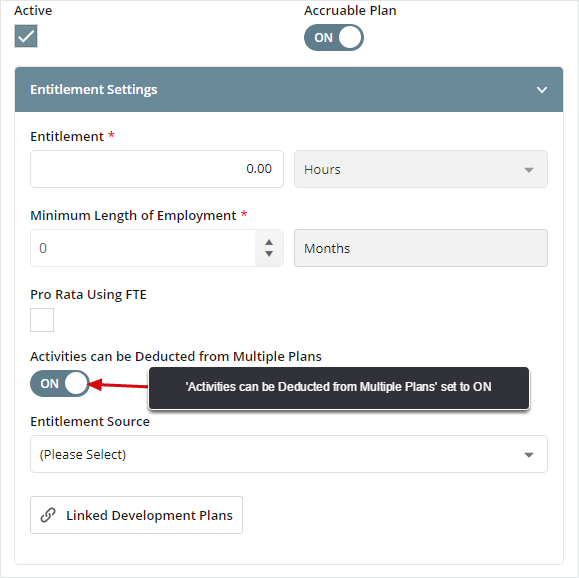
- Allow employees to use entitlement from past or future plans
3. Development Needs
When adding a Development Need, a Development Plan must be selected. Therefore, if you are using Development Needs, you will have to use Development Plans.
For more information about Development Needs, see: "Development Needs" section above.
Use the following list to set up the Training Module:
1. Approaches to Training
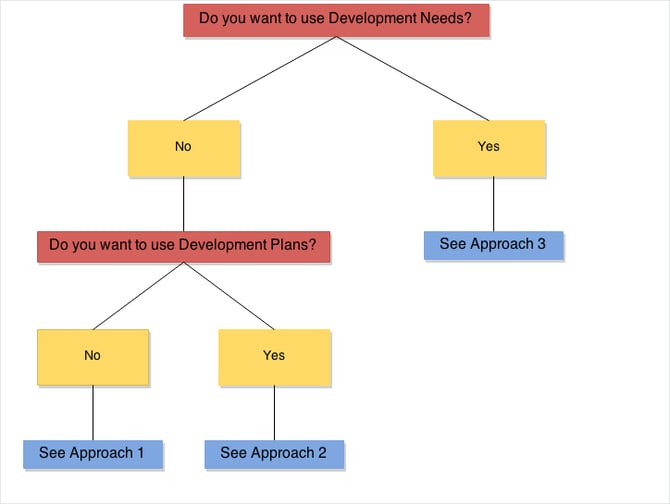
There are three basic ways to set up Training:
- Only using Development Activities.
- Using Development Plans and Development Activities.
- Using Development Needs, Development Plans and Development Activities.
To help you decide which to use, please use the following diagram:
Approach 1 - Only using Development Activities
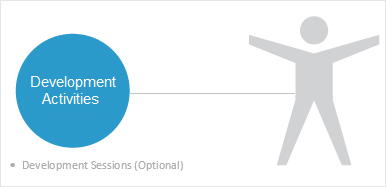
This approach is generally used by companies that have basic training requirements. However, if required, it still enables companies to create a Catalogue of Development Activities and / or use Development Sessions.
- For more information about using Development Sessions, see section above.
Approach 2 - Using Development Plans and Development Activities
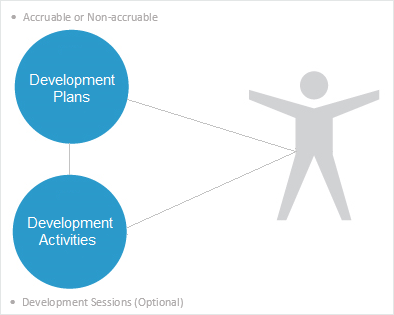
This approach is most commonly used by companies that have fairly basic training requirements but need to award employees a Training Entitlement. If required, it still enables companies to create a Catalogue of Development Activities and / or use Development Sessions.
- For more information about Accruable or Non-accruable Development Plans, see "Adding a Development Plan" section below
- For more information about using Development Sessions, see section above.
Approach 3 - Using Development Needs, Development Plans and Development Activities
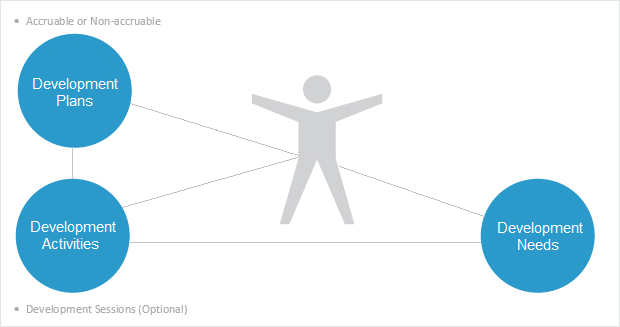
This approach is used by companies that have a more complex Training process, where Development Needs are identified and prioritised (possibly using a Performance Process in Cezanne) before enrolling employees on appropriate Development Activities.
- For more information about Accruable or Non-accruable Development Plans, see "Adding a Development Plan" section below
- For more information about using Development Sessions, see section above.
2. Set Up Picklists
Before adding any of the components, it is important to check whether you want to update any of the Training Picklists. The following list shows all of the available Training Picklists:
To edit a Picklist, navigate to: Administration >> Picklists >> Training.
3. Adding a Development Plan
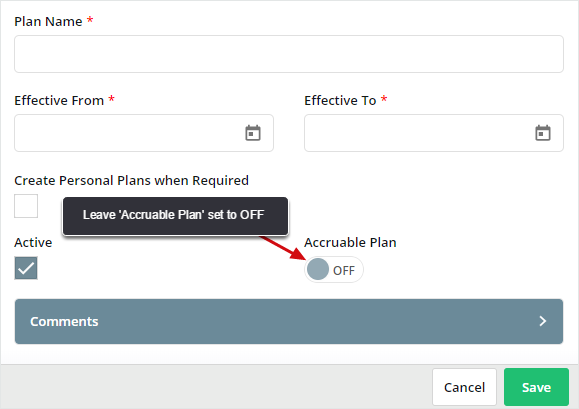
To add a Non-accruable or Accruable Development Plan, navigate to: Administration >> Training >> Development Plans and select the Add New Development Plan button:
Non-accruable
Create a Non-accruable Development Plan if you do not have a requirement to award a Training Entitlement to your employees but want to use the Development Plan Summaries.
Accruable
Create an Accruable Development Plan if you have a requirement to award a Training Entitlement to your employees.
4. Adding a Development Activity to the Catalogue
To add a new Development Activity to the Catalogue, navigate to: Administration >> Training >> Development Activities and select the Add New Development Activity button:
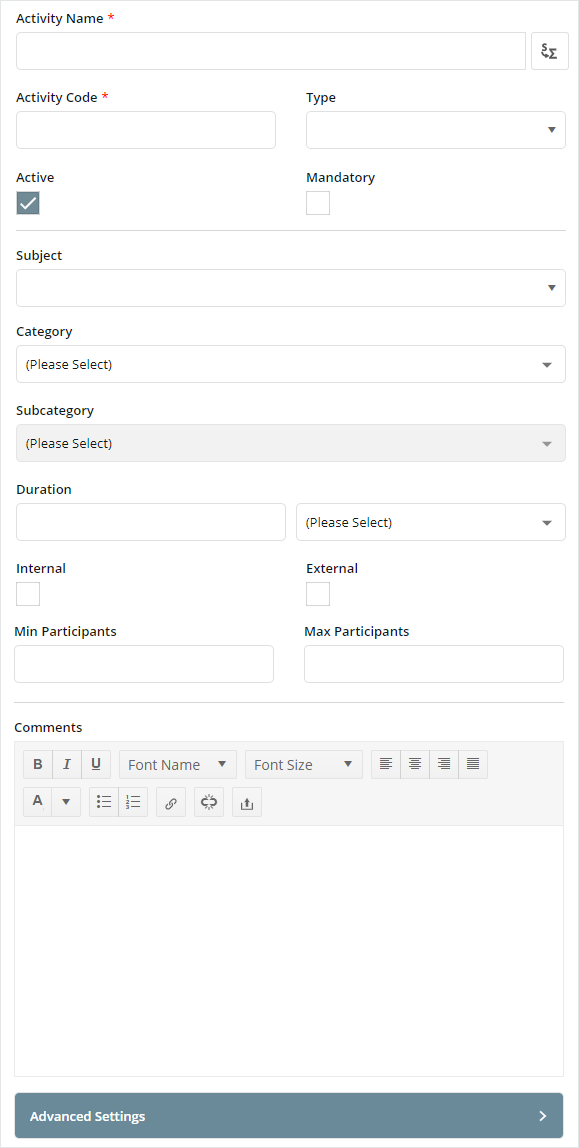
This screen enables you to store information about an Activity, including:
- Subject
- Duration
- Other key attributes including: Type, Category, No. of Participants
- Comments
- Advanced Settings including: Qualification Level, Certification Type, Provider Type
- Attached Files
For more information about setting up a Catalogued Development Activity, see: Adding a Development Activity to the Catalogue.
To add a new Development Session, navigate to: Administration >> Training >> Development Sessions and select the Add New Development Session button:
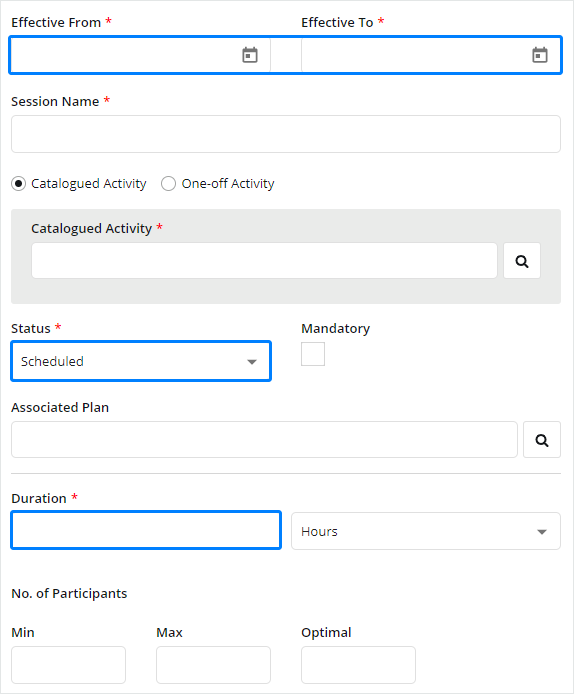
As well as the Session Name, Activity and Effective Dates, it is also possible to store other information, including:
- Status
- Duration
- Cost Details
- Key attributes including: Location, Provider, No. of Participants
For more information about setting up a Development Session, see: Adding a Development Session.

