.png?width=271&height=81&name=Knowledge%20base%20small%20(4).png)
Before you start
To assign an Onboarding Portal, you must first add a Portal Template. Have a look at Portal Templates for detailed instructions.
The Onboarding Portal is the welcome screen displayed to employees when they log in to Cezanne for the first time. These portals can be customised to provide useful information and introduce new employees to your organisation.
This article explains how to add a portal to a user's account and contains the following sections:
How to manually assign an Onboarding portal
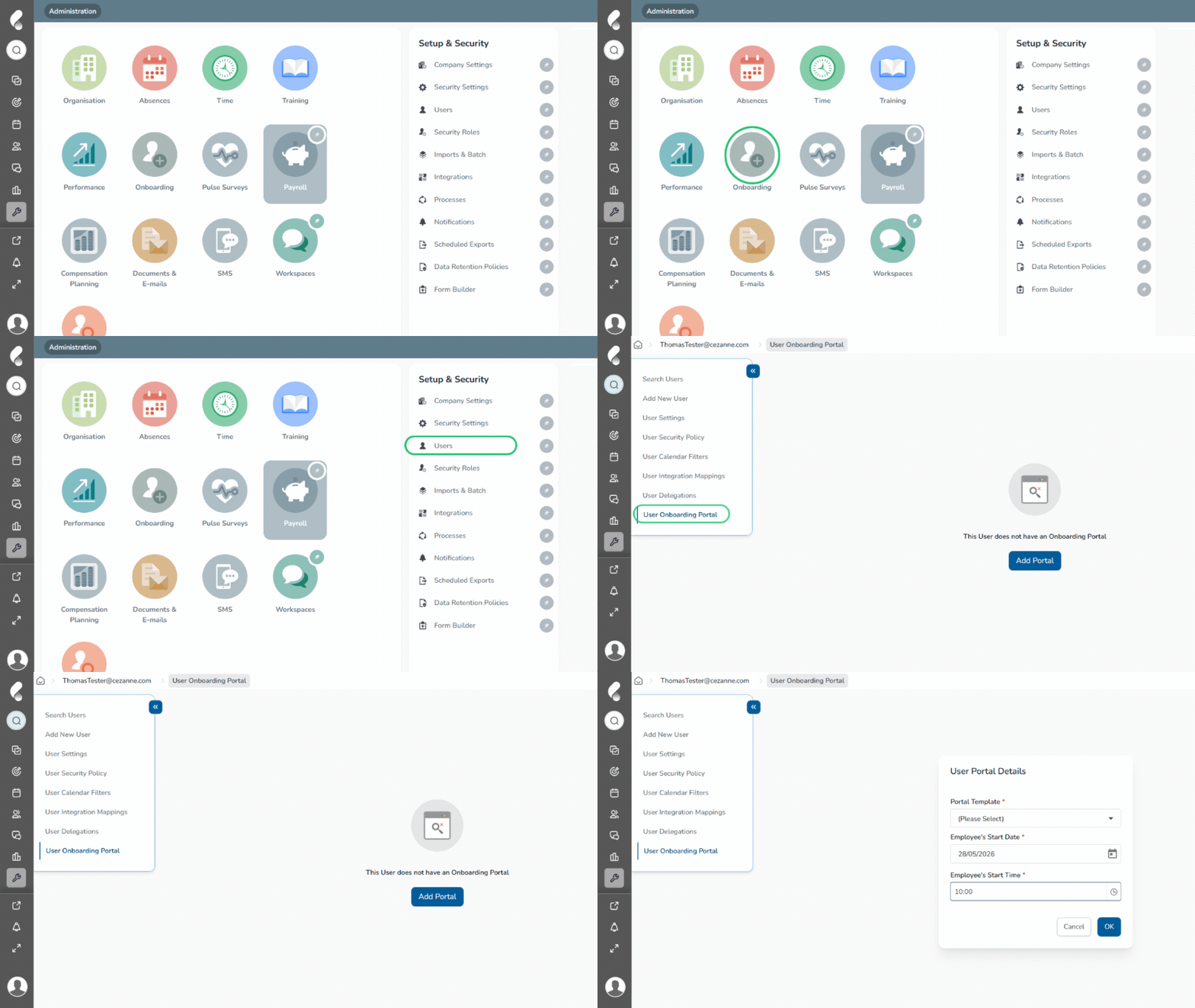
- Go to Administration then Users
- Select the user you want to assign the portal to
- Click User Onboarding Portals then Add Portal
-
Select a Portal Template
- Choose the Start Date and Start Time of the new employee
-
Select OK
📝 Note
If the Onboarding setup process is activated, Onboarding portals can be assigned to a new employee within setup the process. Have a look at Using the Onboarding Process for a detailed overview.
How to deactivate or delete an Onboarding portal
Onboarding portals can be deactivated temporarily or deleted permanently, either manually or automatically using Portal Rules.
Manually:
- Go to Administration then Users
- Select the user then click User Onboarding Portals
- Select Deactivate to temporarily remove the Portal from a user's account or;
- Select Delete to permanently remove it
Automatically:
- Go to Administration then Users
- Select Portal Rules then Add New
- Select the relevant Portal Template
- Choose a Deactivation Rule from the drop down
- Enter the number of days before or after the start date
- Select Save
⚠️ Keep in mind
Permanently deleting a portal removes any customisations made to that user’s onboarding portal and cannot be reversed.