.png?width=271&height=81&name=Knowledge%20base%20small%20(4).png)
The SMS Module enables HR Professionals to bulk send text messages to employees, providing a faster and convenient alternative to e-mails. This module includes the following benefits:
Key Benefits
- Ability to communicate to your company in emergency situations.
- Ability to keep in contact and engage with employees, especially if your employees are not office-based.
- Upholding your company culture by sending encouraging/motivational texts.
- Ensure employees are reading your messages as, on average, text messages have a better open rate than e-mails.
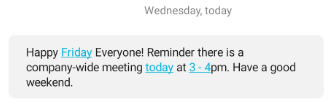
This article contains an overview on how to set up and send SMS Messages in Cezanne and includes the following sections:
1. Cost of SMS Messages
The SMS Module, unlike our other modules, is mainly pay-as-you-go. So you will be charged per message that you send. However, it is important to be aware how these charges are incurred and when you can expect to be charged. For example:
- Although your message will be sent as 1 full text to recipients, from a cost perspective there is a character limit of 160 characters for SMS Messages. Therefore, you will be charged multiple times if you have written a longer message.
- Failed messages can incur charges as well, so be sure you are not attempting to send messages to an invalid phone number or using an invalid Sender ID. For more information, see: Number Formatting and Reasons for Failed SMS Messages sections below.
For more information on the cost of SMS Messaging module, please contact our Support or Sales Team.
2. Adding an SMS Message
To add an SMS Message, navigate to: Administration >> SMS >> Add New SMS Message
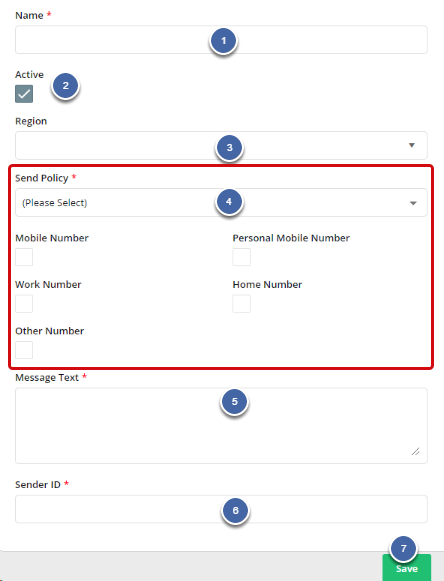
2. Active is automatically ticked.
3. Select the Region of your employees. This will need to be used if the country code has not already been entered in employees' Contact Details.
-
- All Selected Numbers - Tick which Number Type(s) to pull through for each recipient selected on the SMS Overview Screen.
- First Available Number - Set the order of priority for each Number Type. This will only pull through the first available number for each recipient selected on the SMS Overview screen.
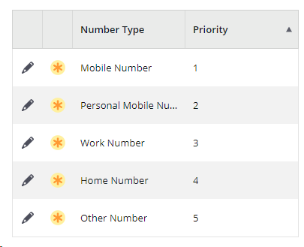
Note:
- Using certain characters, such as emojis or accents, will reduce the maximum characters to 600 and the character limit of 1 SMS.
- Although your message will be sent as 1 full text to recipients, there is a character limit of 160 characters for SMS Messages so you will be charged multiple times if you have written a longer message.
3. SMS Overview Screen
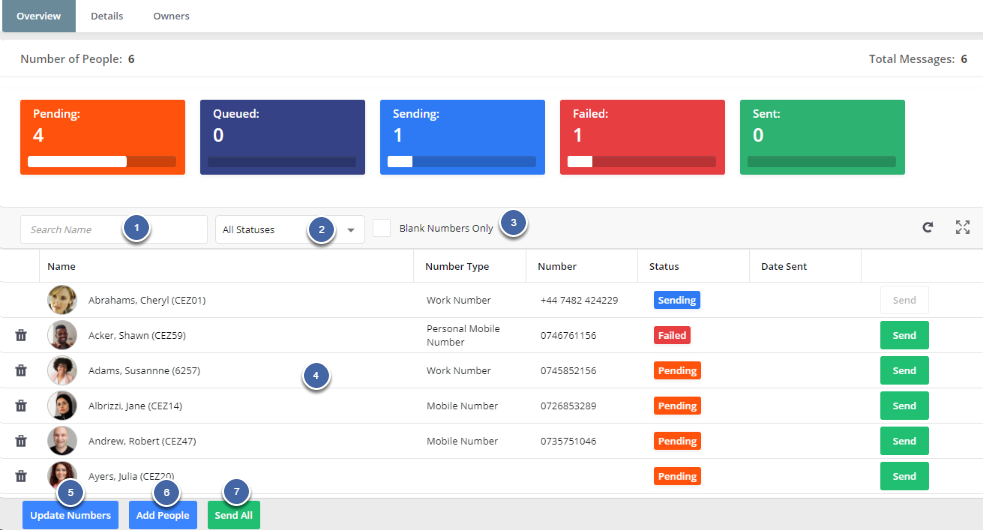
Note:
- If a person has had more than one number that matches the Send Policy (SMS Details tab), they will appear in the list more than once.
- If there are any duplicate numbers in the list, the message will be sent once when you press 'Send All'.
4. Number Formatting
It is important to have your employees' numbers formatted correctly to ensure an SMS Message sent does not fail, as you may still be charged. However, some mistakes and formats are automatically corrected by the system when attempting to send an SMS Message.
The table below illustrates how a number can be inputted in a person's Communication record.
5. Sending an SMS Message
To send an SMS Message, you first have to add recipients:
After you have added recipients, there are 2 ways to send an SMS Message.
- Individually by clicking Send next to the recipient.
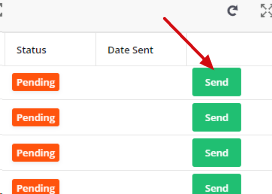
- Or, send to all the added people by click Send All.

Once sent, you can see the SMS Message status:
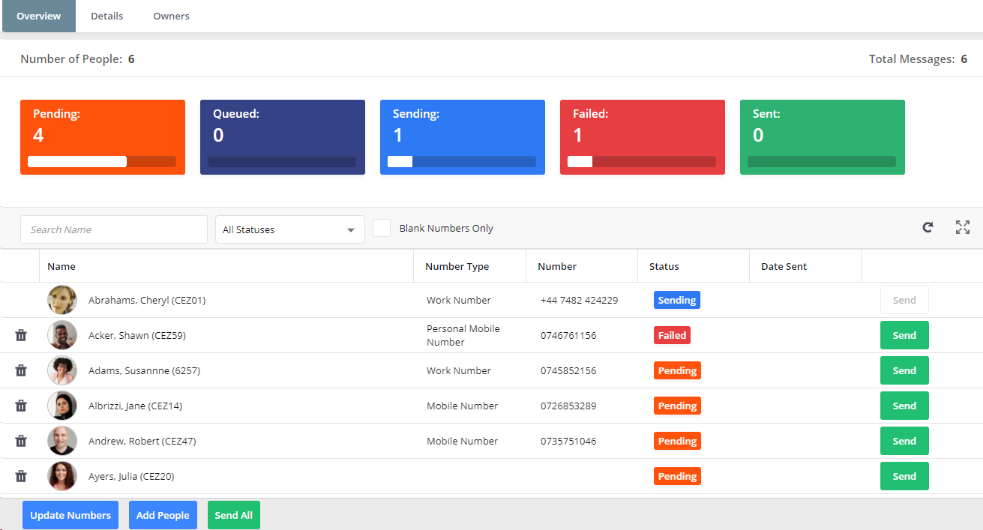
- Pending - All Messages which have not yet been queued to send.
- Queued - All Messages which are in the period before being sent.
- Sending - All Messages that are about to be sent and have found a valid phone number.
- Sent - All Messages which have been successfully sent to a valid phone number.
- Failed - All Messages which have attempted to be sent but failed during processing.
6. Reasons for Failed SMS Messages
There a several reasons an SMS Message may fail and it is important to ensure you have as few failures as possible as you may be charged for every attempted send of each SMS Message.
An SMS Message could fail because:
- Recipients number is a landline. You will be charged.
- Recipients number has no country code and a Region has not been selected in the SMS Details Screen. You will be charged.
- Recipients number is entered incorrectly. For more information, see 'Number Formatting' section above.
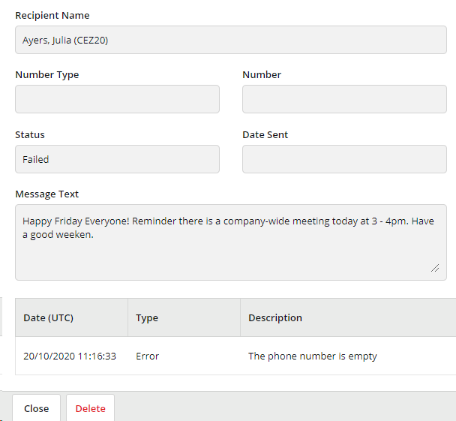
- Recipients has no number entered (blank number). You will not be charged.
- Sender ID had a space.
- Sender ID was less than 3 characters.
- Sender ID had characters like ! or &.
- Sender ID is considered SPAM
To view the SMS Message Error, click on the recipient's row on the Overview Screen:
7. Adding Additional Owners
In order for Restricted HR Professionals to manage an SMS Message that they didn't create, they will need to be added as an Owner by an HR Professional.
To do this:
The table below shows which countries the SMS module will and will not support text messaging to. For example, currently, we are not able to send texts to US, Canada and India.
| Country Name | Phone Code | Available for SMS? |
| Afghanistan | 93 | ✔ |
| Albania | 355 | ✔ |
| Algeria | 213 | ✔ |
| Andorra | 376 | ✔ |
| Angola | 244 | ✔ |
| Anguilla | 1264 | ✔ |
| Antarctica | 0 | ✔ |
| Antigua and Barbuda | 1268 | ✔ |
| Argentina | 54 | ✘ |
| Armenia | 374 | ✔ |
| Aruba | 297 | ✔ |
| Australia | 61 | ✔ |
| Austria | 43 | ✔ |
| Azerbaijan | 994 | ✘ |
| Bahamas | 1242 | ✔ |
| Bahrain | 973 | ✔ |
| Bangladesh | 880 | ✘ |
| Barbados | 1246 | ✔ |
| Belarus | 375 | ✘ |
| Belgium | 32 | ✘ |
| Belize | 501 | ✔ |
| Benin | 229 | ✔ |
| Bermuda | 1441 | ✔ |
| Bhutan | 975 | ✔ |
| Bolivia | 591 | ✔ |
| Bosnia and Herzegovina | 387 | ✔ |
| Botswana | 267 | ✔ |
| Brazil | 55 | ✘ |
| Brunei | 673 | ✔ |
| Bulgaria | 359 | ✔ |
| Burkina Faso | 226 | ✔ |
| Burundi | 257 | ✔ |
| Cambodia | 855 | ✔ |
| Cameroon | 237 | ✔ |
| Canada | 1 | ✘ |
| Cape Verde | 238 | ✔ |
| Cayman Islands | 1345 | ✘ |
| Central African Republic | 236 | ✔ |
| Chad | 235 | ✔ |
| Chile | 56 | ✘ |
| China | 86 | ✘ |
| Columbia | 57 | ✘ |
| Comoros | 269 | ✔ |
| Congo, Democratic Republic of the | 242 | ✘ |
| Cook Islands | 682 | ✔ |
| Costa Rica | 506 | ✘ |
| Cote D'Ivoire | 225 | ✘ |
| Croatia | 385 | ✘ |
| Cyprus | 357 | ✔ |
| Czech Republic | 420 | ✘ |
| Denmark | 45 | ✔ |
| Djibouti | 253 | ✔ |
| Dominica | 1767 | ✔ |
| Dominican Republic | 1809 | ✘ |
| Ecuador | 593 | ✘ |
| Egypt | 20 | ✘ |
| El Salvador | 503 | ✘ |
| Equatorial Guinea | 240 | ✔ |
| Estonia | 372 | ✔ |
| Ethiopia | 251 | ✘ |
| Faroe Islands | 298 | ✔ |
| Fiji | 679 | ✔ |
| Finland | 358 | ✔ |
| France | 33 | ✔ |
| French Guiana | 594 | ✘ |
| Gabon | 241 | ✔ |
| Gambia | 220 | ✔ |
| Georgia | 995 | ✔ |
| Germany | 49 | ✔ |
| Ghana | 233 | ✘ |
| Gibraltar | 350 | ✔ |
| Greece | 30 | ✔ |
| Greenland | 299 | ✔ |
| Grenada | 1473 | ✔ |
| Guadeloupe | 590 | ✔ |
| Guam | 1671 | ✘ |
| Guatemala | 502 | ✘ |
| Guinea | 224 | ✔ |
| Guinea-Bissau | 245 | ✔ |
| Guyana | 592 | ✔ |
| Haiti | 509 | ✔ |
| Honduras | 504 | ✘ |
| Hong Kong | 852 | ✔ |
| Hungary | 36 | ✘ |
| Iceland | 354 | ✔ |
| India | 91 | ✘ |
| Indonesia | 62 | ✘ |
| Iraq | 964 | ✘ |
| Ireland | 353 | ✔ |
| Israel | 972 | ✔ |
| Italy | 39 | ✔ |
| Jamaica | 1876 | ✔ |
| Japan | 81 | ✘ |
| Jordan | 962 | ✘ |
| Kazakhstan | 7 | ✘ |
| Kenya | 254 | ✘ |
| Kiribati | 686 | ✘ |
| Kuwait | 965 | ✘ |
| Kyrgyzstan | 996 | ✘ |
| Laos | 856 | ✘ |
| Latvia | 371 | ✔ |
| Lebanon | 961 | ✔ |
| Lesotho | 266 | ✔ |
| Liberia | 231 | ✔ |
| Libya | 218 | ✔ |
| Liechtenstein | 423 | ✔ |
| Lithuania | 370 | ✔ |
| Luxembourg | 352 | ✔ |
| Macao | 853 | ✔ |
| Macedonia, the Former Yugoslav Republic of | 389 | ✔ |
| Madagascar | 261 | ✔ |
| Malawi | 265 | ✔ |
| Malaysia | 60 | ✘ |
| Maldives | 960 | ✔ |
| Mali | 223 | ✘ |
| Malta | 356 | ✔ |
| Martinique | 596 | ✔ |
| Mauritania | 222 | ✔ |
| Mauritius | 230 | ✔ |
| Mexico | 52 | ✘ |
| Moldova, Republic of | 373 | ✔ |
| Monaco | 377 | ✘ |
| Mongolia | 976 | ✔ |
| Montenegro | 382 | ✔ |
| Montserrat | 1664 | ✔ |
| Morocco | 212 | ✘ |
| Mozambique | 258 | ✘ |
| Myanmar | 95 | ✘ |
| Namibia | 264 | ✘ |
| Nepal | 977 | ✘ |
| Netherlands | 31 | ✔ |
| Netherlands Antilles | 599 | ✔ |
| New Caledonia | 687 | ✔ |
| New Zealand | 64 | ✘ |
| Nicaragua | 505 | ✘ |
| Niger | 227 | ✔ |
| Nigeria | 234 | ✔ |
| Norway | 47 | ✔ |
| Oman | 968 | ✔ |
| Pakistan | 92 | ✘ |
| Palau | 680 | ✘ |
| Palestinian Territory | 970 | ✘ |
| Panama | 507 | ✘ |
| Papua New Guinea | 675 | ✔ |
| Paraguay | 595 | ✔ |
| Peru | 51 | ✘ |
| Philippines | 63 | ✘ |
| Poland | 48 | ✔ |
| Portugal | 351 | ✔ |
| Puerto Rico | 1787 | ✘ |
| Qatar | 974 | ✘ |
| Reunion Island | 262 | ✔ |
| Romania | 40 | ✔ |
| Russia | 70 | ✔ |
| Rwanda | 250 | ✔ |
| Saint Kitts and Nevis | 1869 | ✘ |
| Saint Lucia | 1758 | ✘ |
| Saint Vincent and the Grenadines | 1784 | ✘ |
| Samoa | 684 | ✔ |
| Sao Tome and Principe | 239 | ✔ |
| Saudi Arabia | 966 | ✘ |
| Senegal | 221 | ✔ |
| Serbia | 381 | ✔ |
| Seychelles | 248 | ✔ |
| Sierra Leone | 232 | ✔ |
| Singapore | 65 | ✔ |
| Slovakia | 421 | ✔ |
| Slovenia | 386 | ✔ |
| Solomon Islands | 677 | ✔ |
| Somalia | 252 | ✔ |
| South Africa | 27 | ✘ |
| South Korea | 82 | ✘ |
| South Sudan | 211 | ✔ |
| Spain | 34 | ✔ |
| Sri Lanka | 94 | ✘ |
| Suriname | 597 | ✔ |
| Swaziland | 268 | ✔ |
| Sweden | 46 | ✔ |
| Switzerland | 41 | ✔ |
| Taiwan, Province of China | 886 | ✘ |
| Tajikistan | 992 | ✔ |
| Tanzania, United Republic of | 255 | ✘ |
| Thailand | 66 | ✘ |
| Timor-Leste | 670 | ✘ |
| Togo | 228 | ✔ |
| Tonga | 676 | ✔ |
| Trinidad and Tobago | 1868 | ✔ |
| Tunisia | 216 | ✔ |
| Turkey | 90 | ✘ |
| Turkmenistan | 7370 | ✔ |
| Turks and Caicos Islands | 1649 | ✔ |
| Uganda | 256 | ✔ |
| Ukraine | 380 | ✔ |
| United Arab Emirates | 971 | ✘ |
| United Kingdom | 44 | ✔ |
| United States | 1 | ✘ |
| Uruguay | 598 | ✘ |
| Uzbekistan | 998 | ✔ |
| Vanuatu | 678 | ✔ |
| Venezuela | 58 | ✘ |
| Vietnam | 84 | ✘ |
| Virgin Islands, British | 1284 | ✔ |
| Virgin Islands, US | 1340 | ✔ |
| Yemen | 967 | ✔ |
| Zambia | 260 | ✔ |
| Zimbabwe | 263 | ✔ |
9. Searches
There are 2 searches that can be used for the SMS Search:
SMS Messages - People Search
The SMS Messages - People search results show a log of all the SMS Messages by person.

To add this search:
1. Click on the Searches Tab in the Right-hand Menu.For more information on how to use an Advanced Search, see: Full Search Options
This search results show all the SMS Messages that have been created:

To use this search, navigate to: Administration >> SMS Messages

- Click on Advanced Search.

For more information on how to use an Advanced Search, see: Full Search Options